
October 9, 2025
Updated



Daminion Tags help to quickly identify and find your documents and media files
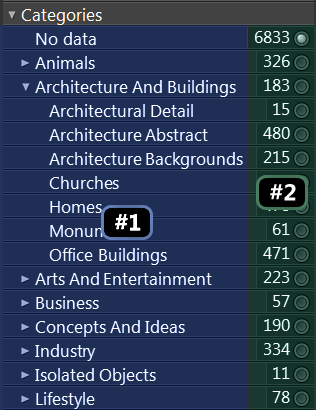 Area #1 allows for creating, changing, deleting, moving and assigning tags to files. Area #2 helps to perform complex search requests and quickly locates necessary documents with only a few clicks.
I’ll write about classification of tags on the next post. Now I’ll show you how quick and easy it is to compose complex search requests with the following sample:
Assume that you work for a design company specializing in architecture and landscape design. And you want to find “summer house” buildings that were built in London, Bristol or Oxford, and that have both “brick” and “metal,” but not “wood“.
Open a catalog and type in the “summer house” phrase in the search box. This word phrase might result in a large number of files. Let’s assume that you found 7,000 files about summer houses from our 120,000 file media library. So, you must further refine your search.
Check the necessary keywords on a Tags panel (Area #2) by holding your Ctrl key down.
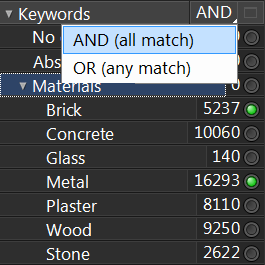 Once you select the second keyword, the “AND” label will appear. This means that only buildings that have both “brick” AND “metal” will be located. Click on that label from the context menu and change it to “OR.” Now Daminion will find buildings that have either brick OR metal.
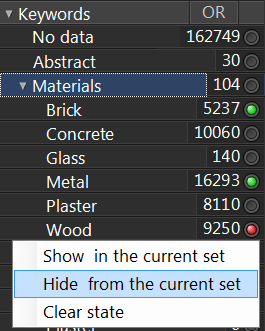
Let’s exclude the wood buildings from the result. If you click and hold the left mouse button on the “Wood” tag in area #2 the small menu will appear (see screenshot). Now select the “Hide from the current set” menu option and all the wood buildings will be excluded from our request.
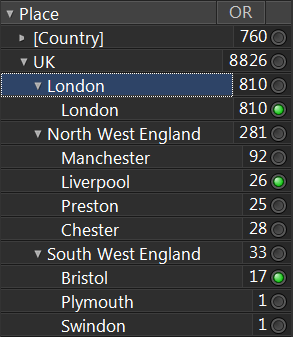
Now you can add the city filter to your request. For some tags, you can use the “OR” option only (as in the case of the “Shown Place” tag, because usually only one location is shown on an image, according to the XMP specification).
If you additionally select the following extra tags:
– Color Label tag: “Approved”
– Media Format tag: “DWG”
Then the program will find only the approved AutoCAD projects.
That’s it! The necessary documents were found in only a few clicks and a few seconds.
But this is not the end: Your search requests can be refined even more precisely by the Advanced Search option and saved as Smart Tags for future usage.
Finally, to reset your filter, click on the “Show All” button near the search textbox.