September 10, 2026
Updated



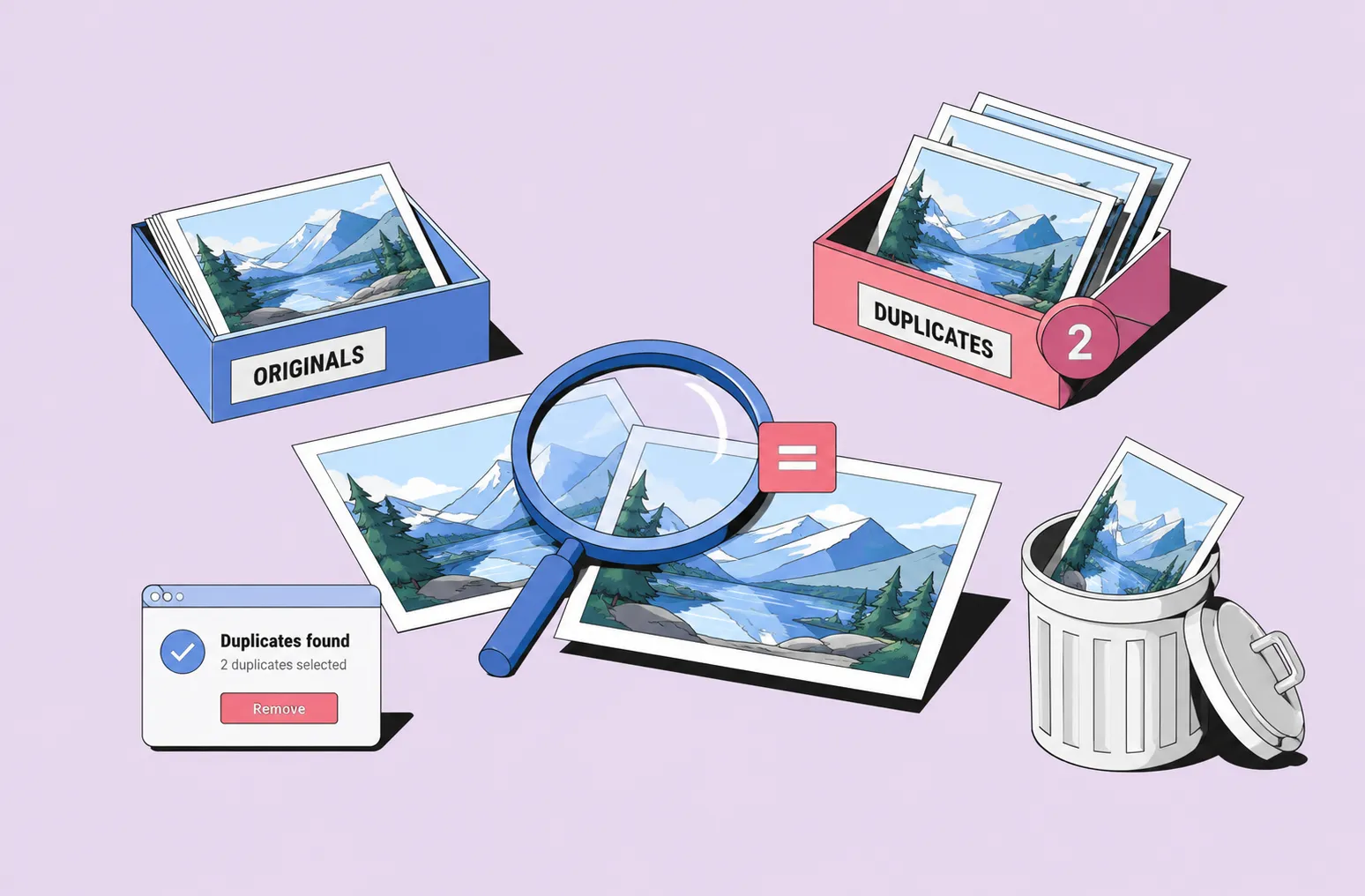
Duplicate photos are easy to ignore — until they start getting in the way. The best way to find and remove them depends on where your images live and how you work with them.
For a personal library, built-in tools in Apple Photos, Windows, or Google Photos may be enough. For larger collections, dedicated duplicate photo finders such as dupeGuru, Gemini 2, or PhotoSweeper offer more control.
And for teams managing shared archives on NAS, cloud storage, or creative workflows, duplicate detection works best when it is part of a broader Digital Asset Management (DAM) strategy rather than a periodic cleanup task.
That is the short answer.
The longer answer is that not all duplicates are the same. Deleting the wrong file can be more expensive than keeping the extra copy.
In this guide, we’ll look at why duplicate photos appear in the first place, how to find them safely, which tools are worth considering, and why a simple duplicate photo cleaner is not always enough.
Duplicate photos tend to sneak into your library without you noticing.
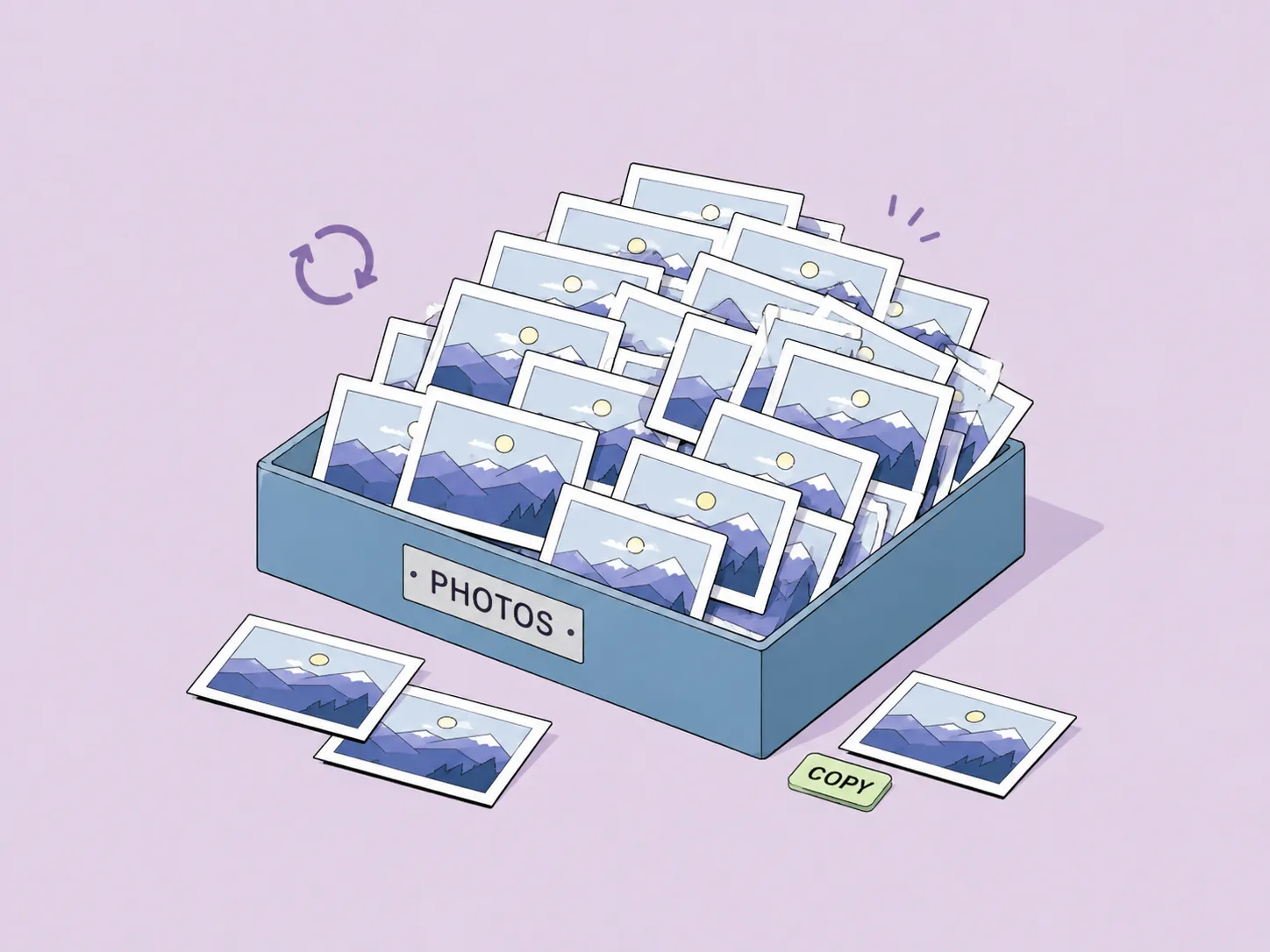
It might start innocently. Maybe you imported the same memory card twice. Perhaps you exported a JPEG from a RAW file and saved it alongside the original. A designer created a revised version for a campaign, or a cloud synchronization conflict generated an extra copy with a slightly different filename.
At first, one extra copy doesn’t seem like a problem — storage is cheap, and a few duplicates are easy to overlook. But over time, these copies pile up, cluttering your library and making it harder to find what you need.
While duplicate photo finders can help clean this up, the best approach depends on the kind of duplicates you’re dealing with.
Before deleting anything, it helps to understand what duplicate detection software is actually looking for.
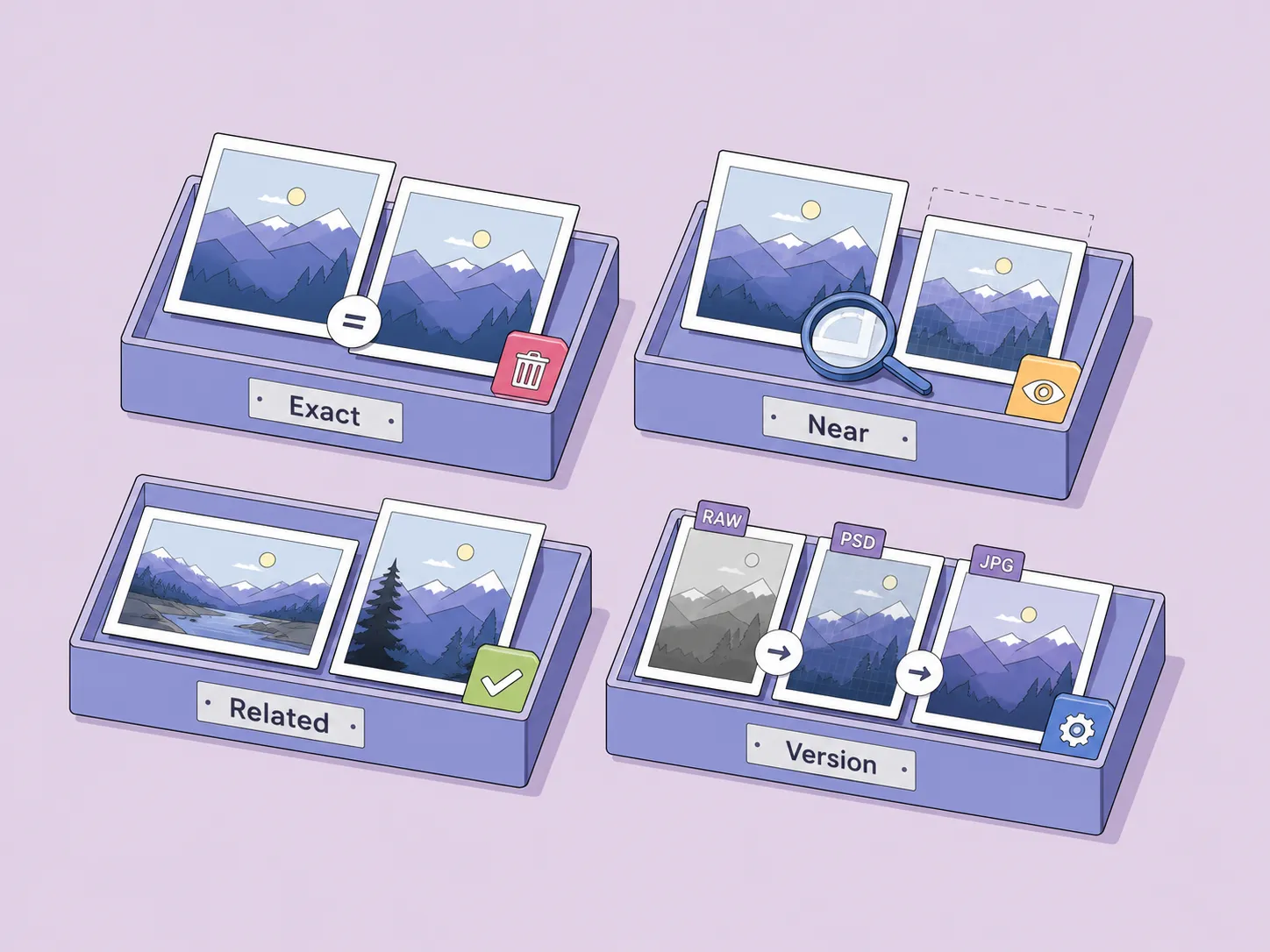
Exact duplicates are identical files. Most duplicate photo finders identify them using file hashes, making detection fast and reliable. In most cases, one copy can be safely removed after verifying metadata and location.
Near-duplicates look the same or very similar but differ technically. They may be resized, cropped, compressed, edited, or saved in another format. Detecting them requires visual similarity analysis rather than simple hash comparison.
Recent research shows that modern image analysis can identify visually similar photos even after resizing, cropping, compression, or format changes.
Near-duplicate detection is often more useful in real-world photo libraries, but these matches should always be reviewed before deletion.
A low-resolution web JPEG may look almost identical to the original high-resolution image, but deleting the wrong version could remove your only production-quality asset.
Duplicate detection tools often surface files that are similar but should not necessarily be removed.
Related images include burst shots, exposure brackets, before-and-after edits, and multiple takes of the same scene. While visually similar, they may each have independent value.
Versions are intentional derivatives of an original asset, such as a RAW file, an edited PSD, and a final JPEG export. These files belong to the same production workflow and are usually managed rather than deleted.
Successful duplicate cleanup is therefore not just about finding matching files. It is about deciding which assets should remain part of the archive and which can be safely removed.
You do not always need a dedicated duplicate photo finder. If your library is small, manual review can help identify obvious duplicates before you install additional tools.
Mac users can start with Finder.
Sorting folders by filename, creation date, file size, or file type often reveals repeated imports and accidental copies.
Smart Folders and Finder search can also help group images by date, format, or size.
If your images are stored in Apple Photos, check whether the Duplicates album is available. Apple Photos can automatically identify certain duplicate images and allow you to merge them directly within the library.
This approach works well for smaller personal collections but becomes less practical as photo libraries grow.
File Explorer is an option for Windows users. You can sort folders by name, date, size, or file type to highlight repeated imports and obvious duplicate copies.
More technical users can compare file hashes with PowerShell to identify exact duplicates. While effective for identical files, manual methods become increasingly time-consuming in larger collections.
Google Photos includes limited duplicate-handling features and may prevent some exact duplicates from being uploaded multiple times.
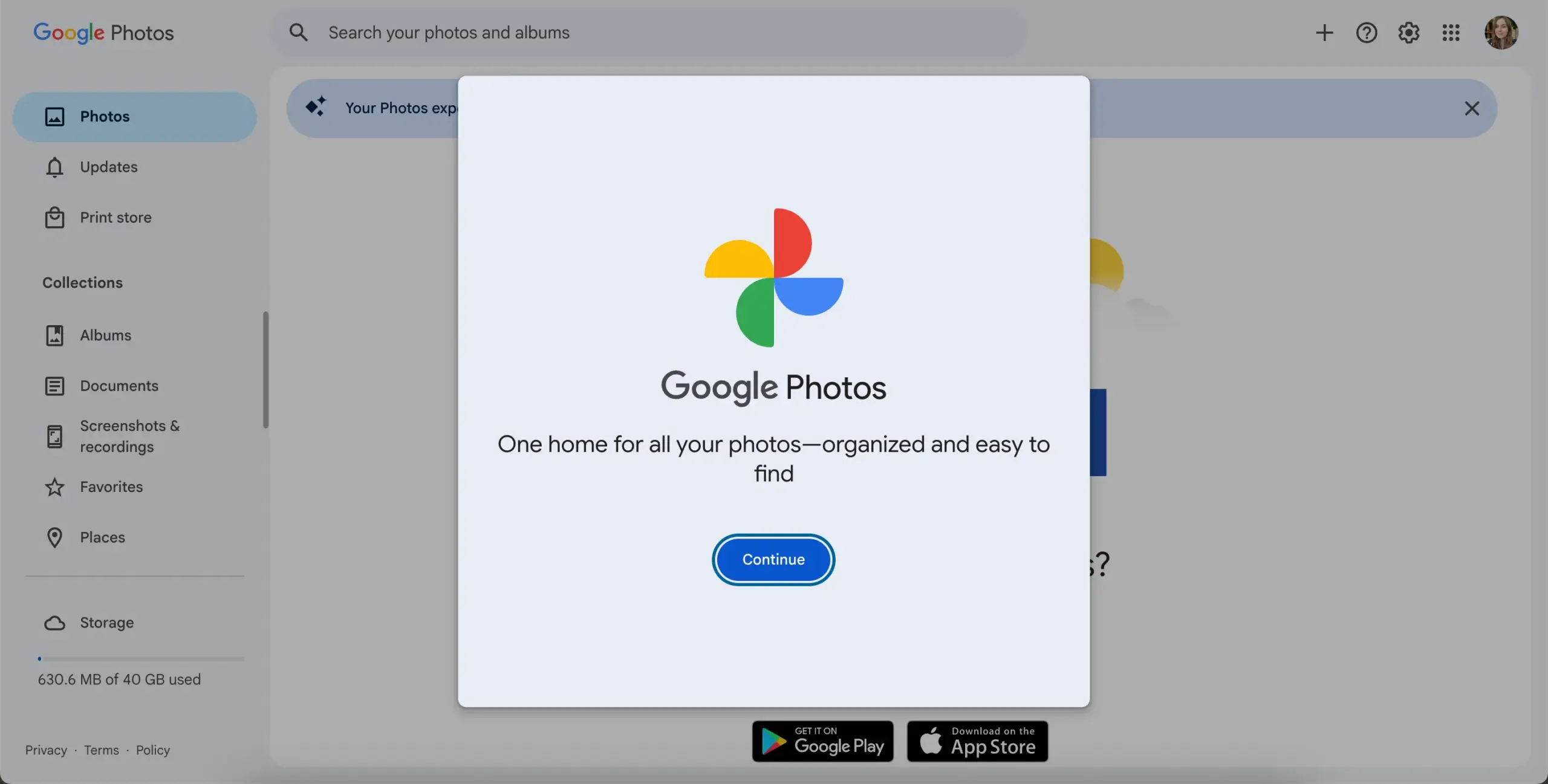
However, it is not a full-featured duplicate photo finder and offers only basic duplicate review capabilities.
For personal libraries, the built-in tools may be sufficient. Larger archives often require additional duplicate management processes.
Adobe Lightroom offers several ways to identify potential duplicates through metadata, filenames, capture times, and folder organization.
For individual photographers managing a single catalog, these tools can be effective. The challenge appears when duplicate management extends beyond a single user and involves shared storage, synchronization, and multiple contributors.
If your workflow involves multiple users, shared storage, and centralized asset management, a Digital Asset Management (DAM) system may be a better fit than Lightroom.
Solutions such as Daminion are designed for collaborative environments and avoid many of Lightroom’s limitations when working with shared libraries.
👉 Learn more about the differences between DAM and Lightroom in our guide.
There is no universal “best” duplicate image finder.
The right tool depends on your platform, library size, file formats, and whether you are managing a personal collection or a team archive.
Before installing a dedicated duplicate photo finder, check what your photo platform already offers.
For personal libraries that already live inside Apple Photos or Google Photos, these built-in tools are often a good place to start.
Free tools work best when your goal is straightforward: scan a local folder, review duplicates, and remove unnecessary copies. They are less suitable for ongoing collaboration, permission management, NAS-based archives, or mixed media libraries containing RAW files, PSD documents, videos, and derivatives.
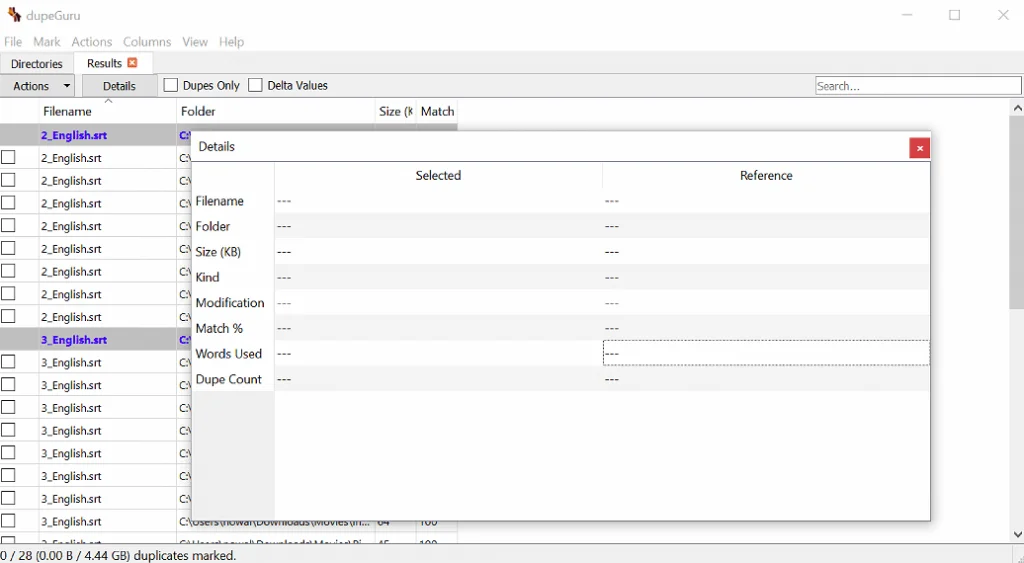
Paid tools usually provide a smoother experience, faster review workflows, and more sophisticated matching options.
These tools are excellent for personal libraries and one-off cleanup projects. What they do not solve is the ongoing process of duplicate prevention.
Eventually, new duplicates appear, and the cleanup cycle begins again.
Most duplicate photo finders are designed for a simple job: scan a folder, identify matches, and help you remove unnecessary copies.
That works well until you’re dealing with a shared library.
In team libraries, duplicates do not just exist. They keep arriving:
A marketing team uploads campaign assets more than once during a project. Designers create exports for websites, presentations, and social media. Field teams upload images to a NAS while someone else imports the same files into a shared drive.
None of these actions are unusual, but over time they can leave an archive crowded with similar or redundant assets.
A DAM takes a different approach. Instead of treating duplicate detection as a periodic cleanup task, it becomes part of the workflow. Files can be checked during import, metadata remains centralized, and all users work from the same catalog.
Unlike utilities such as dupeGuru, Gemini, or Duplicate Cleaner, Daminion isn’t a standalone cleanup tool. It can detect both exact duplicates and visually similar (near-duplicate) images as part of a shared catalog where teams organize, search, and manage assets together.
As a result, duplicate control becomes part of the workflow rather than a separate maintenance task. Files can be checked during import, before they spread across folders and storage locations. Everyone works with the same catalog, the same metadata, and the same view of the archive.
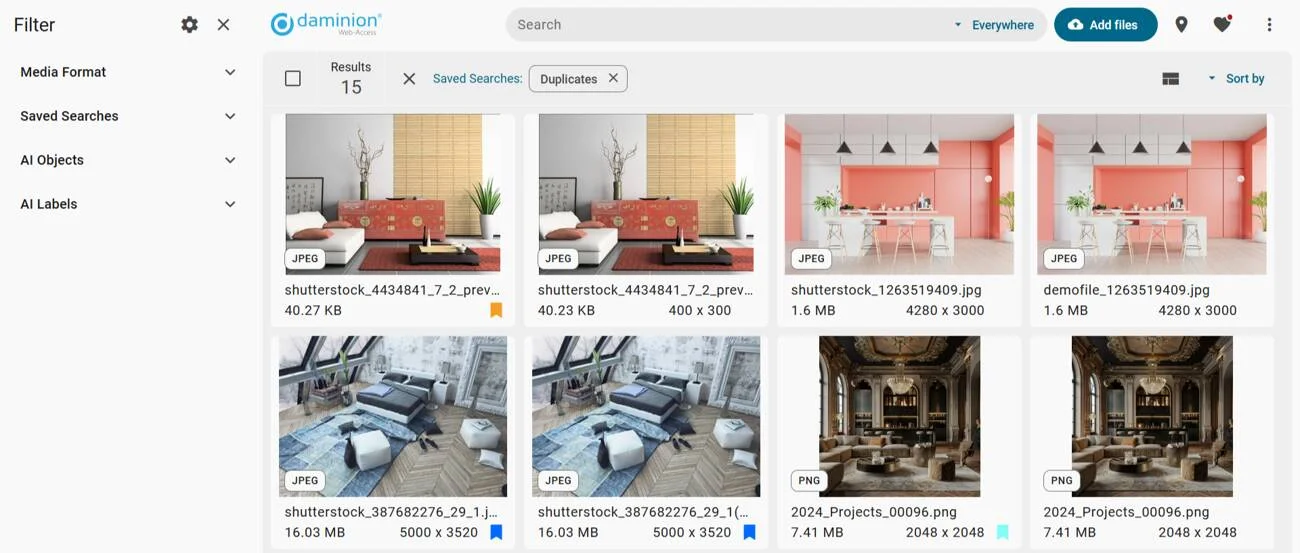
Duplicate detection is only one piece of the picture. The same system can also manage metadata, permissions, search, file organization, and access across the entire library. AI-powered features like facial recognition and automatic descriptive tags make large photo collections easier to organize and instantly searchable, reducing the amount of manual cataloging required.
This approach works best for shared photo archives on NAS, marketing and creative teams, architecture and engineering firms, and media libraries with RAW, DNG, PSD, video, and derivative files. It’s designed for teams where multiple users import assets and duplicate control must happen continuously, not once a year.
For a personal photo collection, a free duplicate finder may be all you need.
For a shared archive, a more useful question is often, "How do we stop duplicates from entering the system at all?"
Watch a quick video walkthrough of how a DAM software works and how easily you can retrieve your media with Daminion.
Finding duplicate files is usually the easy part. The harder part is deciding what can be safely removed.
Before you delete duplicate photos, follow a few simple rules.
Duplicate detection software can speed up the process, but final decisions should always be reviewed by a person.

Some duplicate matches deserve a closer look before you delete anything.
When images are distributed across local drives, NAS devices, Dropbox, OneDrive, or Google Drive, duplicate management becomes more complex. A file that appears redundant may actually be part of a backup, archived project, or shared workflow.
For larger archives, teams often benefit from a shared catalog that tracks assets across storage locations and helps prevent duplicates during import.
RAW and JPEG versions of the same image are not necessarily duplicates. RAW files provide editing flexibility, while JPEGs may be approved deliverables or review copies.
Delete only when you are certain one version no longer serves a purpose.
Not every similar photo is a duplicate.
Burst sequences, exposure brackets, before-and-after edits, retouched versions, and cropped variants may look nearly identical while serving different purposes.
Near-duplicate detection is useful for surfacing these images, but the final decision should always be reviewed manually.
The best choice depends on where your photos live and how they’re managed.
It is worth being precise about where duplicates come from. In a shared archive they are almost never created on purpose: the same file gets downloaded twice, re-exported under a new name, or copied into someone’s working folder and moved back later. A finder utility clears out yesterday’s copies but has nothing to say about tomorrow’s. A self-hosted digital asset management system approaches it from the other end — files are checksummed on import, so a byte-identical copy is caught before it ever enters the archive.
For personal libraries, a duplicate finder utility or built-in platform tools are often enough. For shared archives, the goal is usually not just removing duplicates but preventing them from accumulating over time.
A simple rule of thumb:
Duplicate cleanup works best when duplicates never make it into the archive. Daminion gives teams a shared catalog for photo and media libraries, with duplicate detection built into the import process alongside metadata, access control, and search.