August 16, 2026
Updated




A new Daminion 2.5 version has been released with many improvements, including batch renaming, the stamping of exported images with watermarks, the creation of contact sheets that can be printed or saved as PDF documents, and more than 50 other minor improvements and bug-fixes. Below you will find detailed information about the new changes and bug fixes.
Below is a list of improvements and bug-fixes implemented since the last minor update
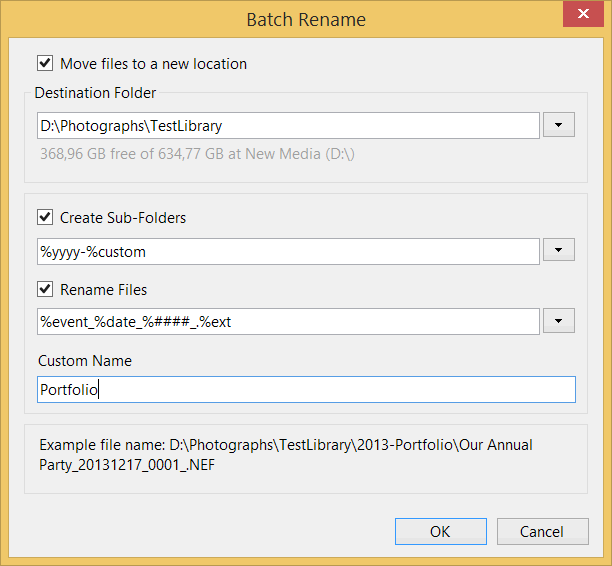
Files can be renamed according to a renaming template (Edit > Batch Rename (Move)). It was possible to do this earlier in the Import Window, but now files can be renamed after importing or during exporting images. Single item renaming is also supported via the Edit > Rename (F2) command.
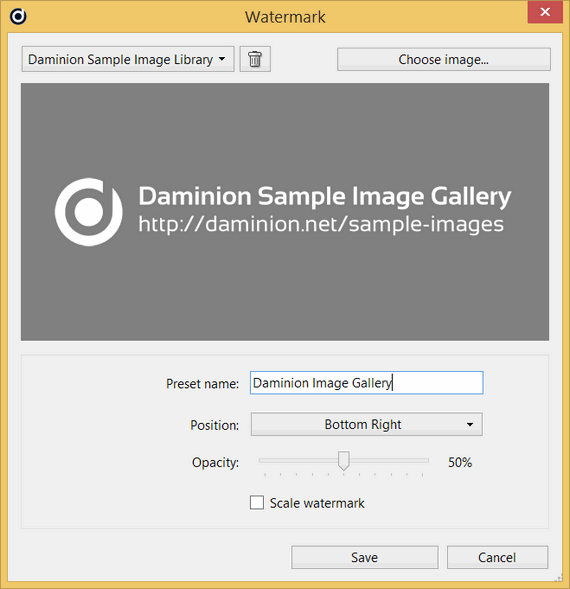
You can protect your exported images from unauthorized usage by stamping them with a watermark image that contains your copyright and logotype.
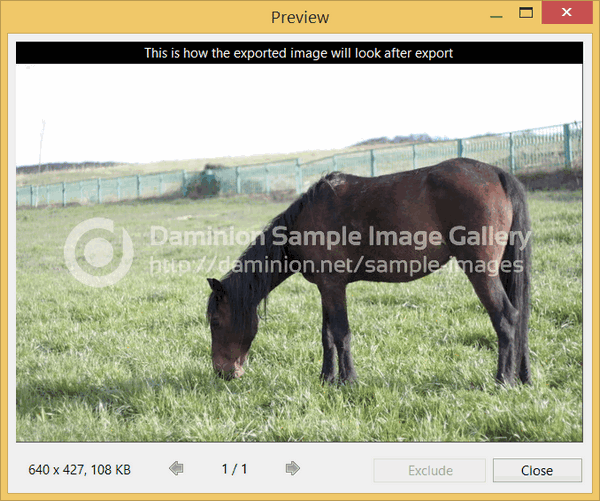
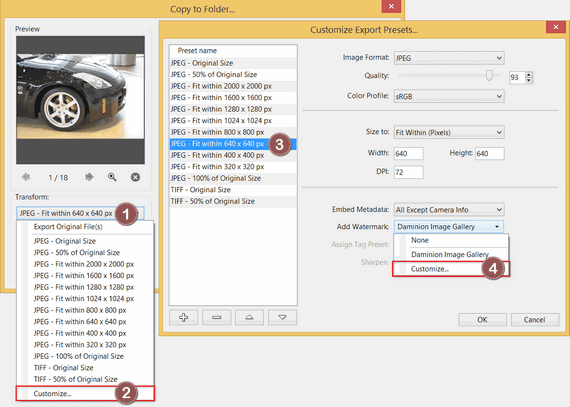
Each export preset can be tied to a watermark preset.
To create and apply a new watermark, open the Export Preset Editor, select a preset in the left panel, (let’s say JPEG 2000×2000) and click on the drop down menu in the Export Preset preferences panel (right panel).
You should create your watermark image using a third-party image editor like Adobe Photoshop and save it as a 32-bit PNG image with the transparency channel.
Contact sheets with multiple thumbnails per one page in the PDF format can be created with this new Daminion 2.5 version
Thumbnail captions can be printed below each thumbnail. The resulting contact sheet will be saved as a PDF or printed (your default PDF reader will be invoked with the “–print” parameter).
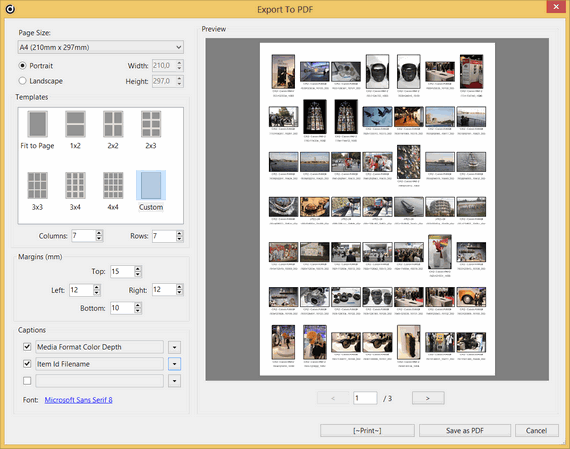
Design and architect companies that need to send draft versions of their projects to someone for review in PDF format will find this feature to be a very useful time-saver.
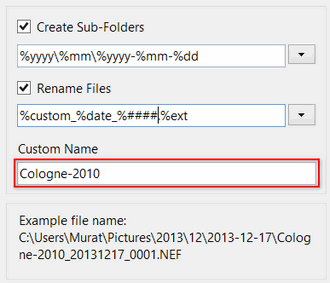
File naming templates in Daminion are based on tokens: pieces of database or metadata information that allow a user to generate meaningful folder and file names for each file.
However, sometimes you might need to add a custom name to your naming templates without breaking your existing naming schemes. This is when using a “custom name” token might be very convenient. The custom name token value is “%custom.”
Custom names can be used in the Import, Batch Rename and Export windows.
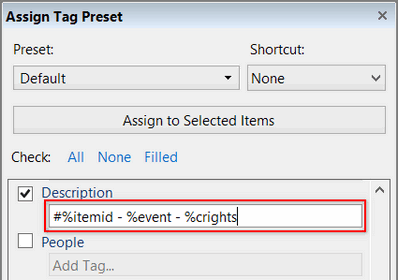
It is now possible to exchange data between different tags using the “Assign Tag Preset” panel and naming tokens.
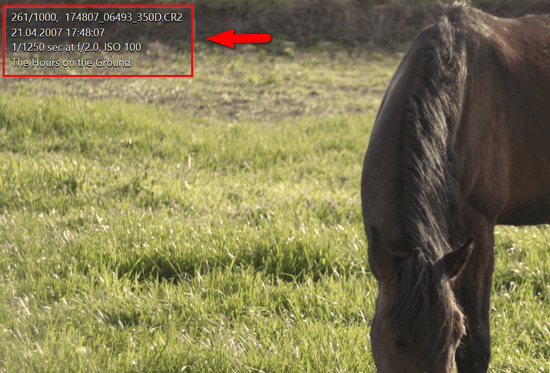
Information can be displayed over your images in the Full Screen and Filmstrip modes. To display and customize overlay information, double-click on a thumbnail and right-click in the Full Screen mode. Then navigate to the “Customize Displayed Info…” option and check the “Show Info Overlay” option.
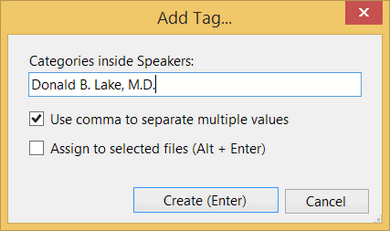
Uncheck the “Use comma to separate multiple values” option to create a tag with comma(s) in the tag name, for example: a speaker name along with his scholastic degree. Using commas while creating tags is supported in the Catalog Tags panel only.