
October 9, 2025
Updated


Ever found yourself overwhelmed with too many large images? Wondering how to quickly resize them without losing quality? Looking for a simple way to manage your digital assets on MacOS? If these questions resonate with you, you’re in the right place. In this guide, we’ll explore the ins and outs of batch resizing images on MacOS, a must-know skill for anyone dealing with digital media. Whether you’re a professional photographer, a digital marketer, or just someone trying to organize their photo library, this guide will simplify your workflow and save you time.
Resizing images is more than just altering dimensions; it’s about optimizing your digital assets for various uses. Whether it’s for speeding up your website, fitting into specific format requirements, or simply saving storage space, resizing can be your go-to solution.
It’s crucial to distinguish between resizing and cropping. Resizing changes the dimensions of your entire image, often affecting the file size and quality. Cropping, on the other hand, involves cutting out a portion of the image, altering its composition but not always its size.
One key aspect (pun intended!) of resizing images is maintaining the aspect ratio. This ensures that your images don’t end up stretched or squashed. It’s about preserving the original proportions while changing the size.
MacOS comes equipped with Preview, a versatile tool that’s perfect for basic image resizing tasks. Let’s walk through the steps:
Creating a Workflow for Efficiency Automator is MacOS’s hidden gem for automating repetitive tasks, like batch resizing. Here’s how to set up a resizing workflow:
When MacOS’s built-in tools don’t quite cut it, Daminion steps in to fill the gap. Daminion isn’t just another image resizing tool; it’s a comprehensive digital asset management system that offers advanced features for professionals who need more than just basic resizing.
Daminion goes beyond simple resizing. It offers:
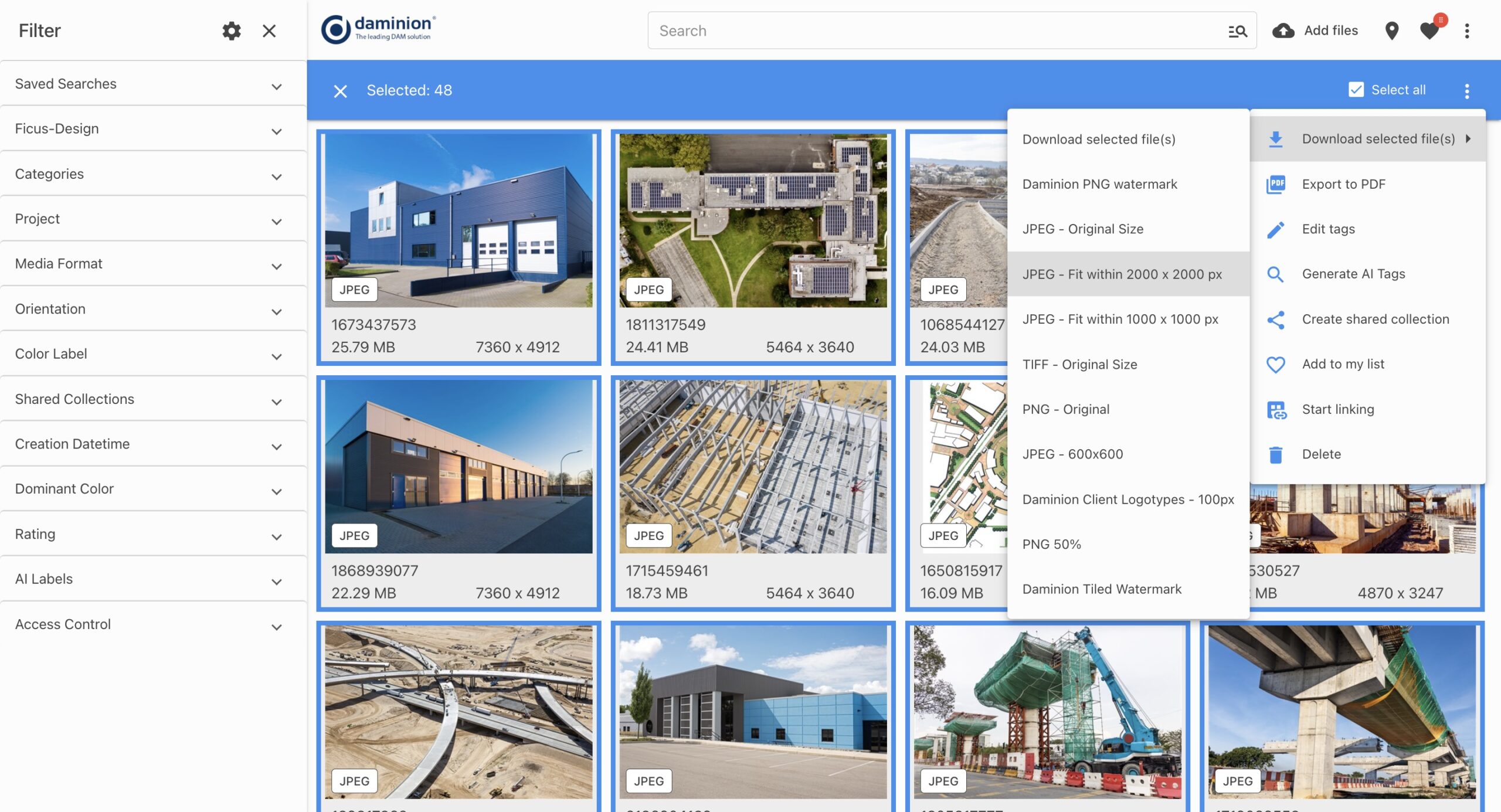
Creating a resizing workflow in Daminion is straightforward:
Daminion is ideal for professionals managing large digital libraries. If you’re a photographer, a marketing professional, or part of a team that regularly works with extensive image collections, Daminion offers the advanced capabilities you need.
Daminion is more than just a tool for resizing images; it’s a solution for comprehensive digital asset management. By integrating advanced resizing capabilities with powerful organizing and management features, Daminion stands out as a top choice for professionals.
James Outram
When resizing images, it’s a delicate balance between maintaining quality and reducing file size. Choose the right resolution and file format for your needs.
Here’s how to do it effectively:
Once your images are resized, organizing them is crucial for efficient management:
By following these best practices, you’ll not only ensure your images are of the right quality and size but also make them easily accessible and well-organized for future use.
We’ve covered the essentials of batch resizing images on MacOS, from using built-in tools to exploring third-party software. Remember, the right tool for the job depends on your specific needs. Experiment, find your workflow, and make managing your digital assets a breeze.