
What Is the Best Image Format for Websites? WebP vs JPEG, PNG, SVG, and AVIF



Website images do more than make pages look good. They affect loading speed, user experience, and the efficiency of your publishing workflow.
While rebuilding the Daminion website, we discovered that image optimization wasn’t really a format problem — it was a workflow problem. Assets came from design tools, older pages, product documentation, and AI image generators. They looked fine, but they varied widely in size, format, and quality.
That experience led us to a practical question: what is the best image format for a website?
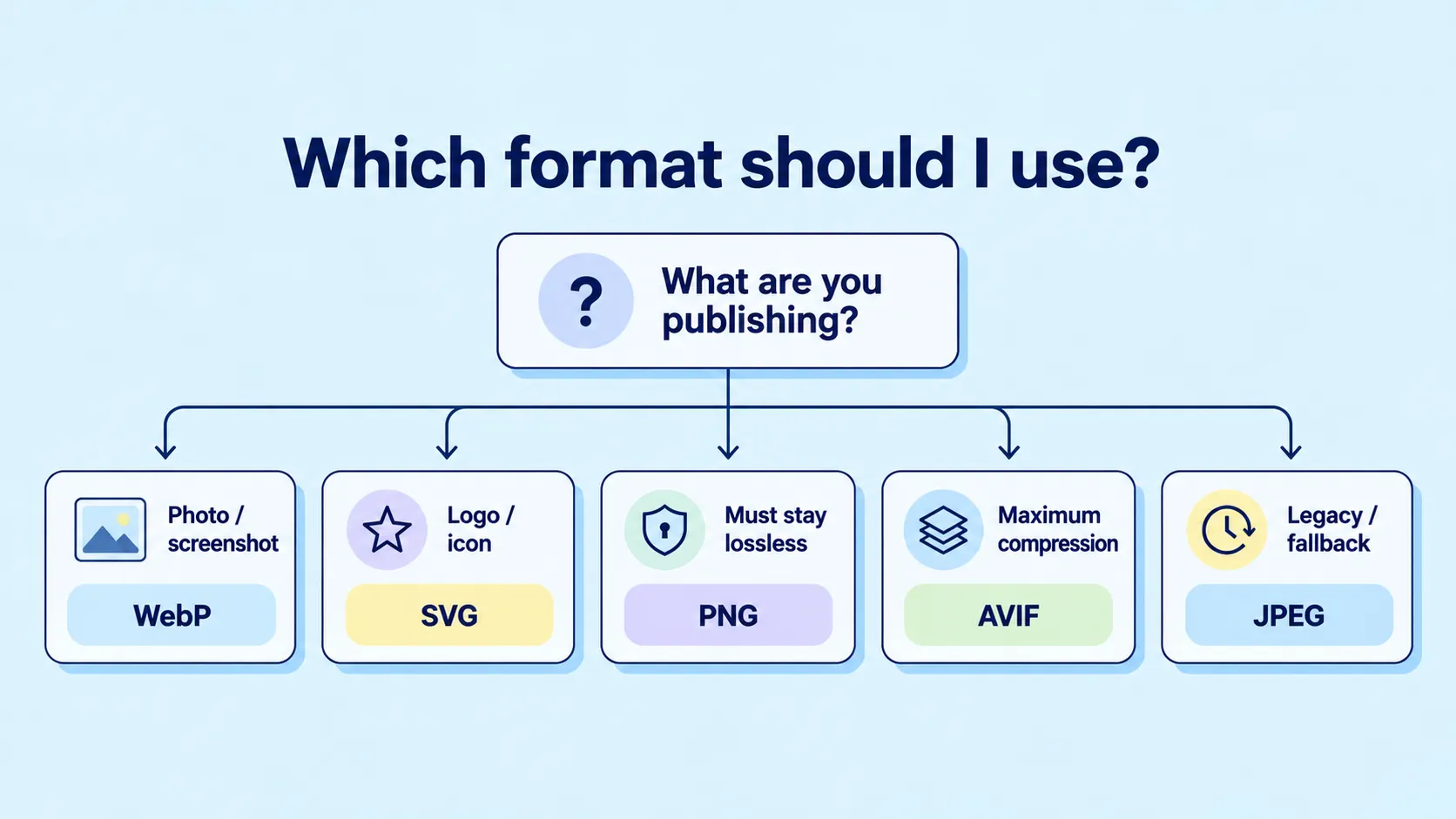
There isn’t a single answer. For most photos, screenshots, blog graphics, and AI-generated visuals, WebP is the strongest default because it balances image quality and file size. SVG remains the best choice for logos and icons, PNG is still valuable when lossless quality matters, and AVIF can produce even smaller files when the workflow supports it.
The rest of this guide explains why we chose WebP as our publishing standard, where other formats make more sense, and how to build an image optimization workflow that’s easy to apply consistently.
What Is a WebP File?
WebP is a modern raster image format developed by Google for efficient web delivery. It supports both lossy and lossless compression, along with transparency and animation. In many cases, it can replace heavier JPEG and PNG files while maintaining comparable visual quality.
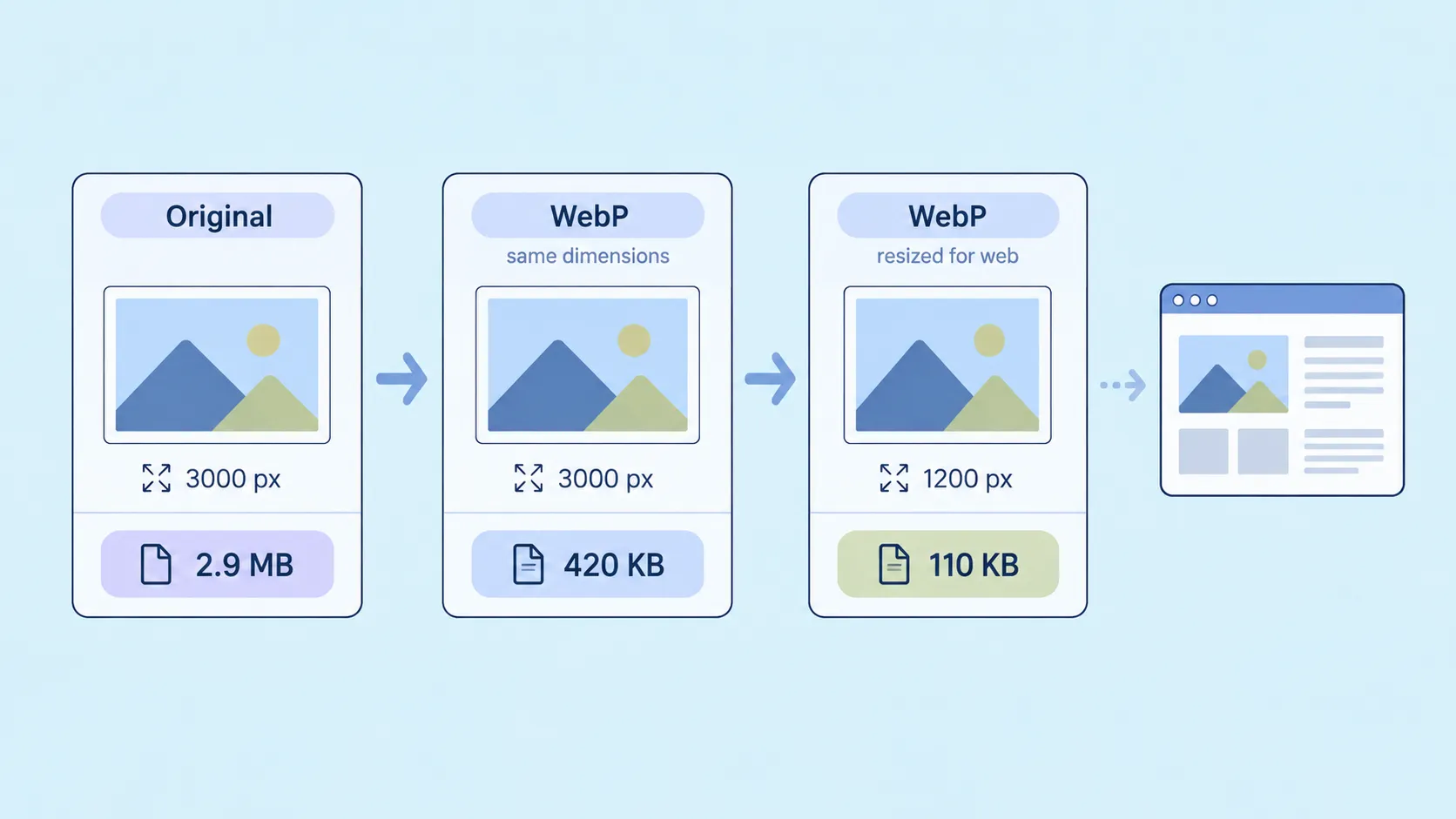
That said, converting an image to WebP doesn’t automatically optimize it. File dimensions, compression settings, visual complexity, and delivery method all affect the final result. A 3,000-pixel-wide WebP image is still unnecessarily heavy if it’s displayed at just 700 pixels.
In other words, WebP is a file format. Image optimization is a workflow.
Why Website Images Become Heavier Than Expected
Most marketing teams know that website performance matters. The challenge is that image optimization rarely belongs to one person.
A designer exports a PNG. A marketer uploads it to a landing page. Later, a content manager reuses the same file in a blog post. Each decision makes sense on its own, but no one stops to resize, compress, and review every image before it goes live.
Over time, those small decisions add up. Pages become heavier than they need to be, image formats grow inconsistent, developers spend more time cleaning up assets, and the media library fills with files that were never prepared for the web. Images are also frequently the largest visible element on a page: according to the 2025 Web Almanac, an image is the LCP element on 85.3% of desktop pages and 76% of mobile pages.
That's why image optimization is as much a content operations challenge as a technical one.
Choosing the right format is only part of the solution. Image dimensions, compression, responsive delivery, lazy loading, and the image’s role on the page all matter. Simply converting a PNG to WebP won’t improve performance if the image is still much larger than the layout requires.
WebP vs JPEG, PNG, SVG, and AVIF
The most useful way to compare image formats isn’t by asking which one is technically “best.” A better question is which format best fits the asset you’re publishing and the workflow behind it.
For most marketing teams, WebP is the practical default for raster images. But “default” doesn't mean “automatic.” The right choice still depends on the asset itself, your CMS, your publishing workflow, and the level of image quality you need.
WebP vs JPEG
In a WebP vs JPEG comparison, both formats work well for photographic content. The main advantage of WebP is that it often delivers comparable visual quality at a smaller file size, making it a practical choice for website photography, blog headers, campaign visuals, e-commerce images, and other complex raster graphics.
JPEG still has its place. It’s widely supported, works reliably with older tools and third-party platforms, and can be useful as a fallback when WebP isn’t supported.
As with any image format, the result depends on the source file and compression settings. A poorly compressed WebP can look worse than a carefully optimized JPEG, while an unnecessarily high-quality WebP may offer little reduction in file size.
WebP vs PNG
The WebP vs PNG decision is especially relevant for marketing teams because PNG remains the default export format for many design tools, screenshots, and AI image generators.
PNG uses lossless compression and supports transparency, making it the right choice when every pixel matters. The trade-off is file size: detailed screenshots, photographs, and complex graphics can become much heavier than they need to be for the web.
WebP also supports transparency and offers both lossy and lossless compression, so it can often replace PNG while producing significantly smaller files.
That said, PNG is still the better choice when an image needs to remain completely lossless, stays in a PNG-based editing workflow, or contains fine interface details that could suffer from compression. If you’re converting product screenshots, it’s worth checking small text, icons, and thin lines before publishing.
WebP vs SVG
WebP vs SVG isn’t really a head-to-head comparison because the formats solve different problems.
WebP is a raster format designed for photographs, screenshots, AI-generated images, and other visually complex graphics. SVG is a vector format, making it a better fit for logos, icons, interface elements, simple diagrams, and illustrations built from geometric shapes.
Because SVG is vector-based, it scales to any size without losing quality. Converting a simple logo to WebP removes that advantage and makes future edits less flexible. In most cases, the format should follow the nature of the original asset rather than the other way around.
WebP vs AVIF
A WebP vs AVIF comparison is less straightforward.
AVIF can often produce smaller files than WebP at a similar perceived image quality. If your only goal is maximum compression, AVIF may be the better option.
In practice, though, image optimization involves more than file size. Teams also need to think about browser and CMS support, available conversion tools, encoding time, quality control, and whether the rest of the publishing workflow can handle the format without adding friction.
During the Daminion website rebuild, we chose WebP as our default publishing format because it offered the best balance between compression, visual quality, browser support, and ease of use.
That doesn’t mean WebP is technically superior to AVIF in every scenario. It simply proved to be the most practical choice for the workflow we wanted to standardize.
Why We Chose WebP While Rebuilding the Daminion Website
Our decision wasn’t driven by a debate about image formats. It came from a practical problem we encountered while rebuilding the Daminion website.
As we created new pages and refreshed existing ones, images arrived from every direction: freshly exported design assets, legacy website graphics, product screenshots, campaign visuals, and AI-generated images.
Each file came with different dimensions, formats, and quality settings. Some were already optimized for the web, while others were oversized PNGs or presentation graphics repurposed for a landing page.
Individually, none of those choices seemed like a problem. Together, they created an inconsistent publishing workflow.
We needed a format that editors and marketers could use by default instead of making a new technical decision every time they uploaded an image. For most raster content, WebP proved to be that standard.
Just as importantly, it helped separate the master asset from the publishing version. The original image should always be preserved for future editing and reuse, while the optimized WebP should be treated as a delivery file created for a specific page or use case. Maintaining separate asset versions makes it much easier to update, reuse, and republish images without losing the original.
That’s an important content management principle. Optimization shouldn’t replace the highest-quality version of an asset — it should create the right version for publication.
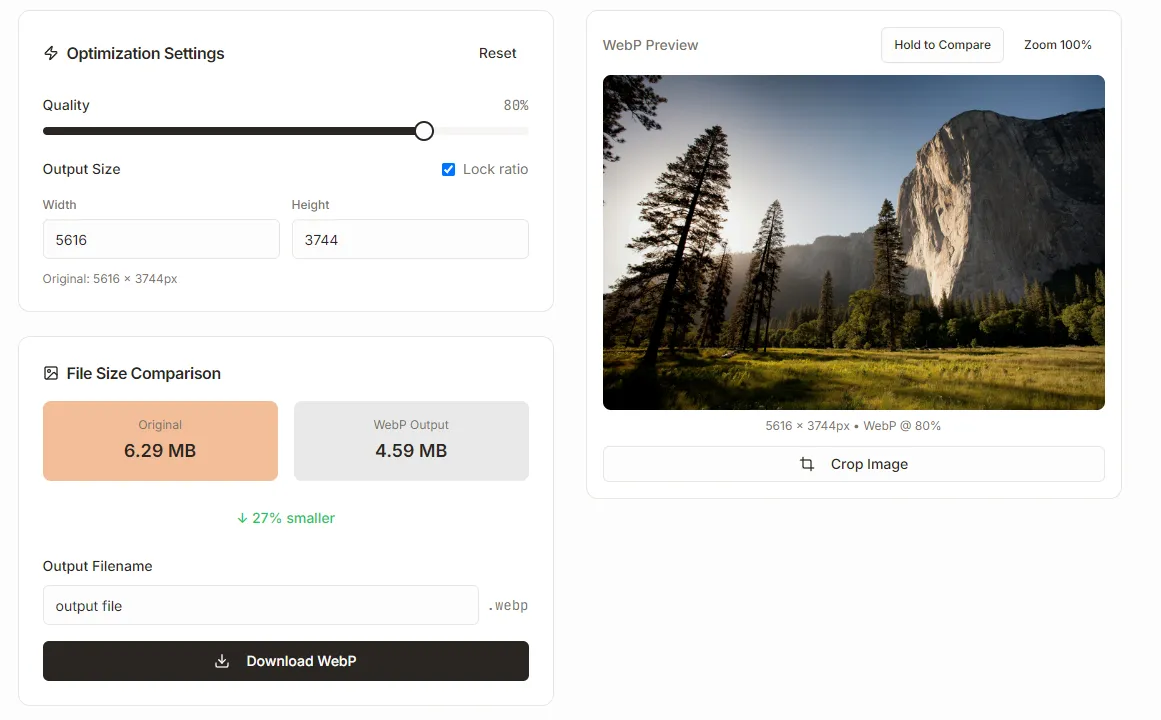
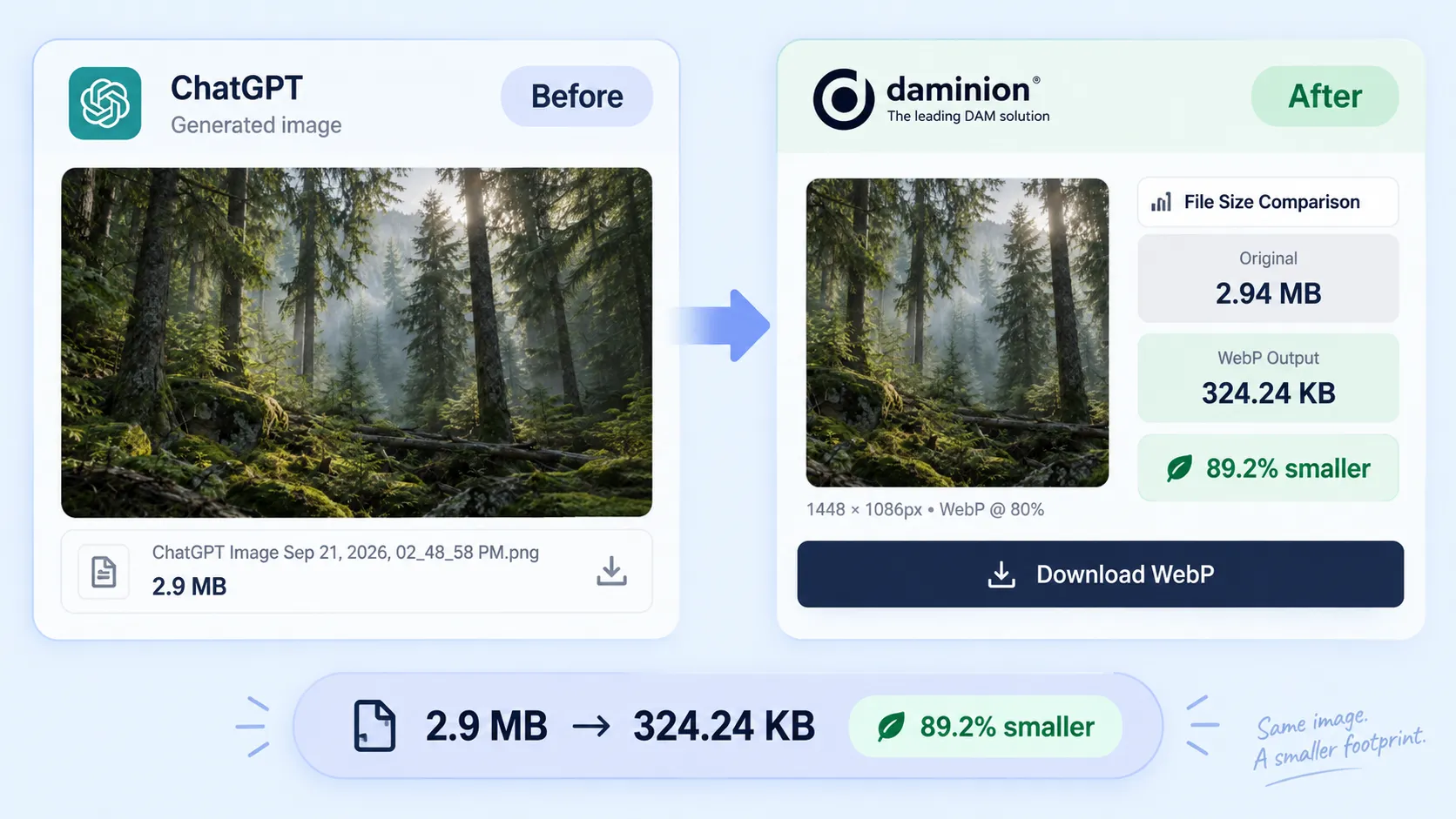
Our own testing with the Daminion WebP Converter showed how much compression results can vary from one image to another.
In one test, a 2.94 MB image (2940 × 1288 pixels) converted to WebP at an 80% quality setting was reduced to 149.51 KB — about 95% smaller than the original.
In another, a high-resolution landscape photo measuring 5616 × 3744 pixels shrank from 6.29 MB to 4.59 MB, a reduction of about 27% using the same quality setting.

Need a fast way to prepare an image?
AI-Generated Images Still Need a Publishing Step
AI-generated images have become a regular part of our marketing workflow. They're quick to create and often good enough to publish — but that’s exactly where problems begin.
Because the image already looks finished, it's easy to skip the publishing step entirely. Many AI tools generate files optimized for creation or download, not for the dimensions, compression, and delivery requirements of a website.
As a result, an AI-generated image may be much larger than the page requires, saved as a heavy PNG, or cropped for the wrong aspect ratio. Visually it's ready, but technically it isn't.
Our workflow is simple: generate the image, keep the original, crop and resize it for its destination, convert it to a web-friendly format, compare the result visually, and only then publish it.
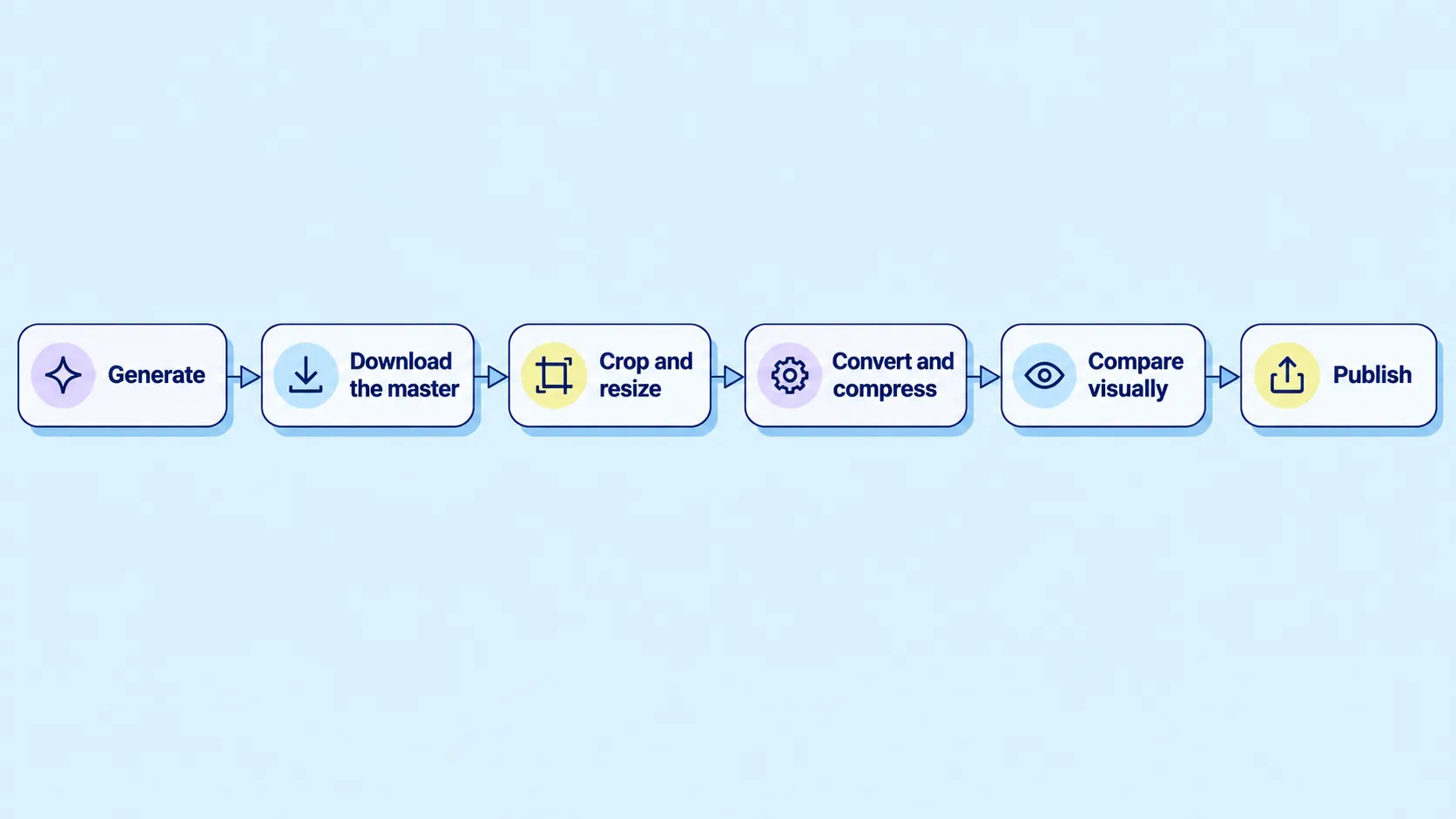
Keeping the original asset in your content library while creating an optimized version for the website makes future updates much easier. Plus, it prevents teams from treating a compressed publishing file as the only master copy.
How to Optimize Images for the Web: Our Publishing Checklist
The biggest lesson from rebuilding our website was simple: image optimization has to be easy enough to repeat. If every upload requires a series of manual decisions, the process won't stay consistent.
A practical workflow looks like this:
- Keep the highest-quality original for future editing.
- Crop the image to its intended use before compressing it.
- Resize it to the dimensions the page actually needs.
- Choose the format based on the asset — WebP for most raster images, SVG for vector graphics, PNG when lossless quality is essential, and JPEG or AVIF when the workflow requires them.
- Use sensible compression settings and compare the result visually, especially if the image contains small text or interface elements.
- Test the final image on desktop and mobile, use a descriptive filename, and add meaningful alt text where appropriate.
- Store the original asset separately and publish an optimized version for the website.
Think of WebP as a Publishing Habit
For most marketing teams, the real value of WebP isn’t the format itself — it’s the consistency it brings to the publishing process.
Instead of treating every upload as a new technical decision, establish a simple workflow: keep the editable original in your digital asset management system or asset library, publish an optimized version for the web, and review existing images whenever you update older content. Once these images start accumulating, consistent image tagging becomes just as important as optimizing them for delivery. That approach removes uncertainty, reduces manual work, and keeps image optimization consistent across the site.
Established websites often contain years of images that were uploaded before today’s optimization practices became standard. Updating oversized or outdated assets on high-traffic pages can improve performance without rewriting the content itself.
Whatever format you choose, don’t assume that converting an image to WebP will automatically improve page performance. Compare file sizes, measure page performance before and after the change, and let the results guide your decisions.
Managing more than a few website images?

A Short Note About WebM
Images weren’t the only assets we reviewed while rebuilding the Daminion website. For short product demonstrations and lightweight feature previews, we also started using WebM instead of heavier video formats.
The principle is the same: deliver media efficiently without transferring more data than the page actually needs. WebM deserves its own discussion, so we’ll leave it for a separate article.
So, Is WebP the Best Image Format for a Website?
For most photos, screenshots, blog graphics, and other raster images, WebP is an excellent default. But it isn’t the best choice for every asset.
SVG remains the preferred format for vector graphics, PNG is still valuable when lossless quality is essential, JPEG continues to serve as a reliable fallback, and AVIF may be worth considering when maximum compression is the priority.
Ultimately, the best image format isn’t simply the one that produces the smallest file. It’s the one that delivers the quality you need, fits your publishing workflow, and can be applied consistently across your website.
That was the biggest lesson from rebuilding the Daminion website. Switching to WebP wasn’t about adopting the newest image format — it was about making image optimization a simple, repeatable part of publishing.
WebP: Frequently Asked Questions
Does WebP support transparency?
Yes. WebP supports alpha transparency, making it a suitable replacement for many transparent PNG files. However, transparency alone doesn’t mean WebP will always produce the smallest file.
Does WebP improve SEO?
Not directly. Using WebP won’t improve search rankings on its own. However, properly optimized images can improve page performance and user experience, making WebP a useful part of a broader image optimization strategy.
Do all browsers support WebP?
All major modern browsers support WebP. If your publishing workflow includes legacy browsers, older software, or specialized third-party systems, it's still worth verifying compatibility before standardizing on the format.
Should I use WebP or AVIF?
A WebP vs AVIF comparison comes down to priorities. AVIF can produce smaller files, while WebP is generally easier to adopt thanks to its broad browser support and mature tooling. If your goal is a practical publishing standard for everyday marketing content, WebP is usually the better default.
Can I convert existing website images to WebP?
Yes — and for many websites, it’s one of the easiest ways to improve image delivery. Start with high-traffic pages and large images, then compare page performance before and after the change. Keep the original files in your asset library and treat WebP as the optimized version for web delivery.
Can I convert PNG to WebP without losing transparency?
Yes. WebP supports transparency, so transparent PNG files can usually be converted without losing the transparent background. The best choice still depends on the image itself: for some interface graphics or editing workflows, PNG may remain the better option.

We spend a lot of time figuring this stuff out


Explore our DAM system
with your personal manager
demo from your dedicated manager.