October 1, 2026
Updated



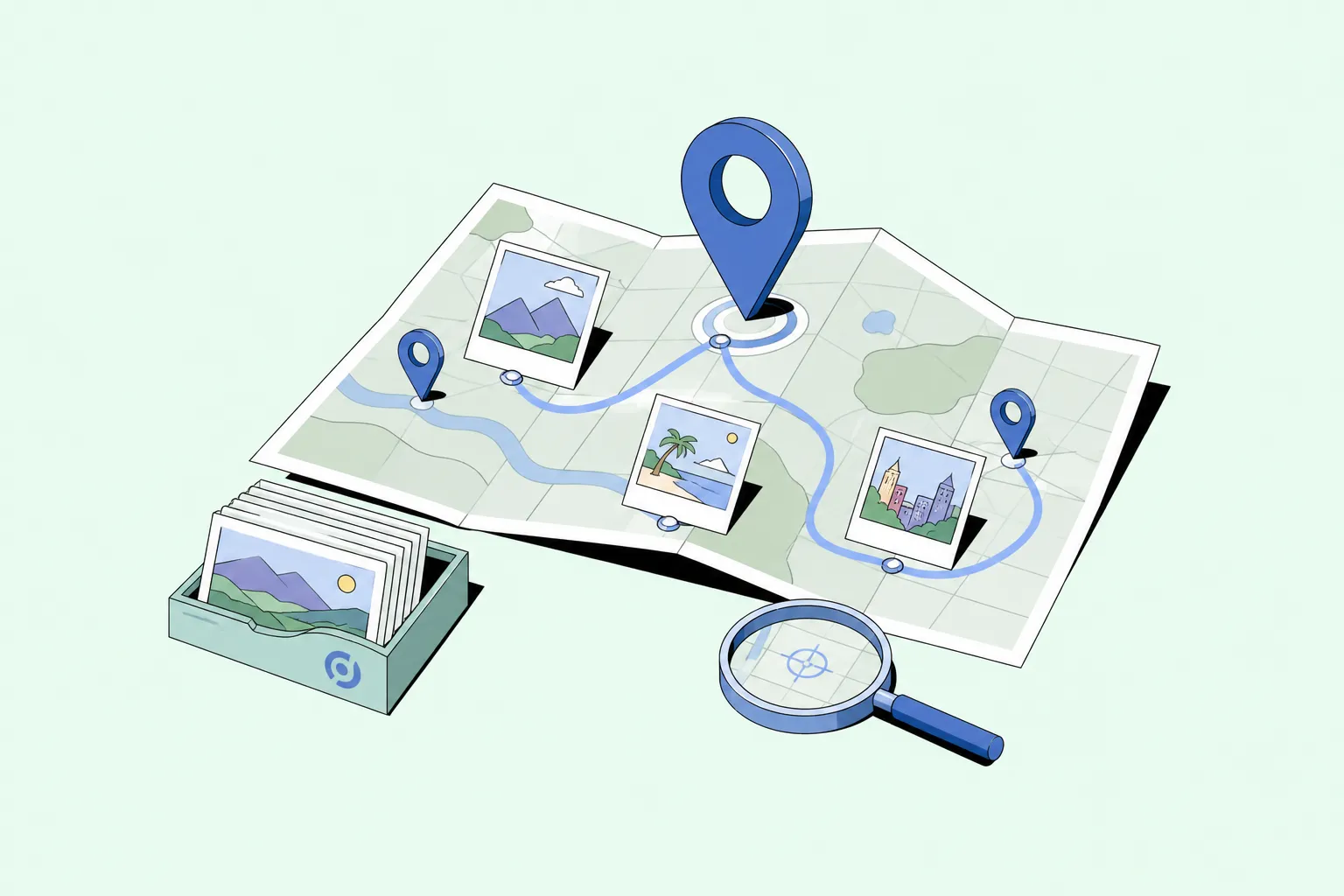
To geotag photos, you can use your phone's built-in GPS, an online tool like GeoImgr, Lightroom, or – for large archives and teams – a digital asset management (DAM) system that batch-geotags via GPX tracks and lets you search photos by location on a map. Below we'll show you how to do each one.
We'll also answer a more useful question along the way: what do you actually do with the location once it's added?
One photo is simple. Drop a pin, save, done. A folder from a site visit, a drone flight, or ten years of archive is harder. You have to add coordinates consistently, check they're right, strip them when privacy matters, and still find the photo months later without scrolling through folders named "final_final_2."
This guide covers the simple methods first: iPhone, Android, Mac, Windows, and online. Then it gets into the parts most articles skip. Bulk geotagging, drone imagery, and keeping location-based photos findable for a whole team.
By 2030, the total number of photos ever taken is projected to reach 28.6 trillion. And 94% of the photos taken today are shot on smartphones. Most phones record where each shot was taken, so location data is already everywhere. The skill is to use this data with purpose.
Photo geotagging means adding location data to an image file. Usually that's GPS coordinates stored in the photo's EXIF metadata: latitude, longitude, and sometimes altitude. EXIF also holds the camera model, date, and exposure settings, but location is the field that matters most once you're organizing photos instead of shooting them. Think of EXIF as a luggage tag riding inside every photo: a small note that records where it has been.
Smartphones often add it for you. With location services on, your phone saves the coordinates as you shoot. Cameras, drones, and older devices usually don't, so you add it later with a metadata editor, an online tool, Lightroom, or a DAM.
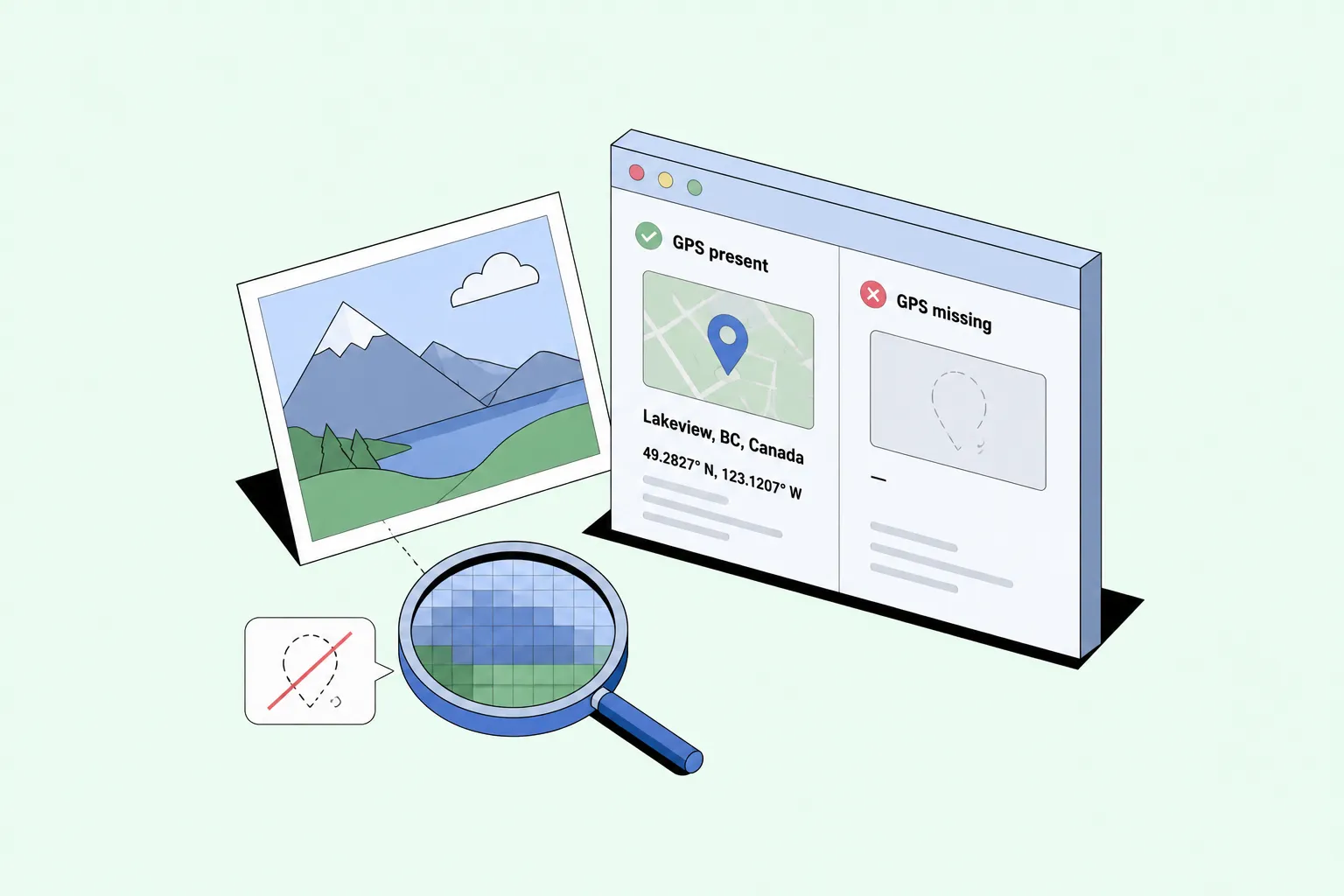
Before adding anything, check whether the photo already has a geotag. Open its info panel or a metadata viewer. If GPS data is there, you'll see a map, a place name, or raw coordinates. If it's missing, no tool can recover it from the pixels.
Why does this matter beyond travel photos? A filename like IMG_4837.jpg tells you nothing. Tie that photo to a bridge inspection, a protected wetland, or a construction defect, and it becomes a record you can find and reuse. Geotagging is most valuable in architecture, engineering, environmental monitoring, GIS, local government, real estate, and field documentation.
We also built a small Daminion Mini-Tools hub for people who work with digital files every day. It brings together quick utilities you may need often, including a photo metadata checker that shows whether an image already contains EXIF data, GPS coordinates, camera details, dates, and other embedded information.
Before you add or edit a geotag, you can quickly check the file first and see what metadata is already there.

If you shoot on a smartphone, your photos may already be geotagged.
Two things to know. Turning location on only affects future photos, not ones you've already taken. And GPS accuracy varies: indoor shots, tunnels, and heavy tree cover can all skew the reading.
Location data can also be sensitive. A single photo can reveal where someone lives or where a client's facility sits, so decide before posting publicly whether it should stay in the file. More on removing it below.
Start with Apple Photos. Open an image, press ⌘I (or click the ⓘ button) to open the Info window, then type a place in the "Assign a Location" field or drag the pin on the mini-map. You can then browse your library on a map and search by place name, which covers most personal archives.
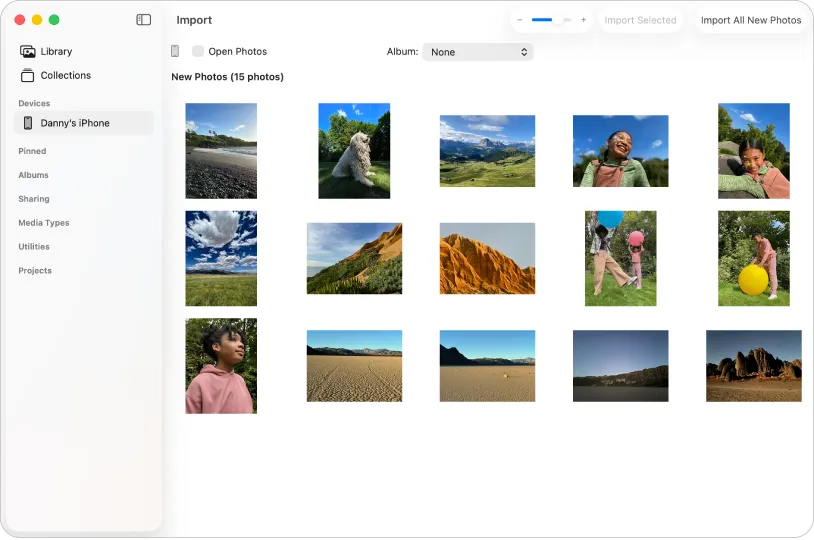
One catch: edits in Apple Photos live inside the Photos library. The location travels with exported copies, but the original file on disk may not change. If you need the GPS written into the source file, use a dedicated metadata tool.
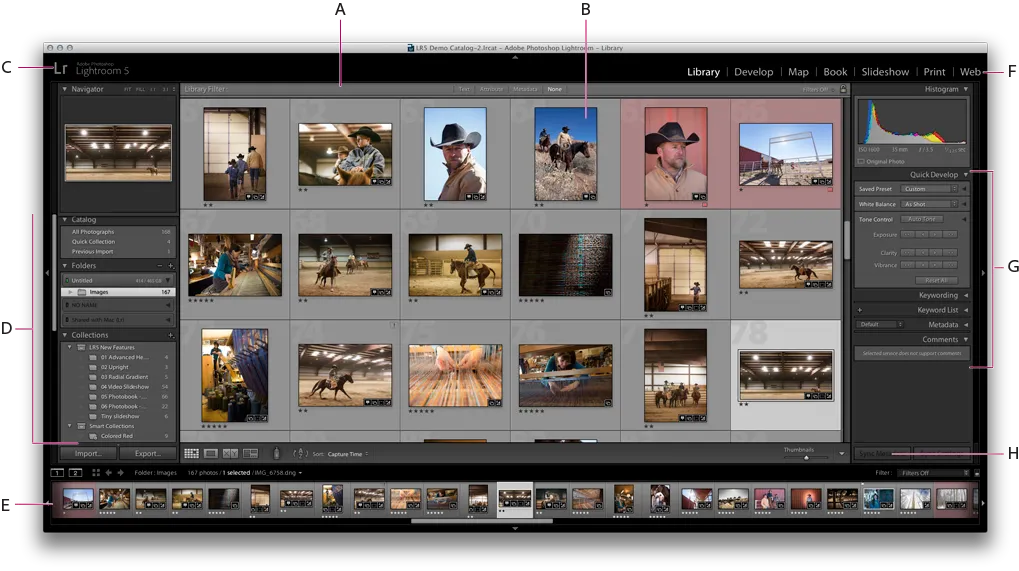
Lightroom Classic has a Map module built for this. Drag images onto the map, drop pins, and the coordinates write into the metadata.
For precise, file-level edits, ExifTool writes EXIF GPS fields directly, though it isn't beginner-friendly.
Scale is the limit. Tagging a few vacation photos by hand is fine. Tagging thousands of field or drone images from several contributors is not, and the question shifts from how do I add coordinates to how do we keep this organized for everyone. At that volume, hand-tagging is like addressing a thousand envelopes one by one.
Worth noting: Lightroom was built for a single photographer's catalog, not a team. It has no real multi-user access, so once several people need to tag, search, and share the same archive at once, it stops being the right fit. Here's how Lightroom compares to a DAM for team use.
Windows users have several good options.
The built-in Microsoft Photos app handles basic GPS viewing, but it's weak for bulk editing.
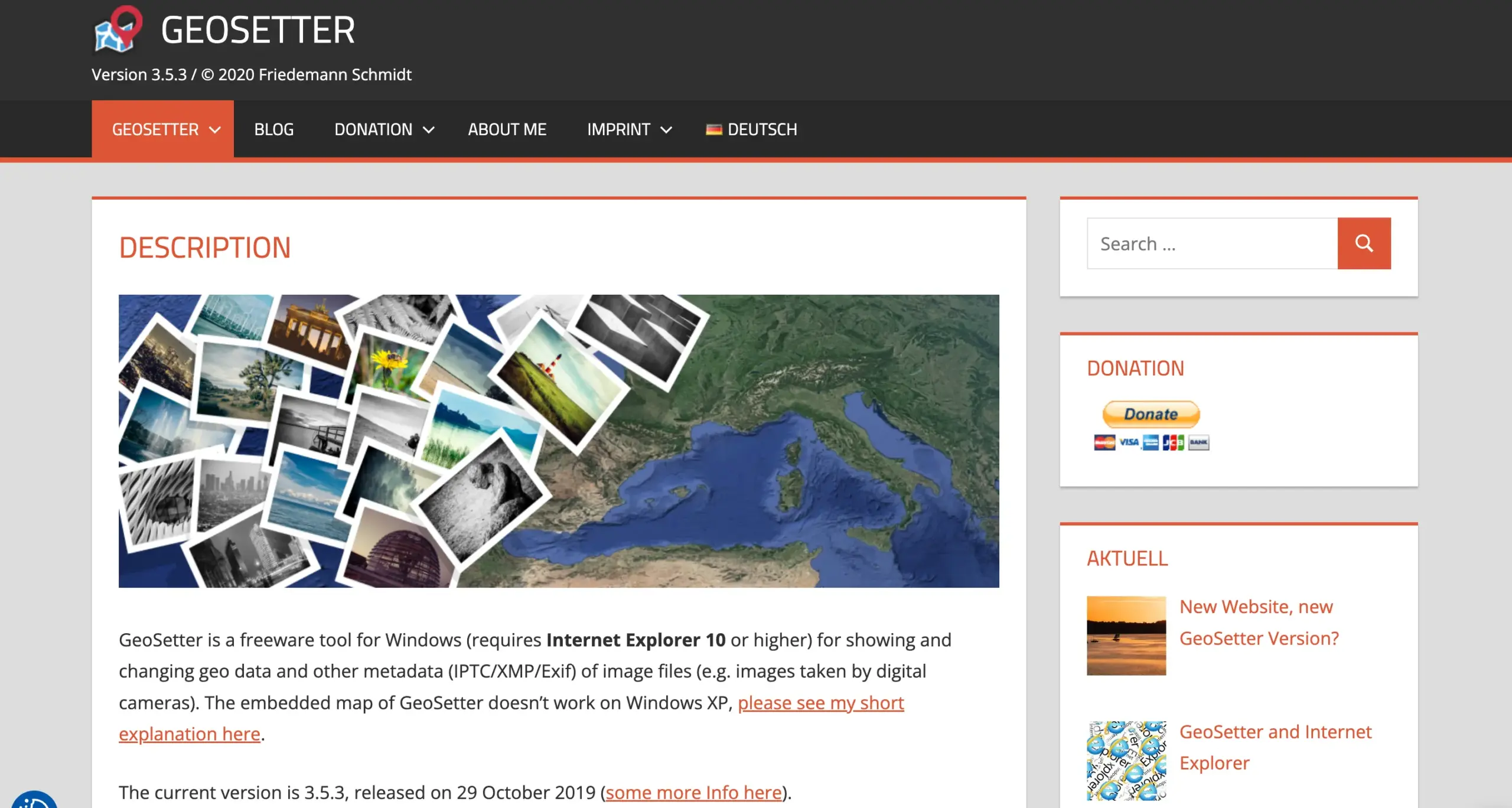
GeoSetter is the free tool most people reach for. It adds and edits coordinates, shows photos on a map, writes location into the files, and even suggests place names through reverse geocoding. For individual use, it does almost everything.
Lightroom Classic runs on Windows as well, not just Mac. Its Map module works the same way on both: drag images onto the map, drop pins, and the coordinates write into the metadata. It's a good fit if Lightroom is already part of your workflow.
We’ve already mentioned ExifTool. It’s the power option for Windows users, too. It reads, writes, and removes EXIF GPS data across whole batches. The catch is the command line, so it suits technical users and scripts more than beginners.
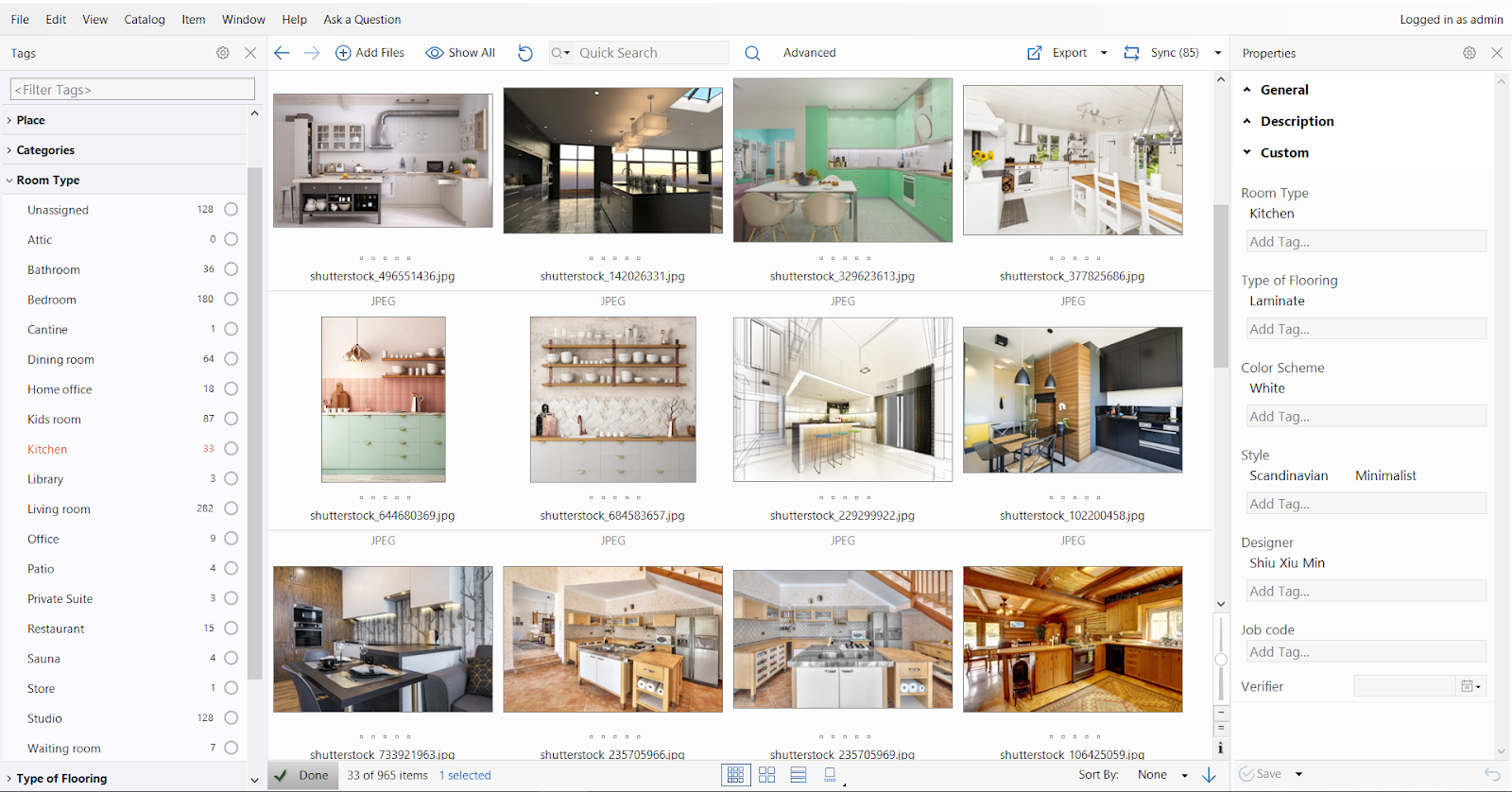
For teams that need more than a single-purpose editor, Daminion offers a desktop app for Windows that runs smoothly on PC and handles geotagging, map view, and location search across a shared catalog. More on that below.
When you'd rather not install anything, an online tool is quickest. A typical run-through with a GeoImgr:
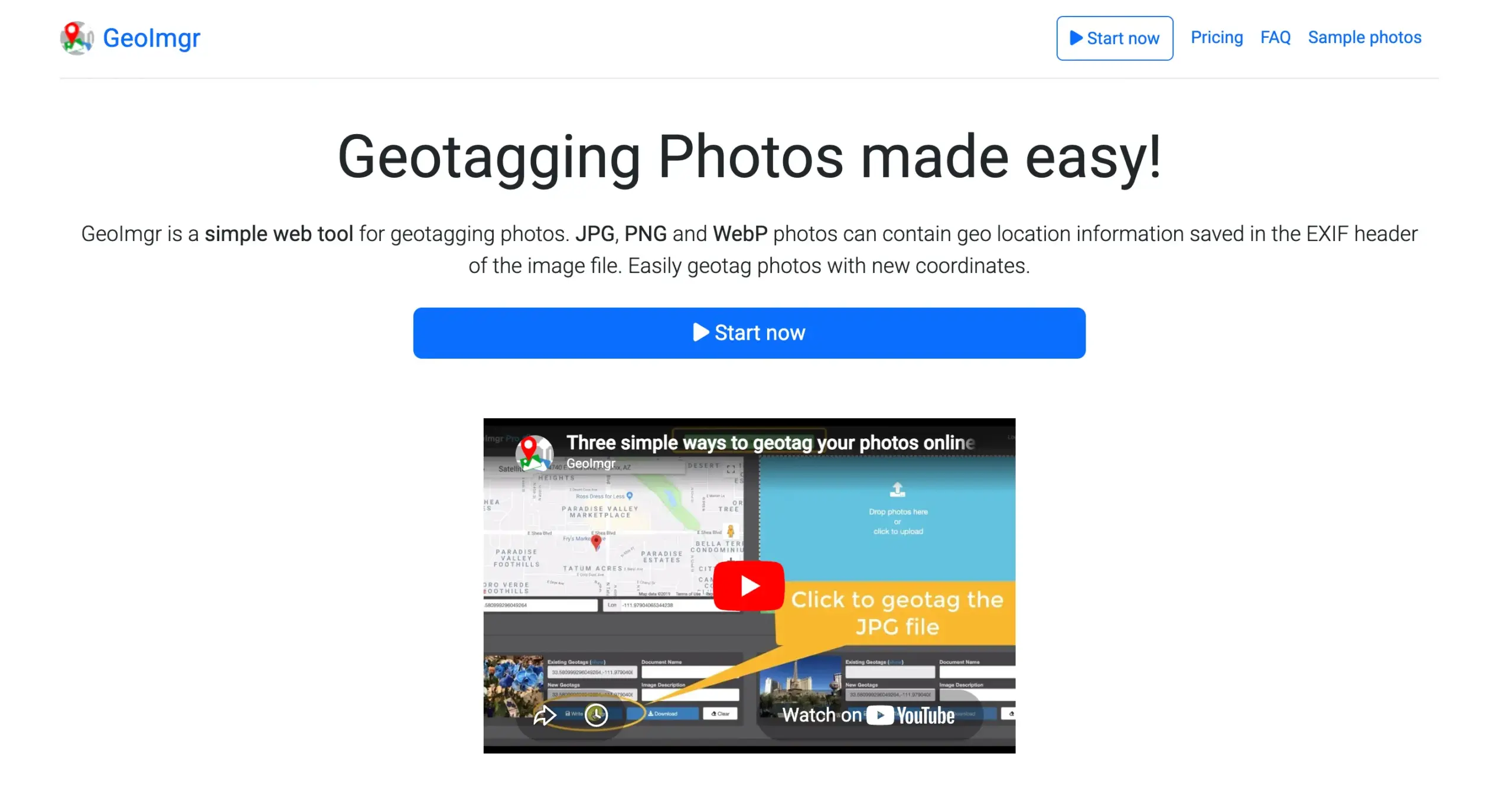
That's perfect for a one-off edit, and it's what people searching "geotag photos online" or "geotag photos online free" want. Many of these tools can also strip GPS data when you need to share without revealing the location.
The limits are real, though. If a photo shows a client site, private property, or a restricted location, uploading it to a third-party site may not be allowed. Online tools also stop at the file. They add coordinates, but they don't organize your archive or help the next person find that photo.
Manual geotagging works until your photo count climbs.
Ten photos? Place them on a map one at a time. Two thousand from a drone survey or a week of fieldwork? Manual tagging now costs hours and invites mistakes.
A GPX track solves it. A GPX file is a GPS track recorded by a phone, GPS unit, drone controller, or tracking app, storing coordinates over time. If your photos have accurate capture times, geotagging software matches each one to the nearest point on the track and writes in the coordinates. Photos taken between points get an interpolated position.
The shorthand: photo timestamp + GPS track = location added automatically.
This saves real time for drone work, environmental and habitat surveys, construction and architecture site visits, utility inspections, cultural heritage documentation, and government records.
One setting matters most: time synchronization. Match your camera clock to the GPS device before the shoot, and check the time zone. A clock that's off by minutes drops photos in the wrong place, and a time-zone mismatch can move them hundreds of miles – a coastline shoot can land in the middle of a desert. If the clock drifted, most tools apply a manual offset to the whole batch.
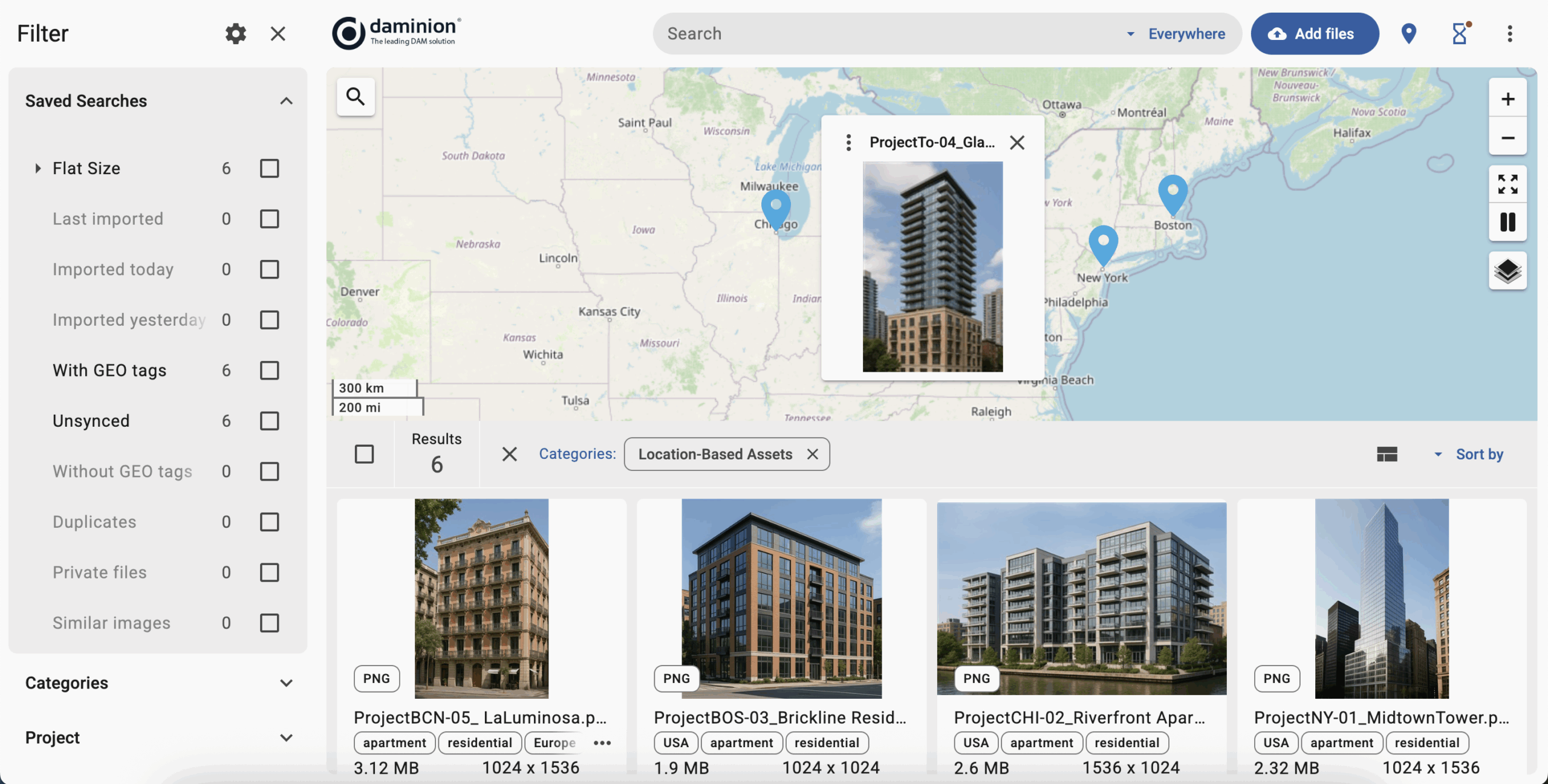
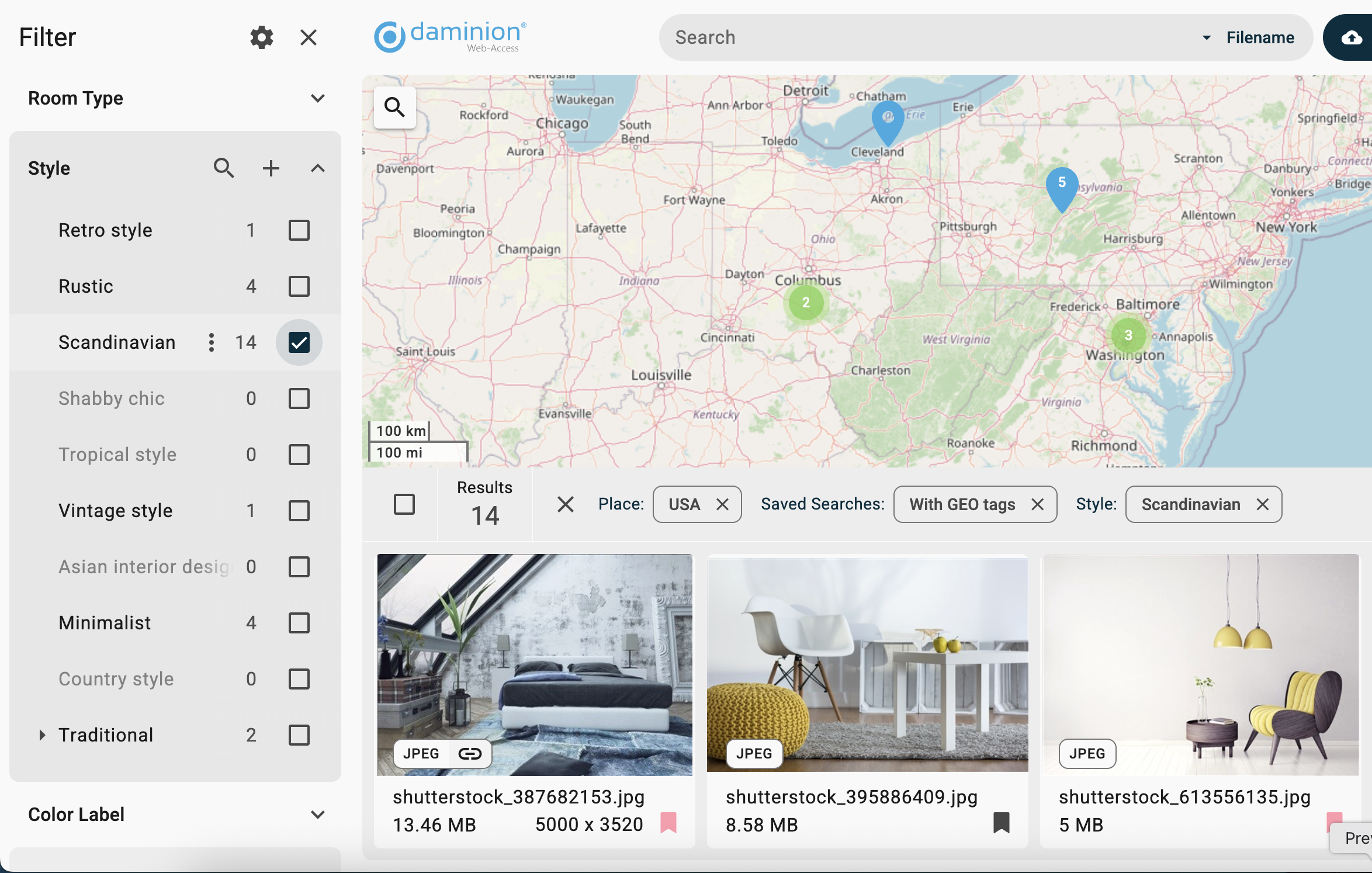
Lightroom and GeoSetter handle GPX geotagging well for one person. Teams hit a second hurdle once the coordinates are in, because people still have to find, filter, review, and reuse those photos, often years later. A DAM like Daminion picks up there. A field crew can batch-import geotagged photos into a shared catalog, view them on a map, search by location, and pair GPS data with project names, dates, asset types, and access rights.
Commercial drone use keeps climbing, with hundreds of thousands of drones now registered in the U.S. alone. More flights mean more aerial photos that need to stay organized by location.
Drone imagery is one of the strongest reasons to geotag. A single flight can produce thousands of photos, useful only if you can link them back to the site or route inspected.
Most drones write GPS coordinates into the image metadata, and survey models record location to within centimeters. But after export, processing, or contractor hand-off, that data can get stripped, so teams often match photos back to a flight log or GPX track to be safe. Drone video is trickier, since some clips carry GPS and some keep it in a separate log.
One flight is fine with a single-user app like GeoSetter or Lightroom. Ongoing projects are where a DAM earns its place, keeping drone photos and videos searchable by location, project, date, and inspection type, instead of a pile of files named DJI_0001, DJI_0002, DJI_0003.
Adding GPS data is half the job. The other half is using it to find the right image later, fast.
Personal libraries are easy: browse a map, pick a city, done. Organizations need precision, since one project can span dozens of sites. A team often needs to pull up:
A DAM does this because it ties GPS data to everything else: tags, project names, permissions, formats, and dates. You're combining "near this point" with "from this project," "shot this year," and "approved for use." It's the difference between digging through a shoebox of prints and running a search with the filters already on. Daminion lets teams view geotagged assets on a map, search by location, and layer in keywords and filters.
Watch: How Geotagging Works in Daminion
Want to see what this looks like in practice? This short walkthrough shows how Daminion works with geotagged photos — from viewing files on a map to using location as part of a searchable team archive.
Geotagging is just one layer. Modern DAM systems like Daminion can also tag photos automatically with AI, add descriptive keywords, and recognize people to organize images by face, so location is only one of several ways to find what you need. You can explore the full set of features here.
Speed is what people notice. Cate Reilly, a Lead Business and Systems Analyst, put it plainly:

For some field teams, location is how they think about their work. AKM Consultants, a forensic engineering firm that documents construction defects, files its photos in catalogs by where each was taken. Their team called finding images this way, rather than by date, "undoubtedly one of its best features," because engineers shoot thousands of site photos that must trace back to an exact building.
Take an environmental group with years of field photos from different teams. In folders, that context fades fast. Geotagged in a DAM, the archive stays searchable and reusable for reports, grants, and public communication long after the shoot.

Sometimes the best geotag is none at all.
GPS metadata can expose a home address, a school, a private facility, or a restricted site. The data is useful inside your own systems. The question is whether it should travel with the image once the file leaves your organization.
Security researchers have shown that EXIF location data left in shared photos can be used to track people's movements or expose sensitive sites, which is why many organizations now build metadata removal into their sharing process.
It isn't only personal. Journalists protecting a source, field staff at sensitive sites, and government teams have good reasons to strip GPS first. And you can't count on social platforms to do it, since their handling is inconsistent.
On iPhone, tap Options in the share sheet and switch off Location before sending. On desktop, metadata tools strip GPS fields, with ExifTool the most precise, and many editors clear metadata on export.
For teams, make it a workflow step, not a personal habit. Keep GPS data in the internal archive where it powers search, and remove it from public exports when privacy or a client contract requires it. A DAM turns that into a controlled review.
There's a bigger version of this question for client work: not just whether GPS data travels with one file, but where the whole archive lives. Some clients won't allow their project photos to sit in a third-party cloud at all. An on-premises DAM keeps everything on your own servers instead, which for some firms is the deciding factor. Tim Barber Architects, whose work is covered by client non-disclosure agreements, is one of them.
Your goal decides the tool. Fixing one photo, geotagging a folder, working from a GPX track, and running a shared archive all point in different directions.
For a few personal images, a free or built-in tool is plenty. But for a professional archive in GIS, environmental work, architecture, construction, communications, government, or drone inspection, geotagging is only the starting point.
Daminion is built for the part that comes after coordinates are added: keeping location-based photos and videos searchable in a shared team archive. GPS data can sit alongside project names, dates, tags, approval status, and access rights, so the team can return to the right photo months or years later without guessing which folder it was in.