
System Requirements:
Cinema4D s26+ / 3DsMax 2025+ / Blender 3.6+
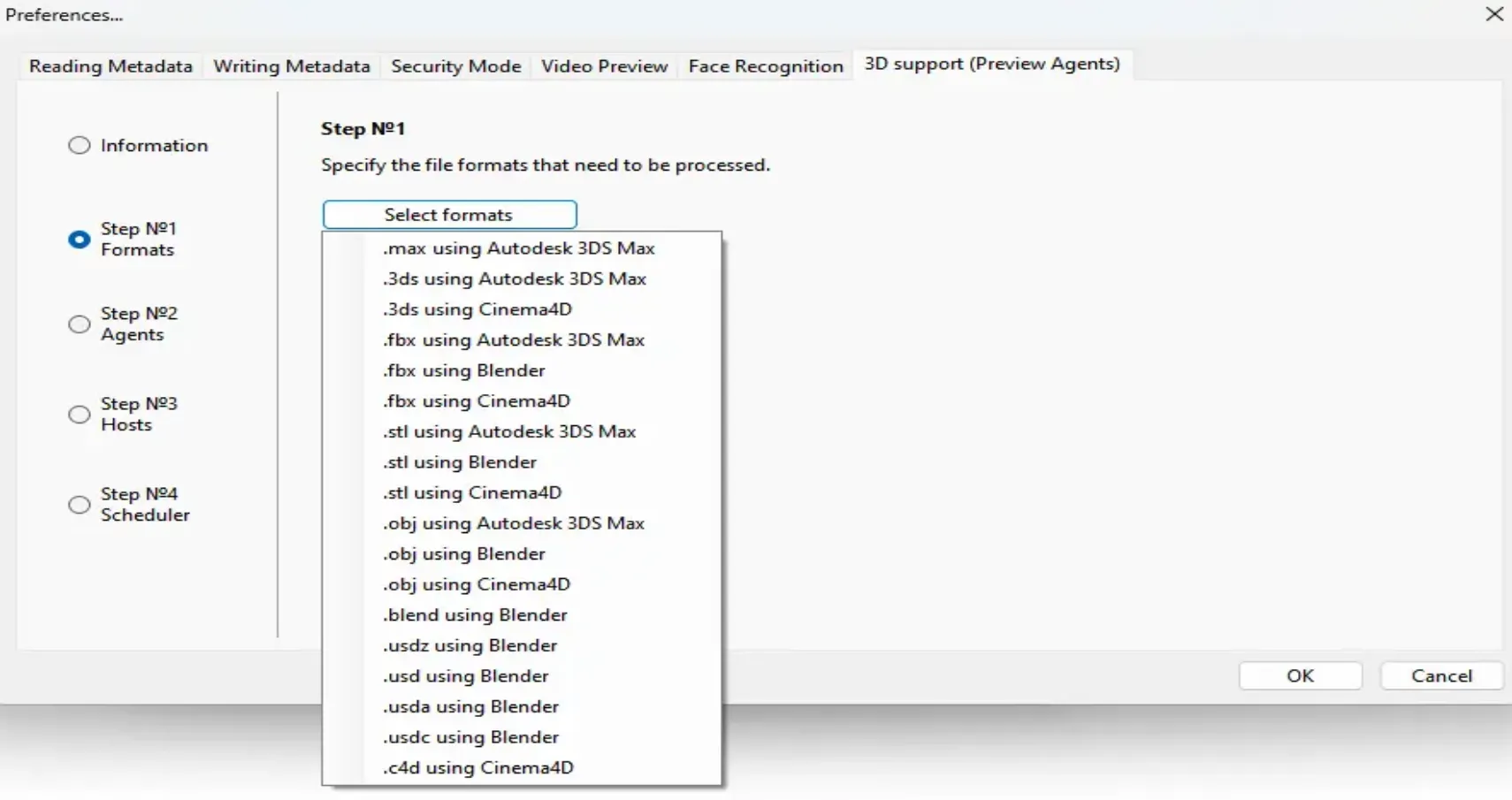
To enable 3D preview support open the Daminion Server Administration Panel, navigate to the 3D Support settings, and select step №1.
Click the Select Formats button and choose the formats along with the corresponding applications that should process them.
This setting applies to all computers on the network where the Preview Agent is installed.
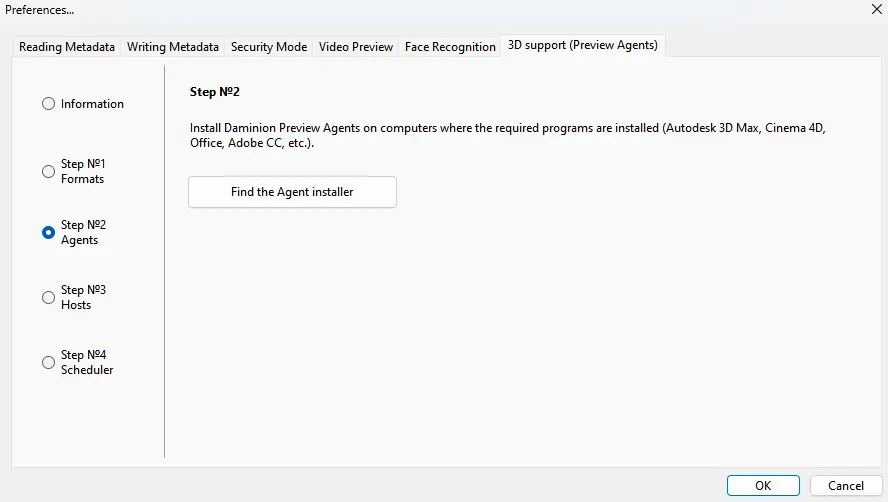
Next, proceed to step 2, download and install the 3D agent on the server or any other computer that supports the programs selected in step 1. The agent can also be downloaded through the web client in the settings. Read more about the 3D agent here.
Daminion supports integrations with Adobe Creative Cloud apps, Microsoft Office, Active Directory, Entra ID, Dropbox, Google Drive, OneDrive, and metadata standards such as IPTC, XMP, and EXIF.
To enable 3D preview support open the Daminion Server Administration Panel, navigate to the 3D Support settings, and select step №1.
Click the Select Formats button and choose the formats along with the corresponding applications that should process them.
This setting applies to all computers on the network where the Preview Agent is installed.

Next, proceed to step 2, download and install the 3D agent on the server or any other computer that supports the programs selected in step 1. The agent can also be downloaded through the web client in the settings. Read more about the 3D agent here.
Now, let’s examine the following examples
Example 1
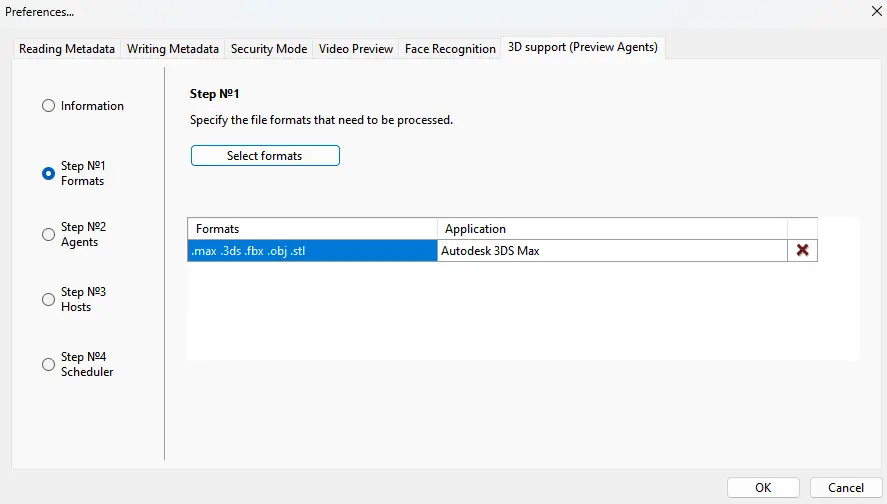
Autodesk 3ds Max is installed on the server.
Accordingly, you should select the formats .max, .3ds, .fbx, and .stl for conversion through Autodesk 3ds Max.
Example 2
If you don’t have supported software installed on the server, but you have another PC on the network with the necessary software, consider the following scenario.
Let’s say you have a computer with Cinema4D installed on your network.
In this case, select the formats that correspond to the Cinema4D program:
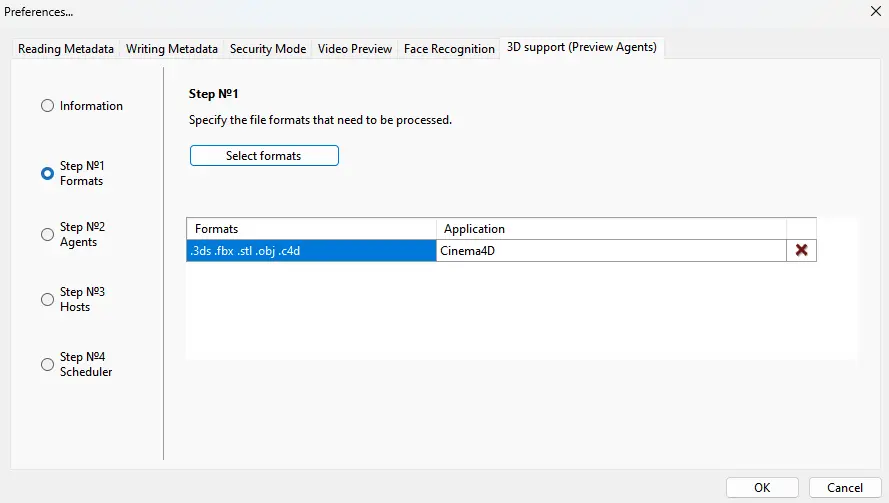
In this case the source 3D files must be imported in Daminion via network paths and be available on the PC where the converter will be installed.
Example 3
Blender is installed on the server, and 3ds Max is installed on a PC on the network.
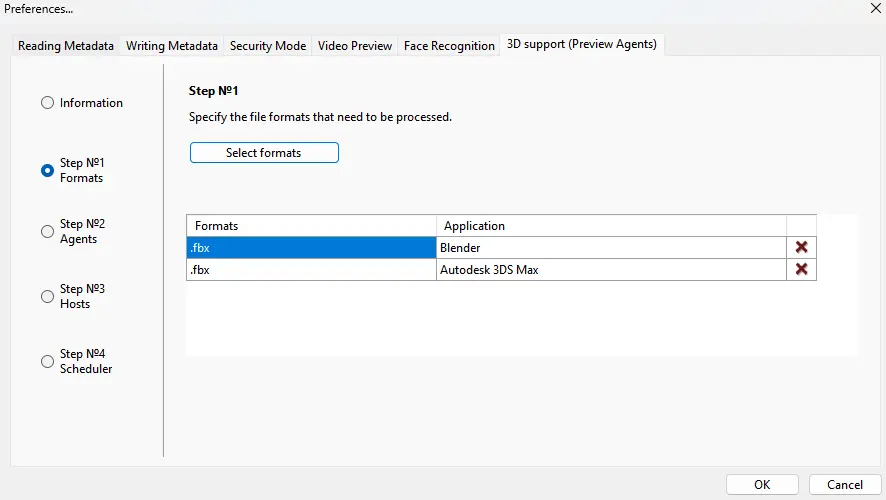
You can select the same format in both Blender and Autodesk 3ds Max, such as .fbx.
The file will be processed wherever the preview agent is available.
Example 4
If you have files in open 3D formats in your catalog and prefer not to utilize other PCs for conversion, you can install the free 3D package Blender on the server and convert formats like .fbx, .stl, .obj, and others directly on the server!
We often send out our newsletter with news and great offers. We will never disclose your data to third parties and you can unsubscribe from the newsletter at any time.
Unfortunately, we’re unable to offer free samples. As a retailer, we buy all magazines from their publishers at the regular trade price. However, you could contact the magazine’s publisher directly to ask if they can send you a free copy.
You can create a new account at the end of the order process or on the following page. You can view all of your orders and subscriptions in your customer account. You can also change your addresses and your password.
No, you don’t have to create an account. But there are a few advantages if you create an account.
You never have to enter your billing and shipping address again
Find all of your orders, subscriptions and addresses in your account
Download invoices of your orders
No, we don’t have a physical store location at the moment. We accept only orders through our online shop and we’re shipping all orders with the Swiss Post Service. Please visit our shipping section for more details.
From time to time you will find us at design fairs and popup markets in Switzerland. Subscribe to our newsletter and you’ll receive the latest news.