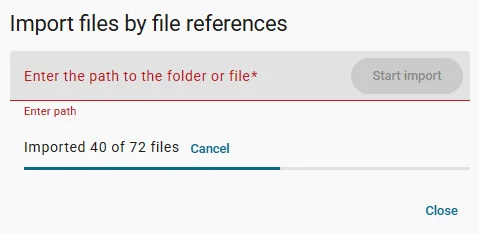
File References
How to Import by File Reference
If your photos and other media documents are already located on a NAS or a shared network location please follow the steps below.
Login to the Catalog
add link to start working with catalog!
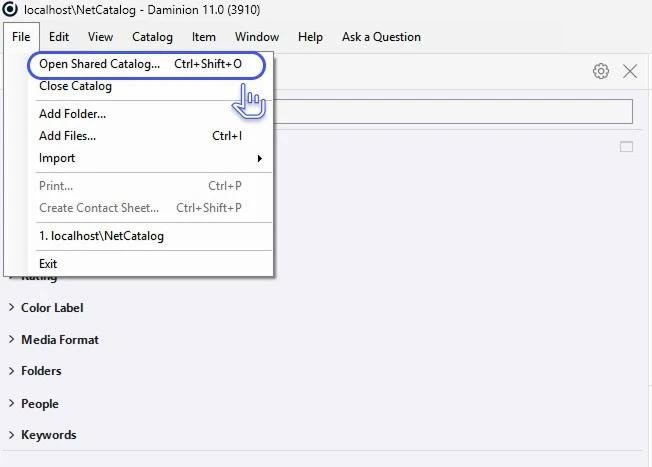
Uploading Files and Folders
There are several ways to upload files in the main window:
- Click the Add Files button, select Add Files or Add Folder from the files pop-up menu
- Drag'n'Drop files or folders into the main window.
Read more
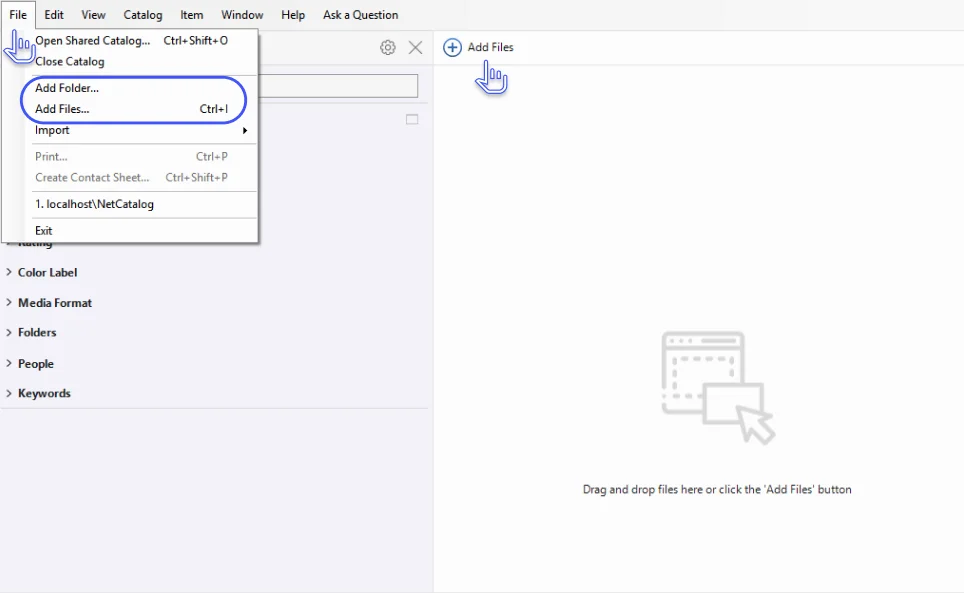
Uploading Files and Folders
If you selected a small number of files, a downloader window will open with additional functionality before the final upload. Read more here.
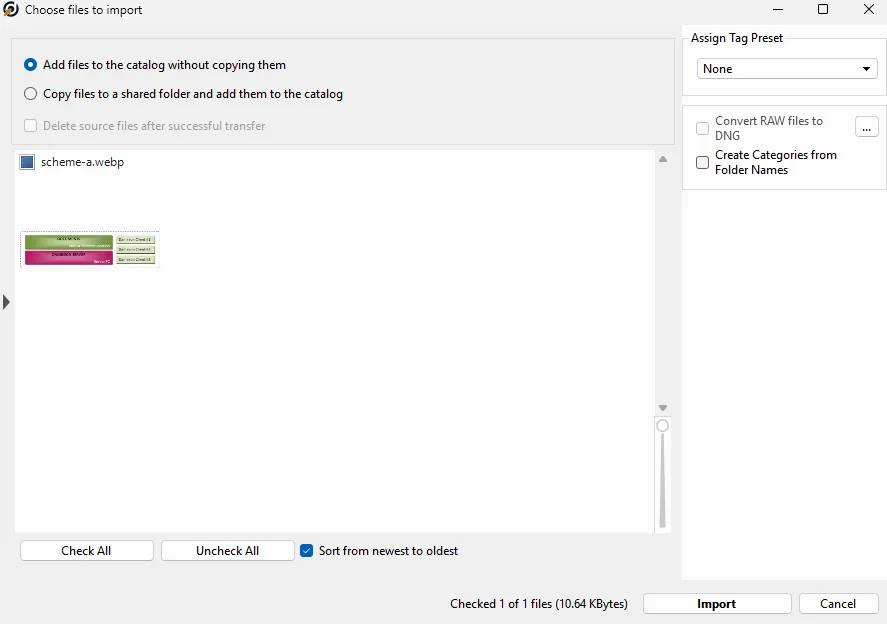
If you selected a folder with a large number of nested files, you will be prompted to import the folder using Rescan to speed up the import.
Read more
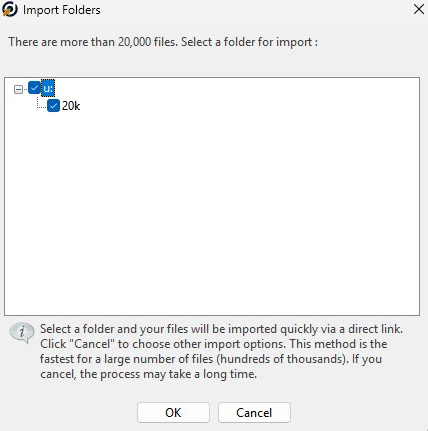
View Result
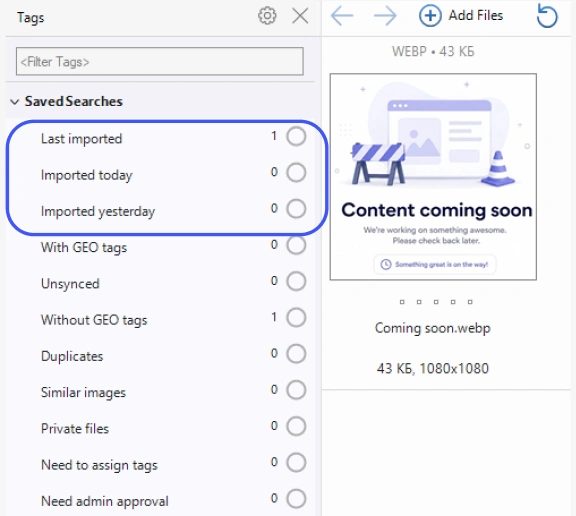
The results of the import operations are also stored in the Tags Panel under “Saved Searches”. This allows you to recall all the files that belong to this import by clicking the small circle which will turn green.
Daminion saves three import-states:
- Last Imported
- Imported Today
- Imported Yesterda
Step heading
Step content. Edit this rich text to describe the step.
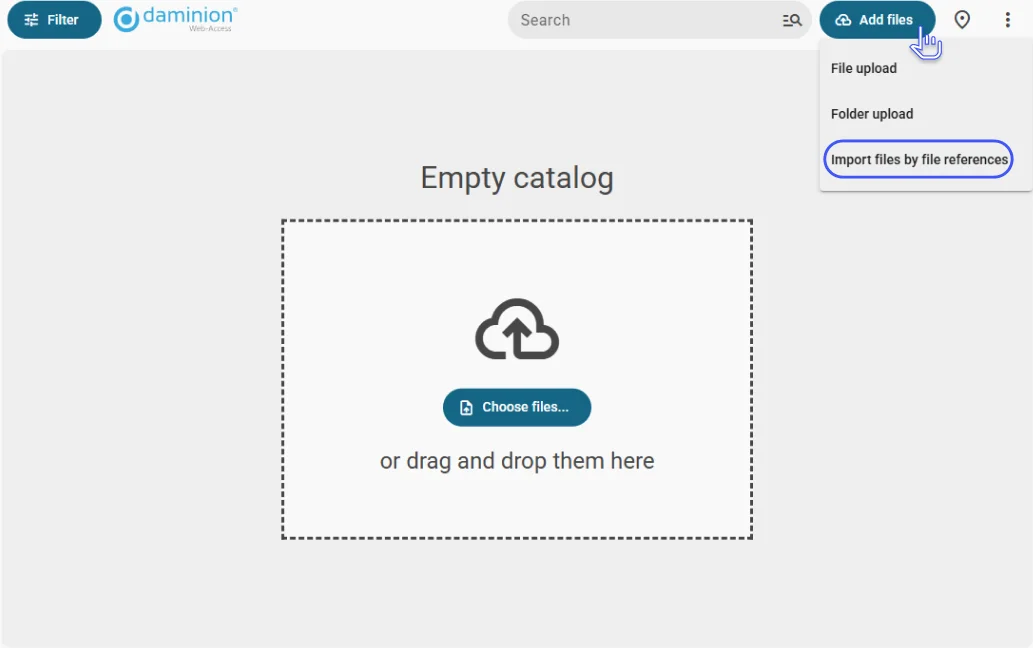
Choose path
Step content. Edit this rich text to describe the step.
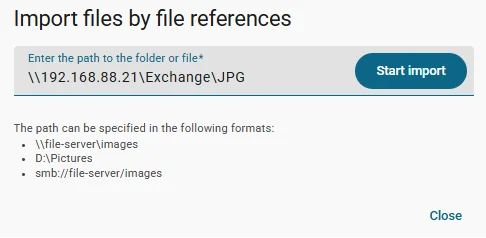
Import proccess
Step content. Edit this rich text to describe the step.