
3D Formats
How to Add 3D Format Support
| Software | Supported formats |
| Cinema 4D (s26+) | .c4d .3ds .obj .stl .fbx |
| Blender (3.6+) | .fbx .obj .blend .stl .usd .usdz .usdc .usda |
| 3D Max (2025+) | .max .3ds .fbx .stl .obj |
The GLB format does not require additional software; files can be viewed directly on the web. Files in other 3D formats must be converted to GLB, which requires installing the Preview Agent.
The installation steps are described below.
Recommended: Import via Network Path
We recommend importing files through network paths. This eliminates the need for expensive 3D software on the server and allows other network computers to handle conversion.
⚠️ Important: Files imported directly to the server (non-network path) will not display textures on 3D models.
Open the Daminion Server Administration Panel, go to 3D support settings, and click on step №1.
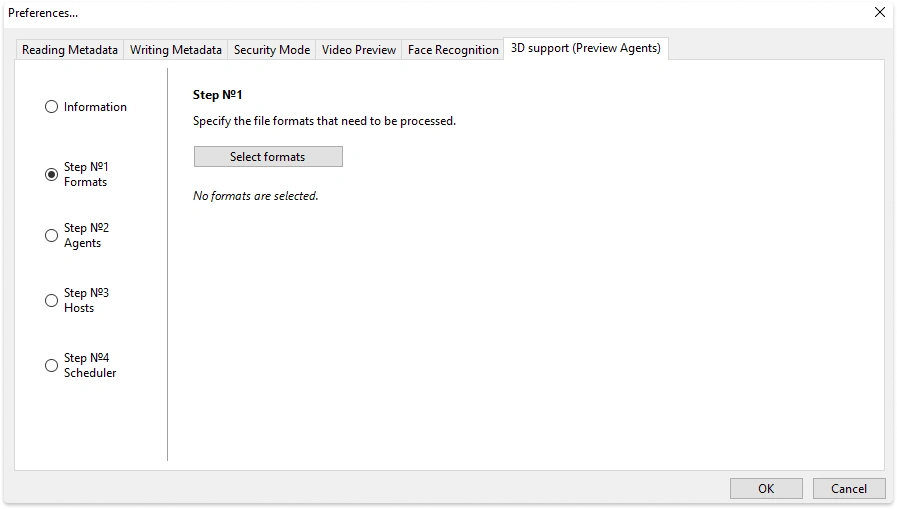
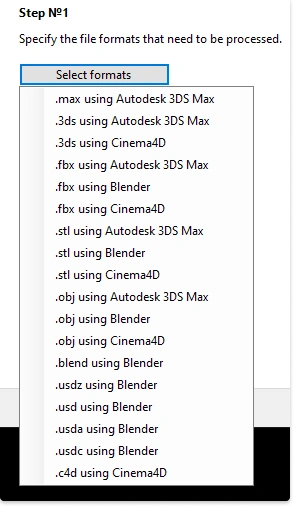
Click the Select Formats button and choose the formats along with the corresponding applications that should process them.
This setting applies to all computers on the network where the Preview Agent is installed.
The agent can be installed either on the server or on any computer on the network that has access to the files.
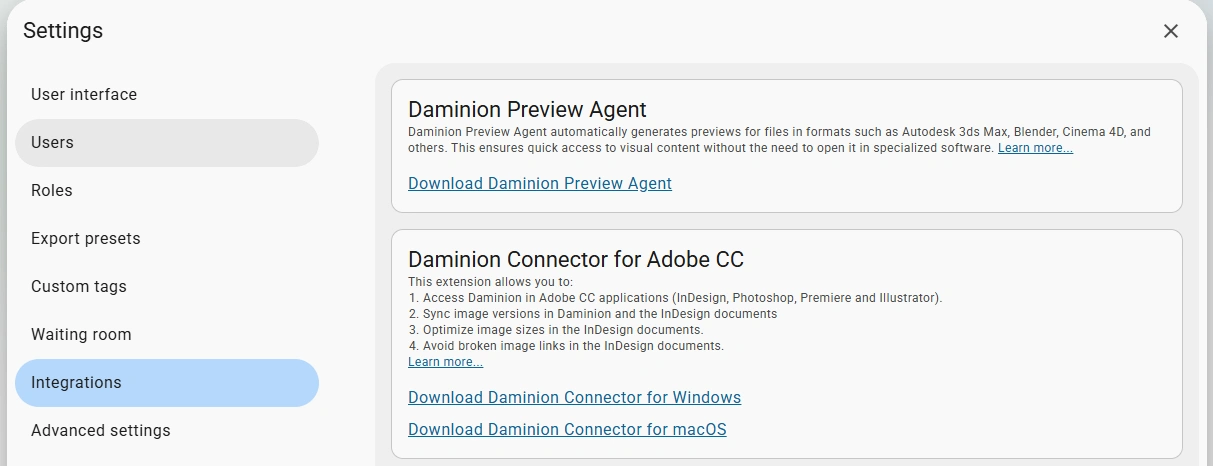
The Preview Agent can be downloaded in two ways:
- Open the Settings and navigate to Integrations. Under Daminion Preview Agent, a hyperlink with the installation file is available.
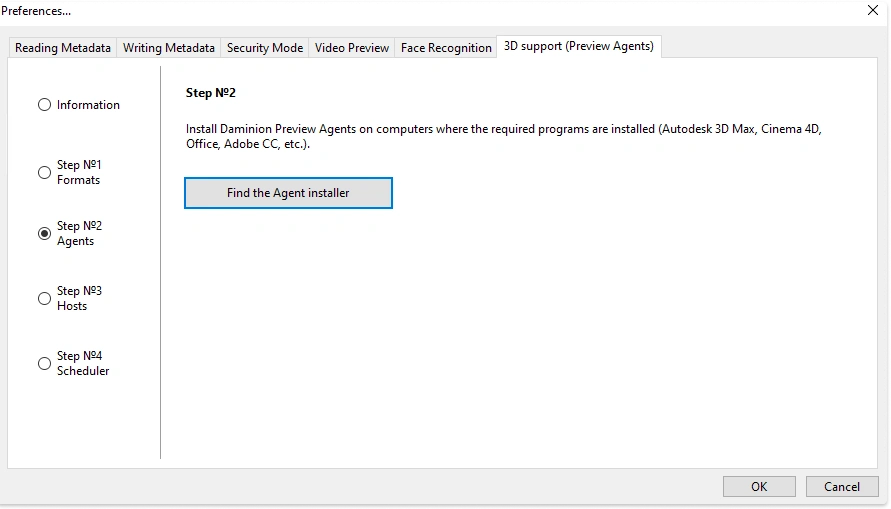
2. Open the Daminion Server Administration panel. Click on Administration > Preferences, and navigate to 3D support settings.
In Step №2 – Agents, click the “Find the Agent installer” button.
Run DaminionPreviewAgentSetup.exe
During the installation process you will be prompted to add rules for the agent to Windows Defender Firewall .
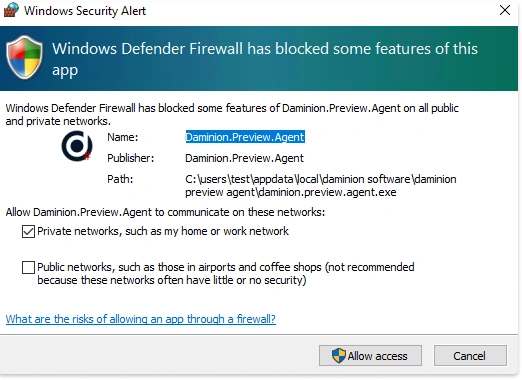
Alternatively, you can add rules afterward by right-clicking on the agent icon in the tray.
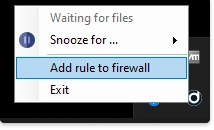
If you have a third-party firewall installed, you must open the following ports on the server and client to ensure proper functionality:
- 5001: Agent port for communication with the server.
- 15254: Disturbed updater port for working with proxy files.
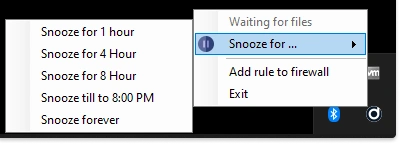
The conversion process typically doesn’t put much load on your PC. However, if you need to focus without any distractions at a specific moment, you can delay the converter. Simply right-click on the tray icon, and choose to postpone the converter for a few hours or indefinitely.
The conversion process begins in silent mode and doesn’t disrupt the user’s work on the PC.
Go to the "Host" tab and verify that the address of the computer where the agent and the required software are installed is displayed.
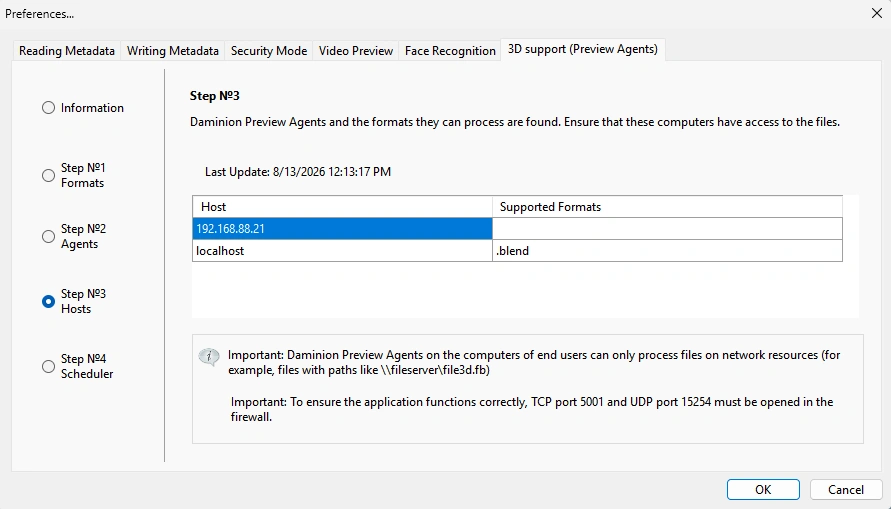
The screenshot shows an agent on "localhost" that supports Blend; however, another agent on the network (at 192.168.88.21) is also visible, but it does not have the software that supports Blend installed.
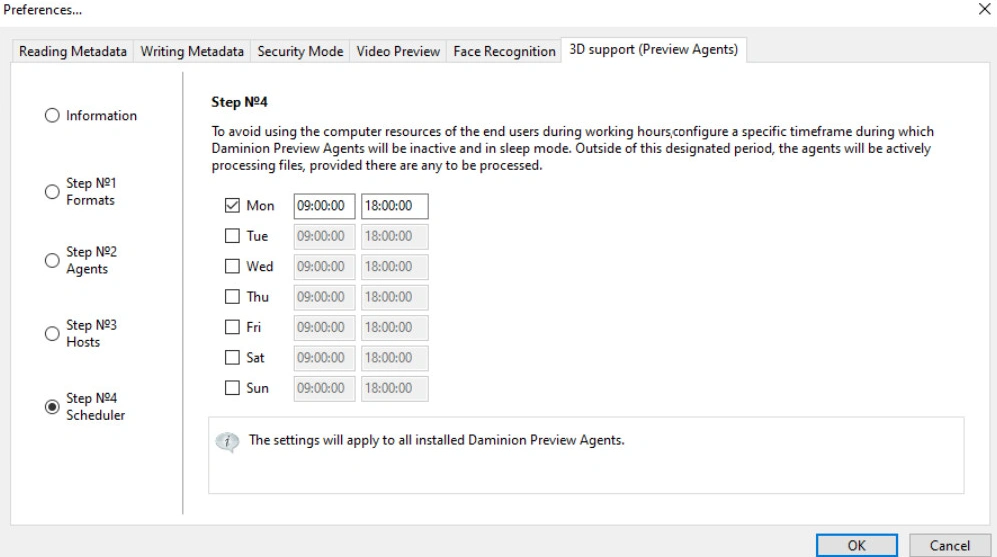
3D files can be converted on a schedule. The schedule is set on the server and applies to all Preview Agents on the network.
You can specify the day of the week and the time when the conversion should be performed.
After setting the time intervals and days of the week, click OK, and restart the server. Now, the generation of previews will operate according to the schedule
Troubleshooting
The main errors and solutions are described in this article.
Agent Task Scheduler
The conversion process typically doesn’t put much load on your PC. However, if you need to focus without any distractions at a specific moment, you can delay the converter. Simply right-click on the tray icon, and choose to postpone the converter for a few hours or indefinitely.
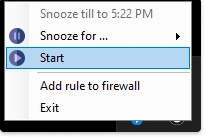
In order to resume the work, click on start.
Usage Examples
Example 1
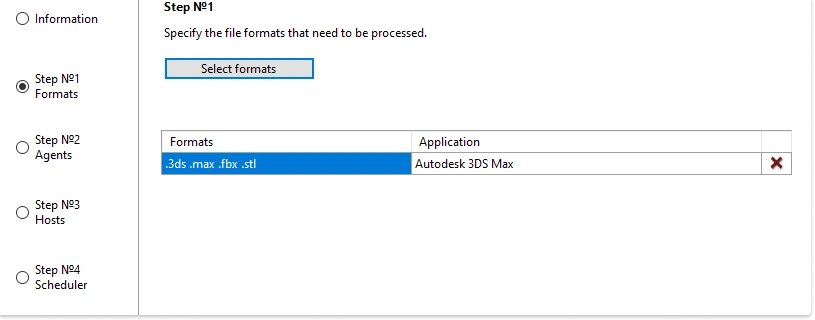
Autodesk 3ds Max is installed on the server.
Accordingly, you should select the formats .max, .3ds, .fbx, and .stl for conversion through Autodesk 3ds Max.
Example 2
If you don’t have supported software installed on the server, but you have another PC on the network with the necessary software, consider the following scenario.
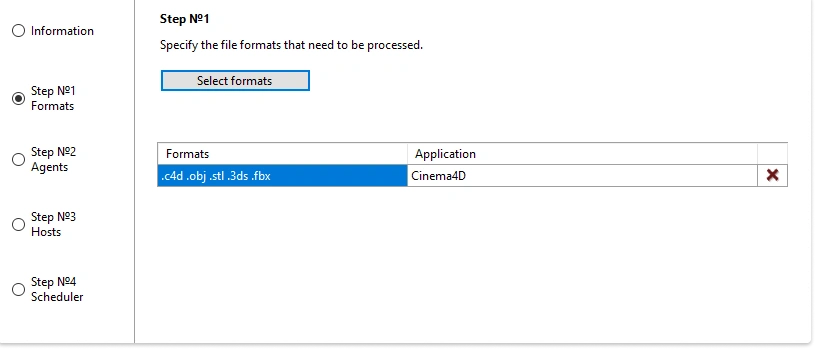
Let’s say you have a computer with Cinema4D installed on your network.
In this case, select the formats that correspond to the Cinema4D program:
Note: that in this case the source 3D files must be imported in Daminion via network paths and be available on the PC where the converter will be installed.
Example 3
Blender is installed on the server, and 3ds Max is installed on a PC on the network. You can select the same format in both Blender and Autodesk 3ds Max, such as .fbx.
The file will be processed wherever the preview agent is available.
Example 4
If you have files in open 3D formats in your catalog and prefer not to utilize other PCs for conversion, you can install the free 3D package Blender on the server and convert formats like .fbx, .stl, .obj, and others directly on the server!