Folder Rescan
The Automatic Folder Rescan feature detects external changes to your files and folder structure, automatically updating your catalog. You can specify which folders Daminion should monitor for changes.
Detected changes include:
- Creation of new files and folders
- Deletion of files and folders
- Changes to file metadata made by external applications
All subfolders within a watched folder are automatically monitored, so you can enable monitoring at the top level and have all nested folders covered.
Performance tip: While folder monitoring is relatively resource-efficient, avoid enabling it for your entire catalog. Instead, limit it to the folders you actively manage for better performance.
How to enable automatic folder content updates
In the catalog tag panel within the main Daminion window, open the "Folders" tag
Right-click the folder you want to monitor and select Switch Auto-Rescan On.
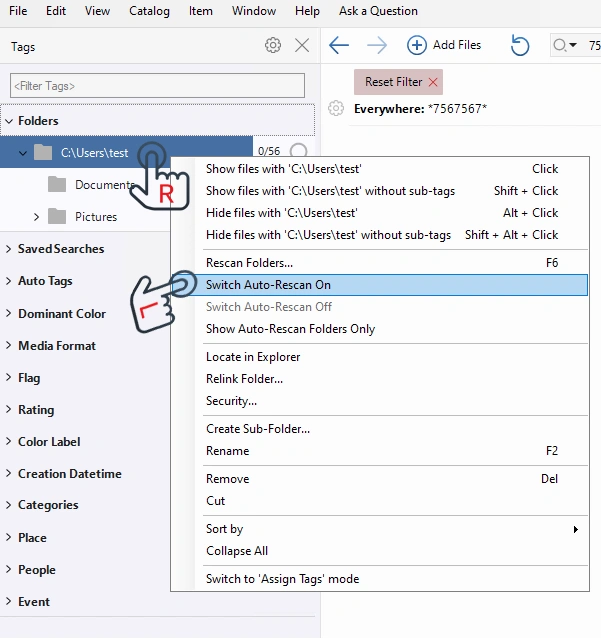
Repeat Step 2 for each additional folder you want to monitor.
Look for a small magnifying glass symbol on the folder icon.
This indicates that Daminion is actively monitoring and synchronizing the folder.

Go to File Menu > Catalog > Advanced Settings > Auto-Rescan Settings.
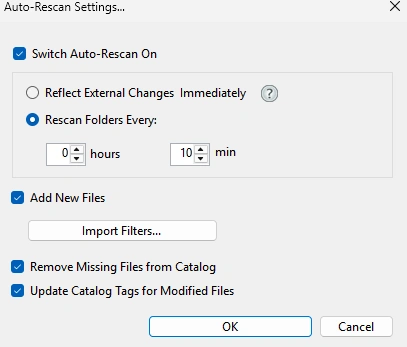
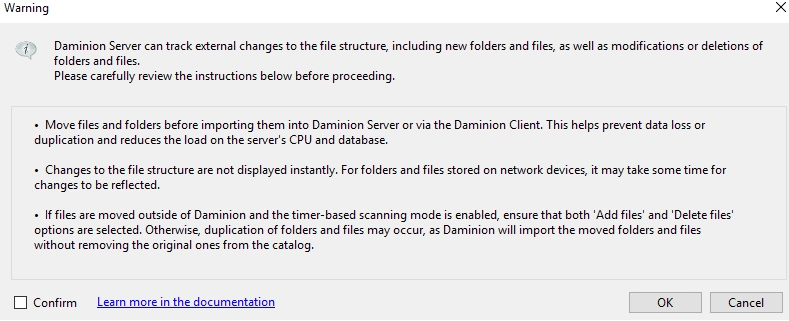
Carefully read the options displayed in the Auto-Rescan Settings window.
Check the confirmation checkbox and click OK
Select Scan every 10 minutes as your update interval.
For other settings, you can either:
- Keep the default values shown in the screenshot, or
- Adjust them based on your needs (see Auto-Rescan Settings Reference for detailed explanations of each option)