Catalog settings
General
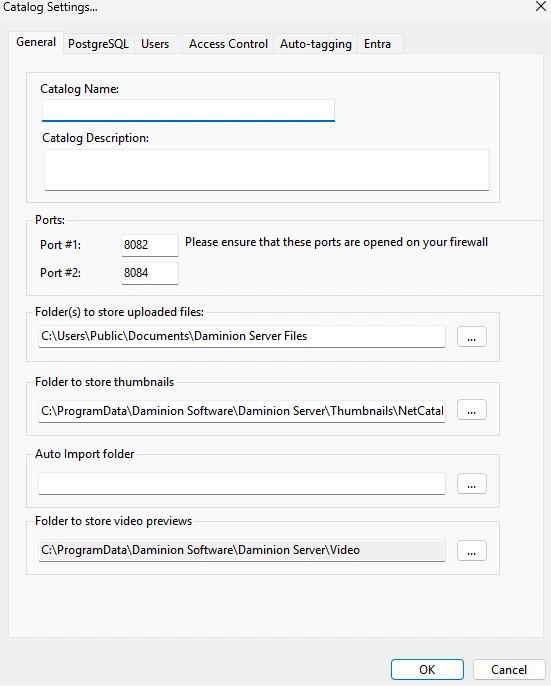
Catalog name and description
Ports
Remember to open the ports on your firewall !
By default, Daminion occupies 8082 and 8084 ports for the default NetCatalog. When a new catalog is created, the next pair of available ports is assigned automatically: 8083 and 8085; 8086 and 8087, etc. If necessary, change the ports used by this catalog.
Folder(s) to store uploaded files
Important! The Auto Import folder and The Folder to store uploaded files should not be the same folder!
Specify a folder to upload files to during the import process. This folder can be either local or on a network. Please note, however, that files copied to a local folder cannot be accessed directly by other users on the network. For example, a video file cannot be played in desktop applications on other PCs in the network.
Auto Import Folder
Files copied or moved to this folder will be automatically imported to the catalog and moved to the folder selected to store uploaded files. This enables you to import to the catalog via FTP or DropBox without using Daminion Desktop or Web Client.
Auto Import Folder can be left empty, it is an optional setting.
Once the Auto Import folder is set up, please restart Daminion File Watching Service. Otherwise, the changes will not be applied!
Please make sure that the Daminion File Watching Service logon user has full access rights to the Auto Import folder and Folder to store uploaded files (you can check the logon user in Windows services).
Video Preview Folder
This folder is used to store mid-sized video previews for the web client. This folder should be a local folder on the server. You can leave it as set by default on your C:\ drive or change the path to another local drive. Please learn more about video previews here.
Each video preview normally takes 20% of the original video’s size. Having this in mind, you can calculate the required storage space for the Video Preview folder.
PostgreSQL Server Connection
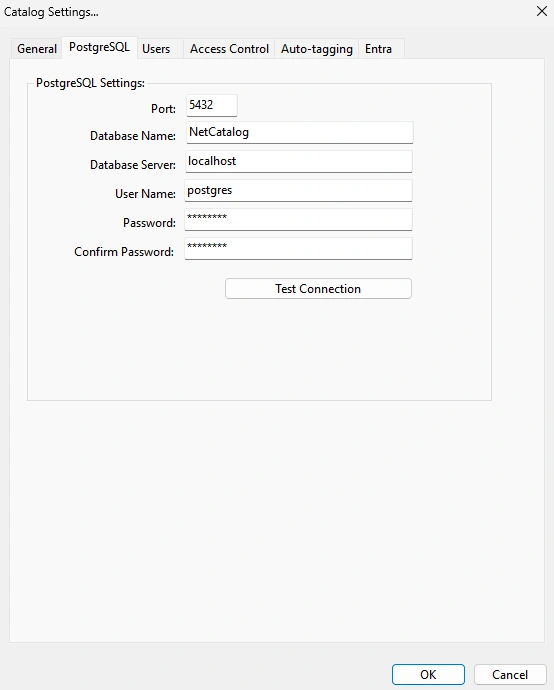
Select the PostgreSQL Server that will manage your catalog. Specify the database user name and password, then click Test Connection to verify that the settings are correct.
By default, both the user name and password are "postgres". If you specified a different password during a custom installation of Daminion Server, use that password instead.
If your Postgres server is located on another PC, use the setup instructions.
Catalog Users Management
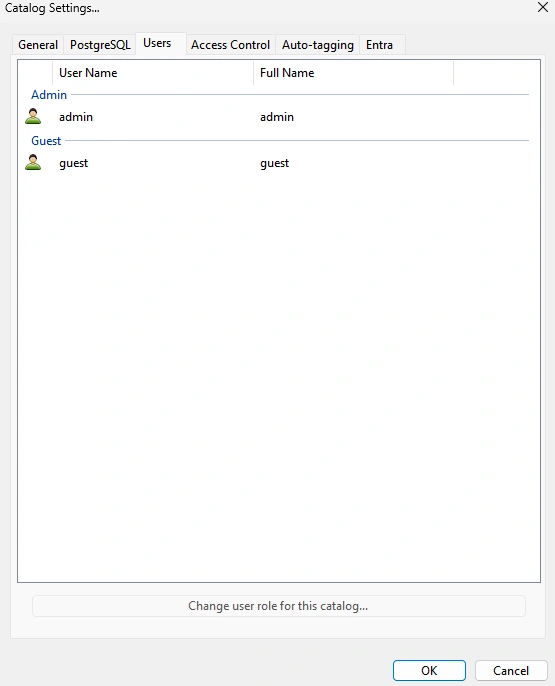
The Users tab options get available after the catalog is created. Please confirm the creation of the catalog, restart the Daminion server and open the catalog settings again to adjust the permissions of the users specifically for this catalog.
To find out more about how to create users, read the article User Management.
Once you close the dialog, Daminion automatically restarts to bring the changes into effect.
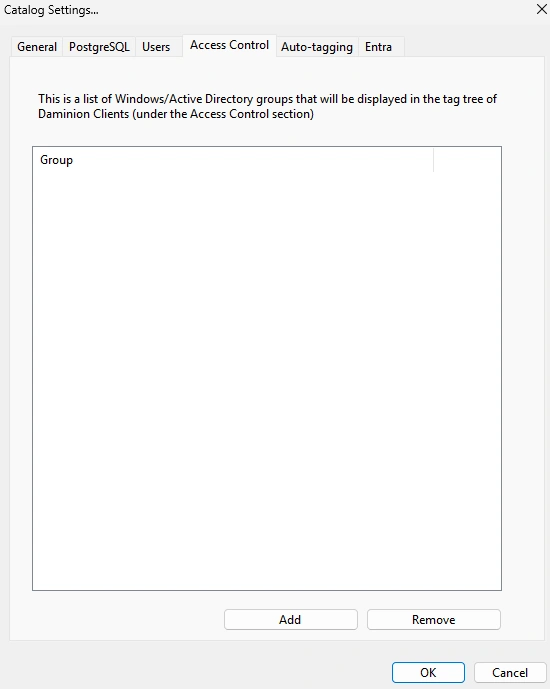
Access Control
This tab gets available after the catalog is created and serves to adjust access permission on the level of files for Active Directory groups. Please check out this article to learn more about this setting.
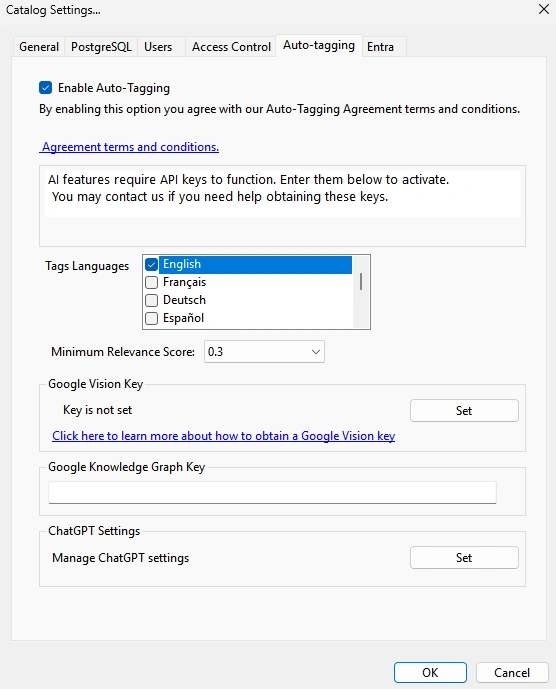
Auto tagging
Here you can activate auto-tagging on a specific catalog. Learn how to do it here.
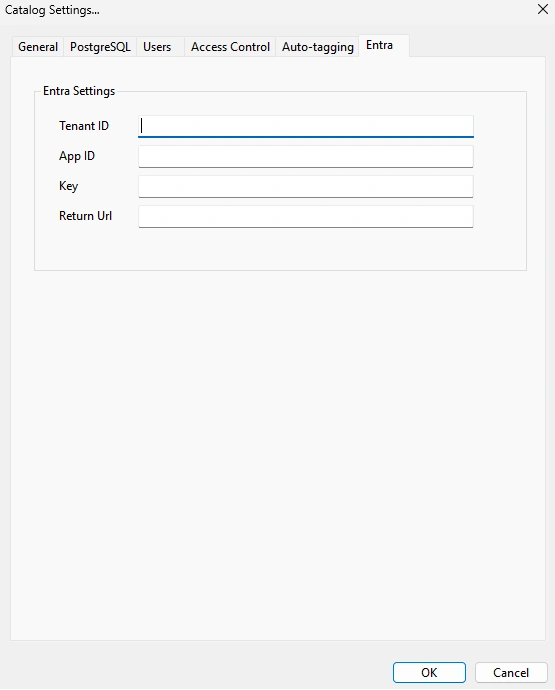
Entra settings