Custom Tags
While IPTC/XMP standards provide predefined tags like comment, title, and keyword, they may not align with your specific organizational needs. Daminion's custom tag fields solve this by allowing you to create your own categories tailored to your workflow.
With custom tags, you can define field types that match your requirements — such as a numerical field for customer IDs instead of standard text fields. This flexibility enables you to organize and categorize your media files according to your exact specifications rather than adapting your workflow to preset standards.
Please note that Custom Tags can be written to the metadata of the files.
Creating a Custom Tag Field
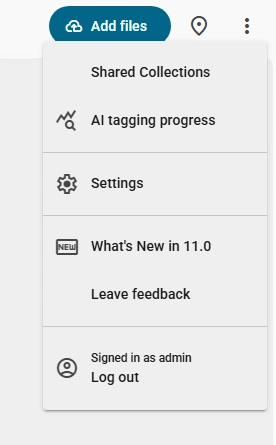
To create a new custom tag, log into your catalog as an administrator, click the three dots icon in the upper right corner of the web client interface, and select Settings.
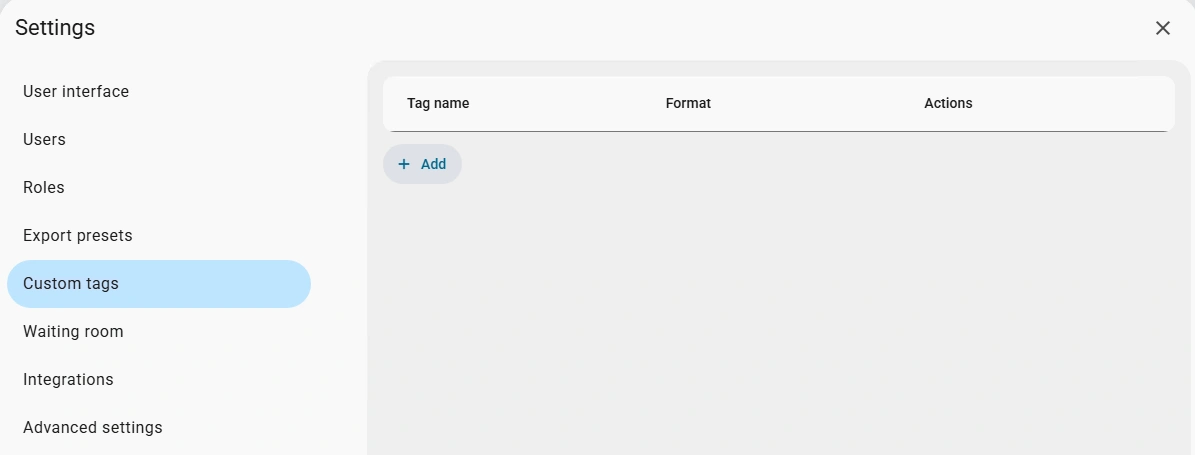
In the settings window that opens, select custom tags and click the Add button to create a tag.
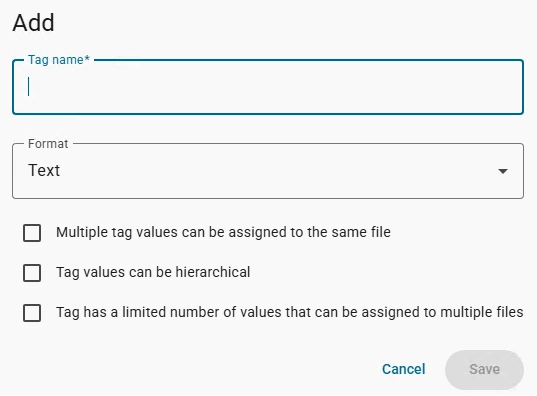
Selecting any parameter makes the custom tag visible in the Filter panel. If no parameters are selected, the tag is available only in the Properties panel.
In the Add Custom Tag dialog, configure your new tag with the following options:
Tag name — Enter a descriptive name for your custom tag.
Format — Select the field type from the dropdown menu:
- Text
- Fractional
- Integer
- Time
- Currency
- Link
Multiple tag values can be assigned to the same file — Enable this option to allow multiple values from this tag to be applied to a single file.
Tag values can be hierarchical — Enable this option to create nested tag values with parent-child relationships for better organization.
Tag has a limited number of values that can be assigned to multiple files — Enable this option to restrict the number of values this tag can have across your catalog.
Once configured, click Save to create the custom tag.
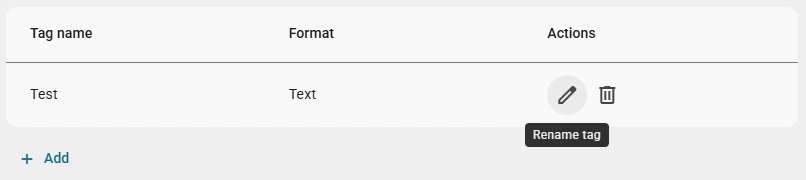
Rename Custom Tag
Starting with version 7.0 Custom tags can be renamed after being created. However, the name will be only changed in Daminion interface and will not be changed in the metadata of the file. Therefore, please be sure about the name of the custom tag before creating it.
To rename a custom click, right-click it and select Rename.