Compare
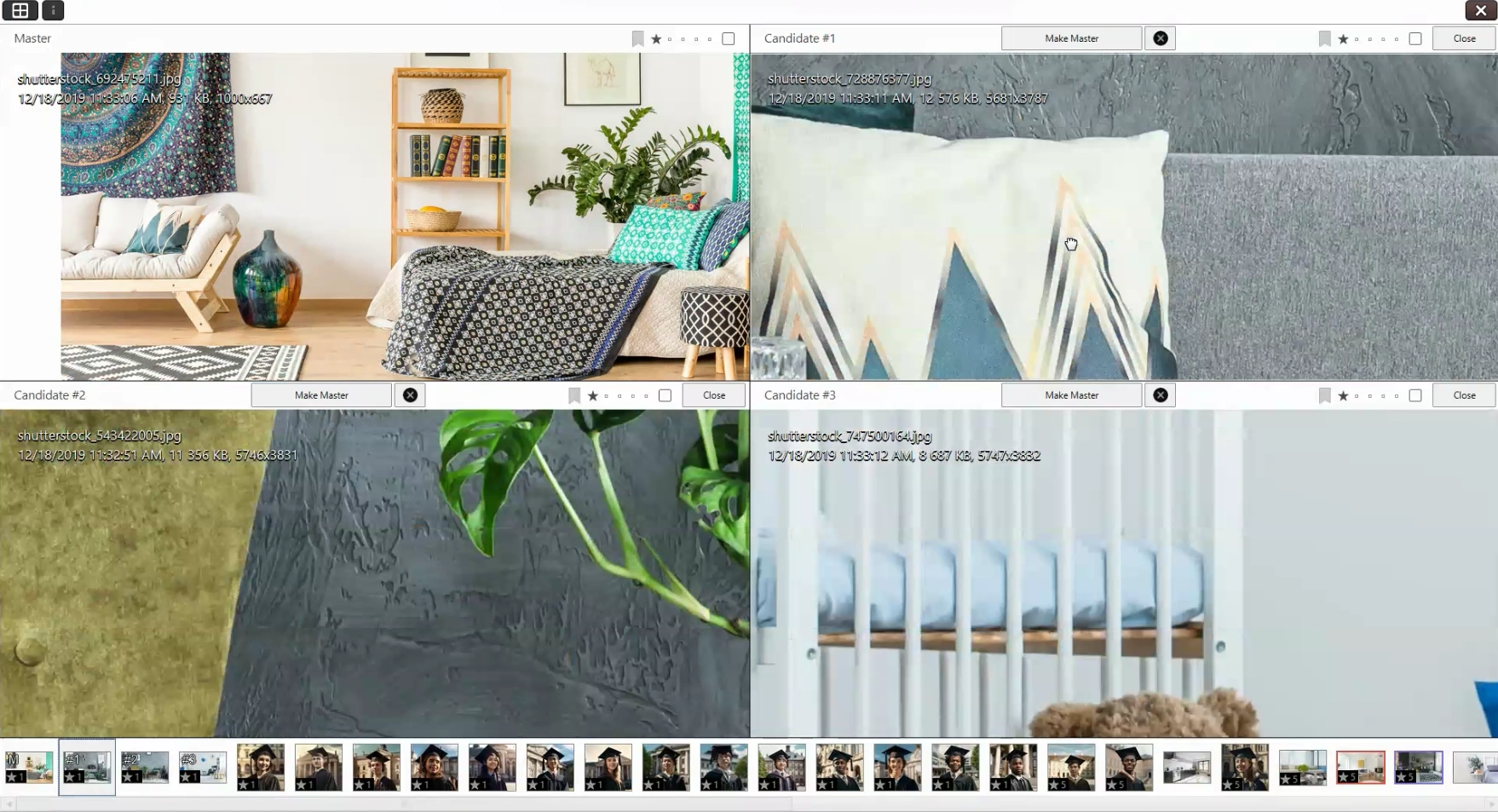
Compare Items view allows you to quickly find the right image from a series of similar images. You can exclude, select, and/or rate images. And you can zoom all images simultaneously with just one click – useful for quickly identifying the sharpest image in a series.
Launching Compare Items View
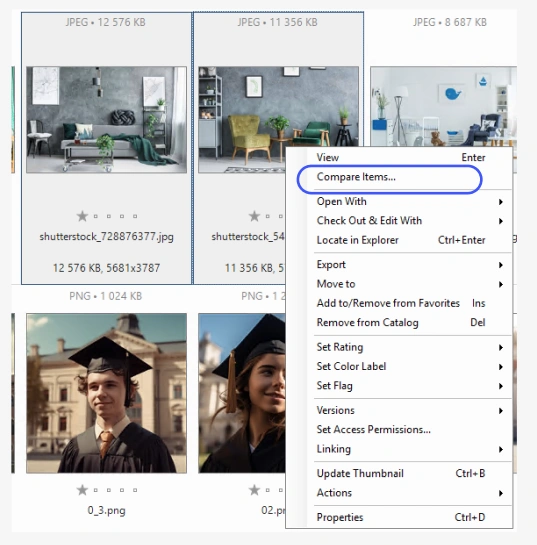
Select the photos you want to compare (from 2 to 8 images at a time). In the file menu, navigate to Item and then click Compare Items.
Fullscreen Viewer Toolbar
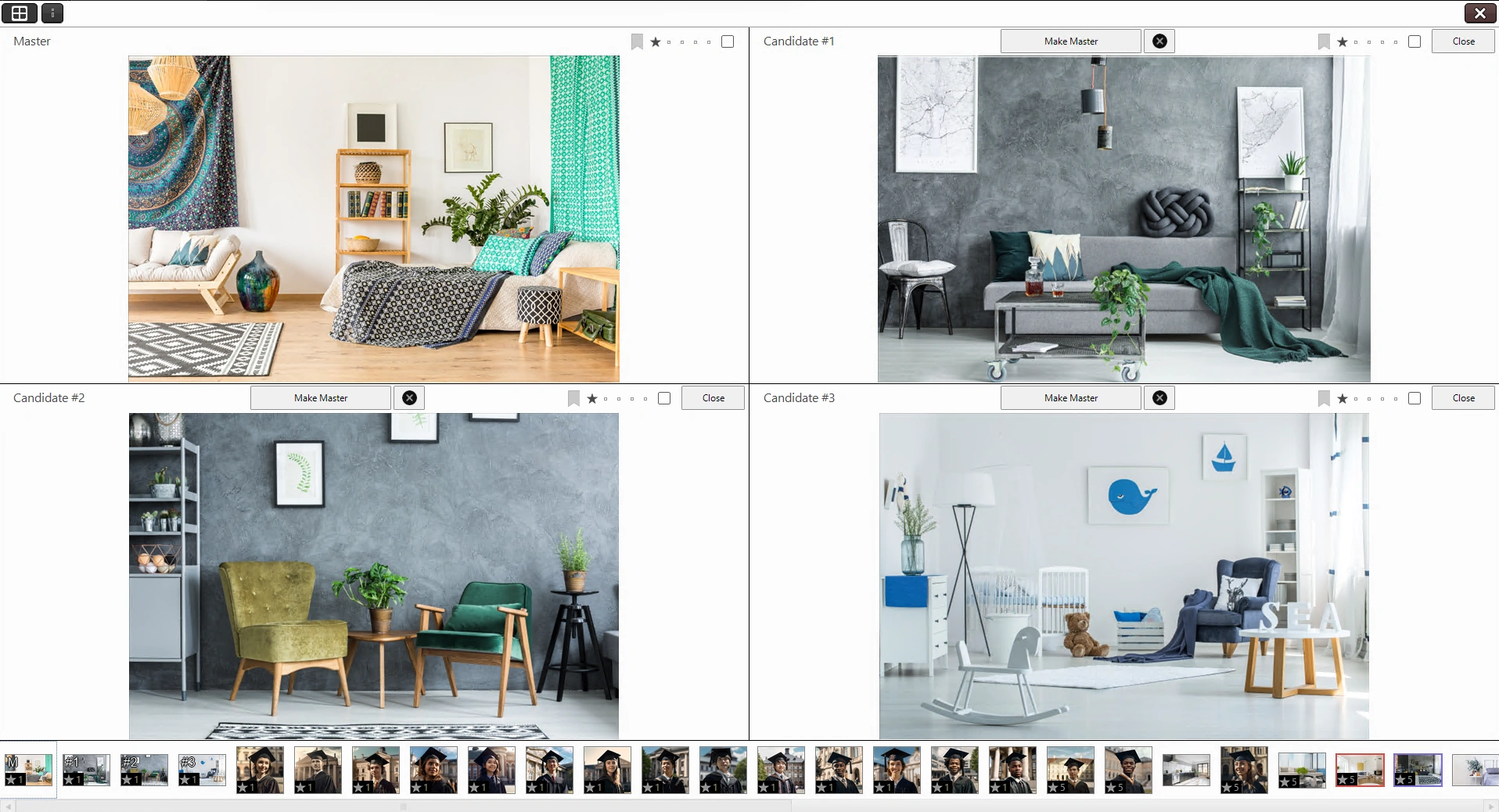
View Mode Toggle — Switch between multi-view and single-view modes. In single-view mode, use function keys F1–F8 to quickly navigate between images.
File Information — Display additional file details including filename, capture date, dimensions, and recording parameters.
Close Compare View — Exit the Compare Items view by clicking the close button or pressing ESC.
Toolbar above the images

Each of the images on display has an individual taskbar above it.
Click the Make Master button (B) to anchor the respective image in the top left corner of the first window. The image can only be replaced by clicking Make Master above another image in the film strip.

The filmstrip at the bottom of the screen displays all images currently present in the browser window.

In addition, the images currently displayed in the viewports above are marked respectively in the filmstrip. The “M” stands for Master (your chosen candidate) and the numbers #1 – #8 are the respective candidates currently on display in the viewport.
The currently selected image is displayed in the viewport within a white frame. You can replace this image, either by rotating the mouse wheel or by clicking on another image in the filmstrip.
Zoom View
Hold the mouse pointer over any one image and click to view all images at 100% magnification. Then use the mouse pointer to move all images simultaneously to help you identify the most appropriate candidate.