
Advanced Import
Overview of the import dialog
Rich Text
This is my rich text.
I am a subheading
This is more rich text.
I am a list
Lists are cool

Import Source
Select a new source path for files to be imported.
Group by
Choose whether images are sorted by date, name, or file type.
Add files to the catalog without copying them
With this option selected, Daminion only reads the metadata from the files but leaves the actual files in the source folder (recommended if, for example, your files already exist in the desired destination folder).
Copy files to a folder and add to the catalog
When selecting this option, you must specify a source folder. See (F).
Delete source files after the successful transfer
With this option checked, Daminion deletes all files in the source folder after copying.
Destination folder
If (D) is enabled, Daminion needs to know where to copy the files. This can be either a local folder path or a network path. Please note, however, that files copied to local paths cannot be accessed by other users on the network.
Create Sub-Folders

In addition to the specified destination path, Daminion can also create subfolders automatically using special tokens selected from the drop-down list. For example, you can program Daminion to create folder names by date, time, or by camera brand. Click on “Customize…” in the drop-down list to create your own naming scheme and save it for later use. Once saved, your customized naming schemes are added to the drop-down list. For more information please read Assigning Tag Preset.
Rename Files
With this option checked, files are renamed automatically during the import process. The procedure is the same as renaming folders.
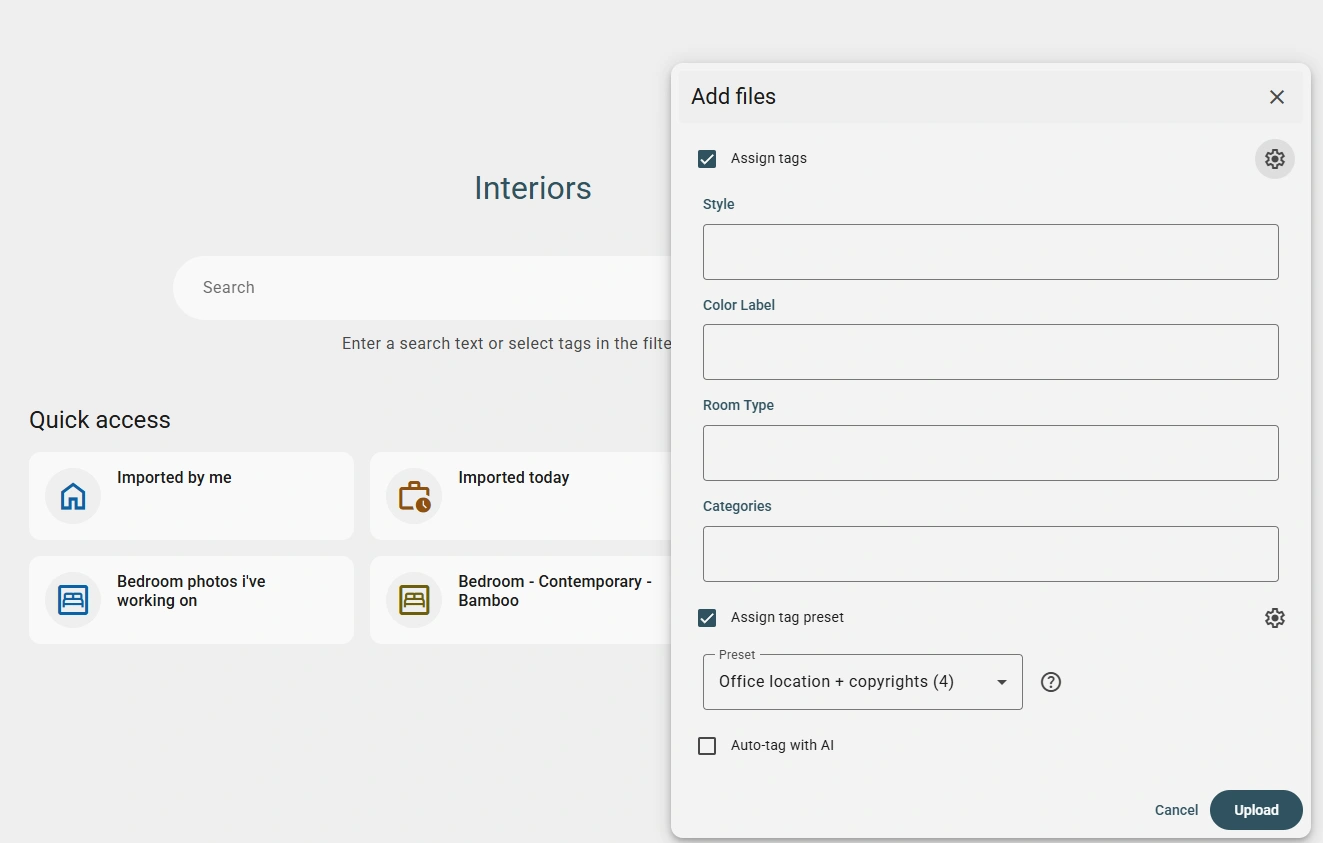
Assign Tag Preset
Define your own tags and determine which should be assigned automatically during the import process. Once created, these import requirements can then be accessed from the Properties panel.
Convert RAW files to DNG
If you have the free Adobe DNG converter already installed on your PC, you can convert camera RAW files to the DNG format.
Create Categories from Folder Names
With this option checked, Daminion automatically creates category tags based on the names of source folders.
Check all/Uncheck all
Use these buttons to select or deselect all images in the import window.
Import
Closes dialog. Import begins.