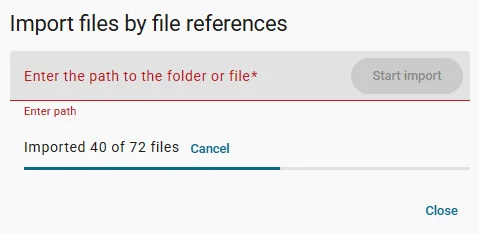
Upload to Server
How to Upload Files to Server
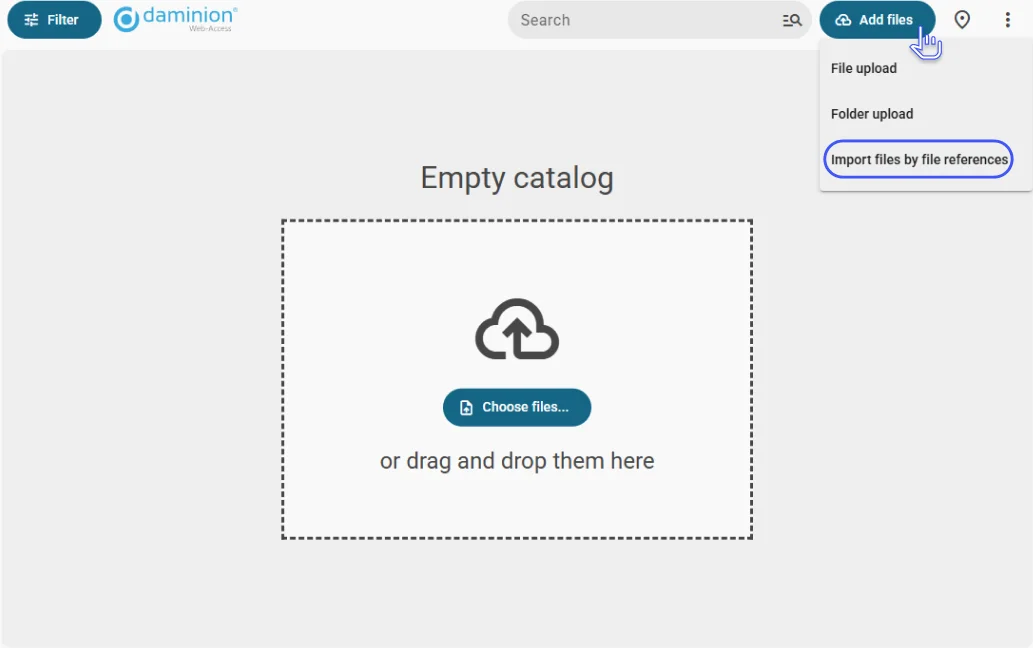
The Import dialog can be accessed either by clicking the “Add Files …” button (Ctrl + I) or by dragging and dropping files directly from Windows Explorer in the Daminion browser window.
If the destination folder already exists in the Daminion catalog but doesn’t contain files to be imported, you can use the automatic folder synchronization instead (see “Automatic Folder Rescan“).
add link to start working with catalog!
You can open the Import dialog by clicking the Add Files… button (Ctrl+I), by selecting File > Add Files… or File > Add Folder… from the menu, or by dragging and dropping files from Windows Explorer directly into the Daminion browser window.
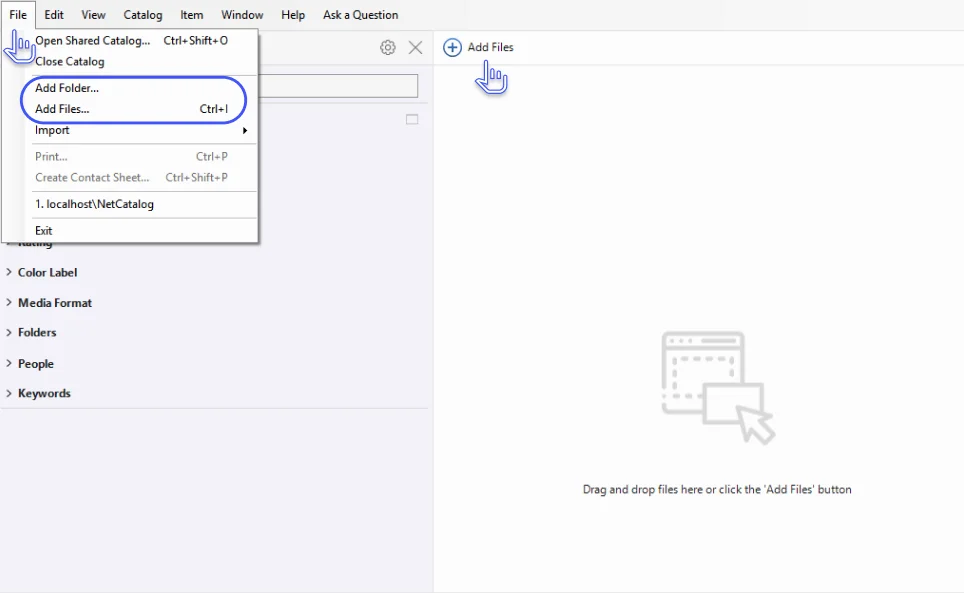
You can also import files using Windows copy/paste commands. Just copy the files from Windows Explorer (Ctrl + C) and paste them into the Daminion browser (Ctrl + V). The import dialog will open immediately with the files pasted in place.
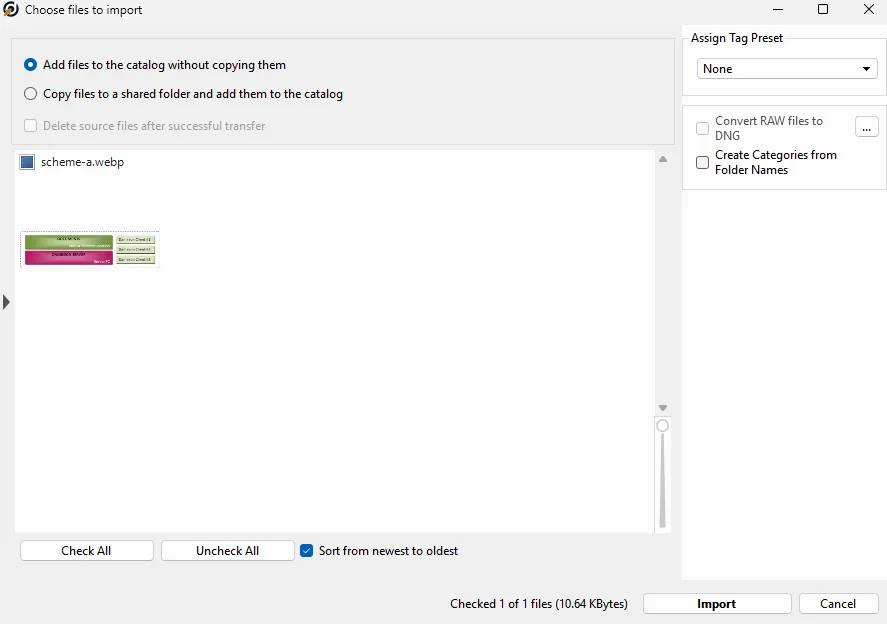
If you selected a small number of files, a downloader window will open with additional functionality before the final upload.
The functionality of the import window is described in more detail in the following article.
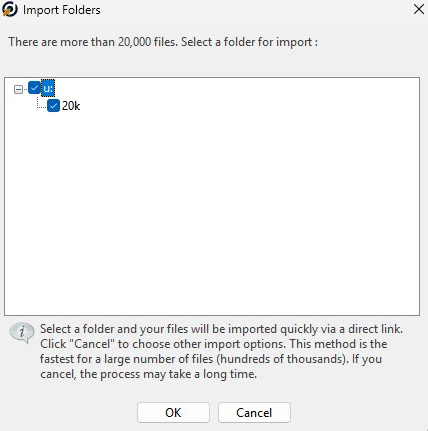
If you selected a folder with a large number of nested files, you will be prompted to import the folder using Rescan to speed up the import.
Read more
Step content. Edit this rich text to describe the step.
Step content. Edit this rich text to describe the step.
Step content. Edit this rich text to describe the step.