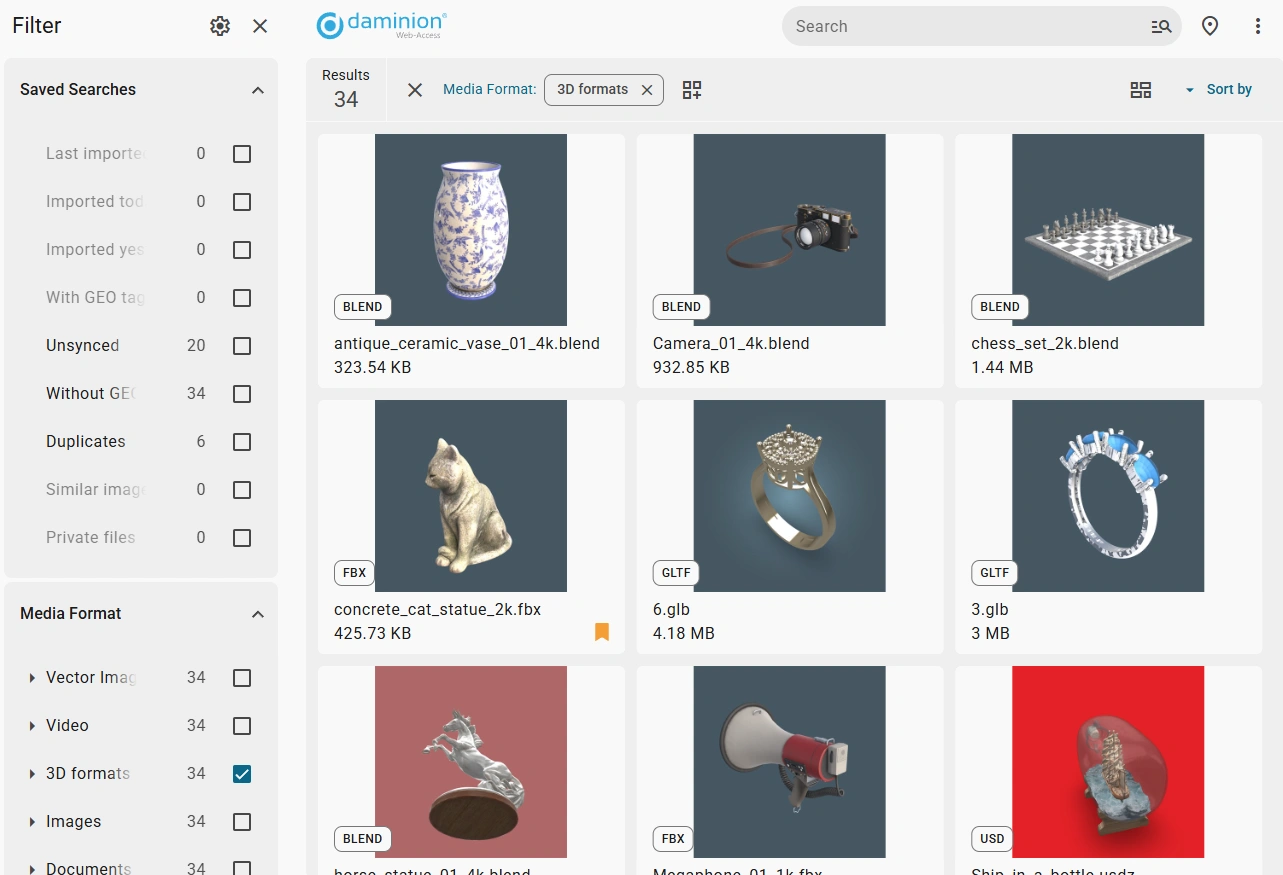
3D View
GLB format is immediately available for viewing.
For other formats, configure support for them according to this guide.
After the completion of the conversion process, the final file in GLB format is sent back to the server and saved in the preview folder.
Now the 3D preview of the file becomes accessible.
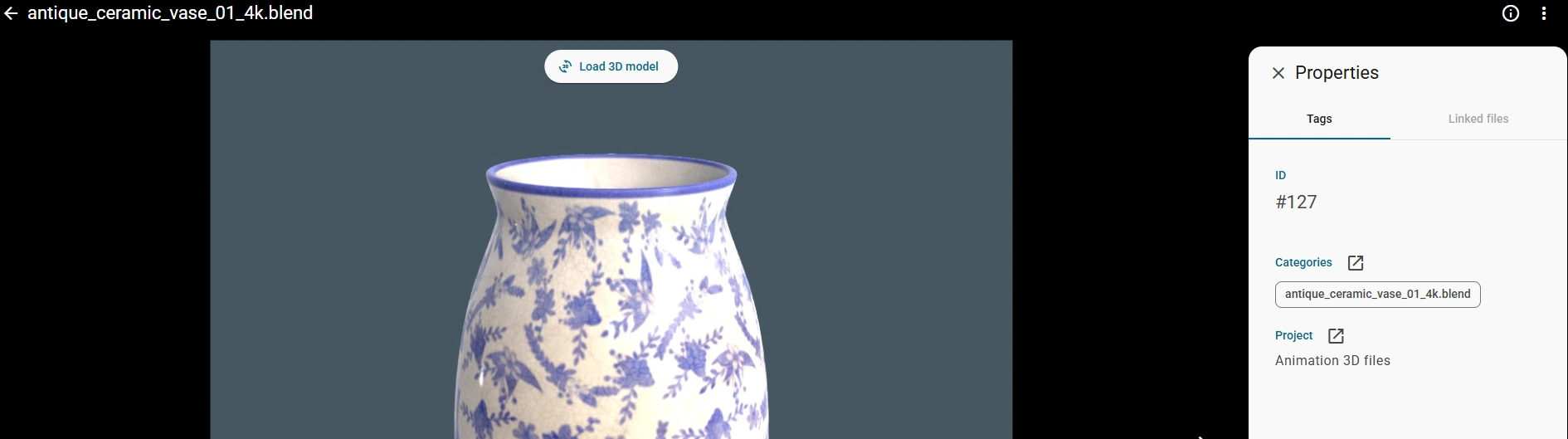
To load the 3D model, open the file in full screen mode and click on the button 
If the following message is displayed instead of the button Load 3D model

Please navigate to the following article to access detailed explanations of all preview statuses.
Once the model is opened, the following options are available:
- Rotate the model by holding down the left mouse button.
- Zoom in or out on the model using the on-screen buttons or by scrolling the mouse wheel.
- Move the camera by pressing the right mouse button.
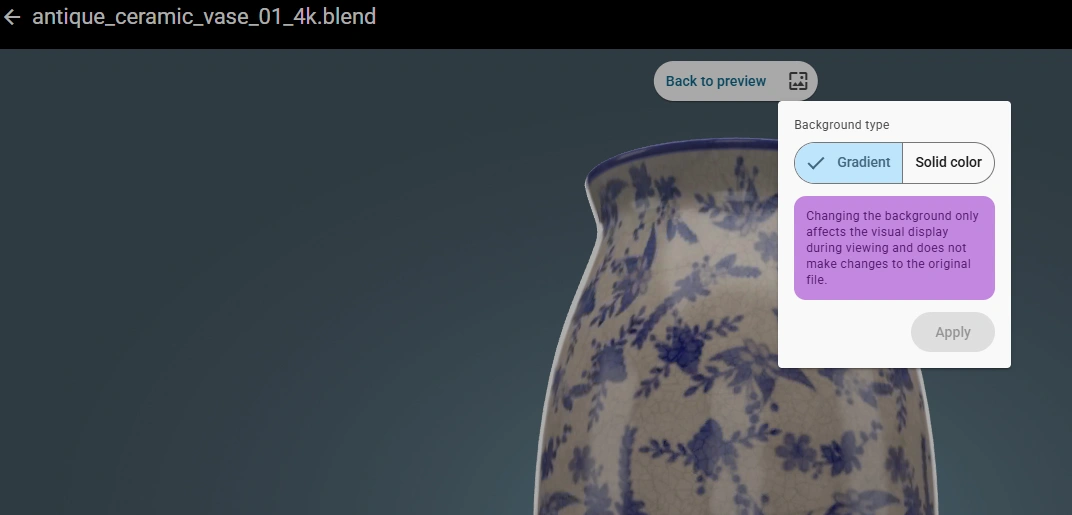
You can choose the background of the model by clicking on this button  .The background can either be a solid color or a standard gradient.
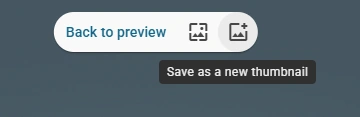
By clicking on the  icon you can switch to the preview setting mode. Choose the desired position for the model, then confirm by clicking the save button. The previews of the model will be updated to reflect the current settings.
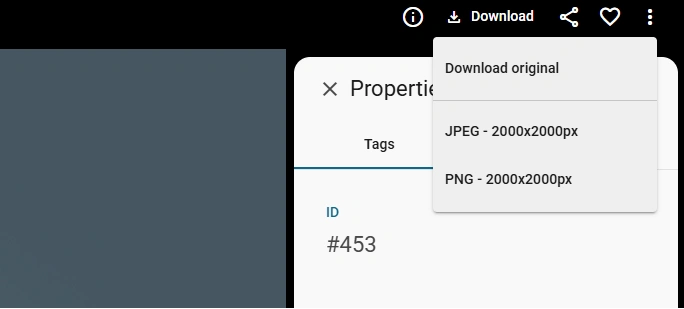
While in 3D view mode, you can save the model image by clicking on the download button. You have two options to choose from: JPEG (2000×2000) and PNG (2000x2000px).
To load the 3D model, open the file in full screen mode and click on Show 3D Model button
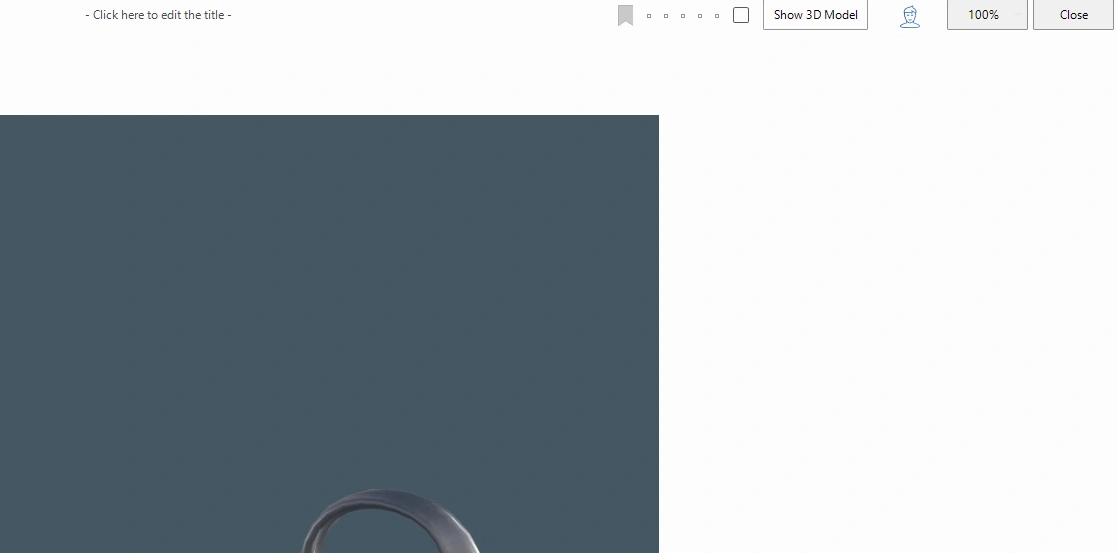
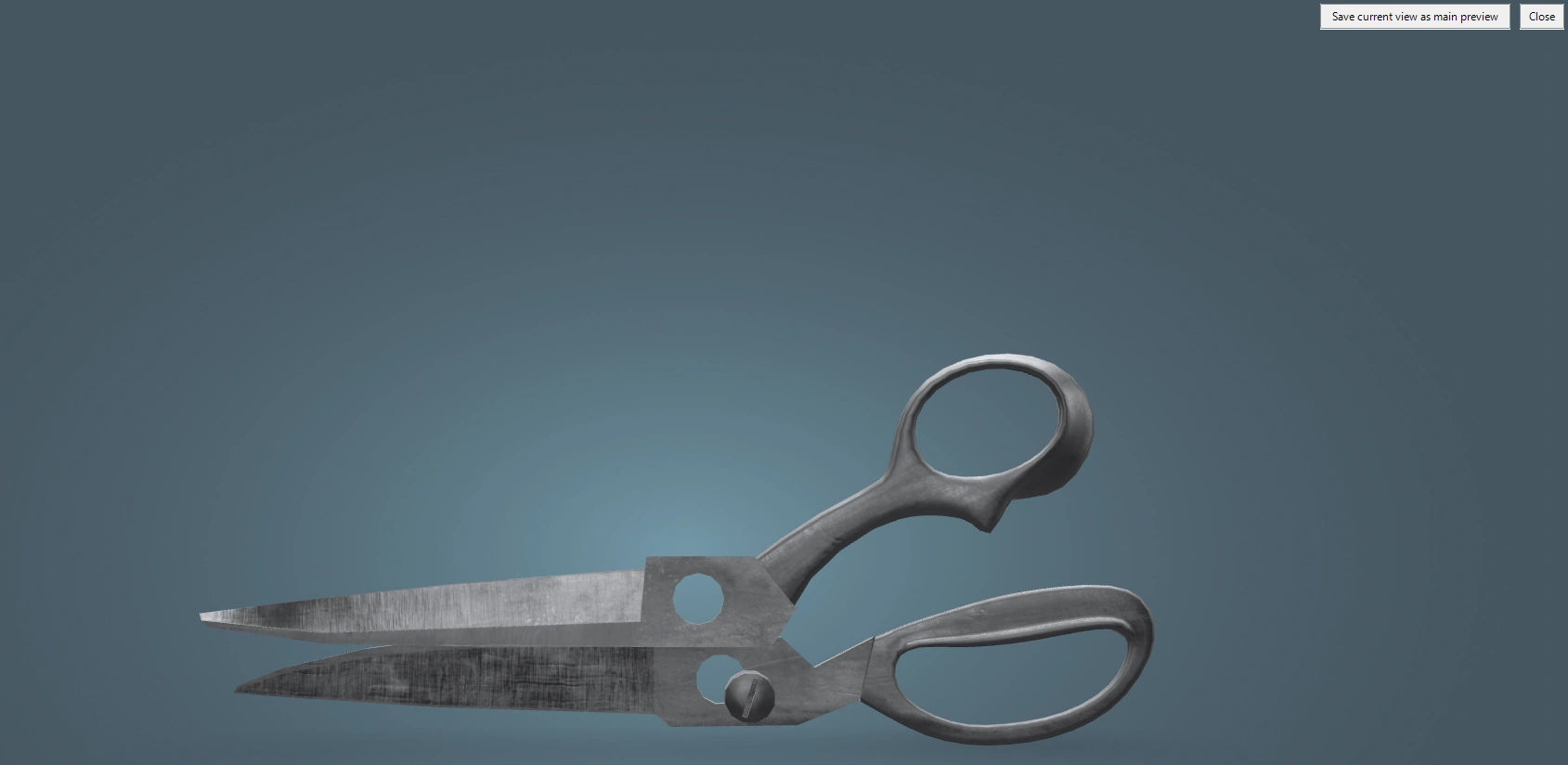
A viewing mode will open where you can rotate and zoom the model in or out; you can also save the view for the thumbnail by clicking the Save current view as main preview button.