Please note that you need Administrator privileges to be able to install Daminion Server!
This Installation Guide can be used with Daminion v9.0 or higher. If an older version of Daminion is used, please consider upgrading to the latest version, otherwise, some of the described steps can not apply to your version.
The Daminion Server Installation package contains:
Daminion Server can be installed from a file downloaded from our website.
- Daminion Server Setup
- Daminion Client Setup
- Daminion guides in pdf format from tutorials
- Zip archieve with backup tools *
*Refer to How to Backup page for more information
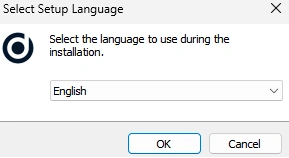
To run Daminion Server setup, double click the file DaminionServerSetup.exe On the first screen, select an installation language.
After confirming the welcome screen and accepting the license agreement, choose between either the Standard or Custom setup.
Choose Standard type and press Next button, for Custom type please follow this page.
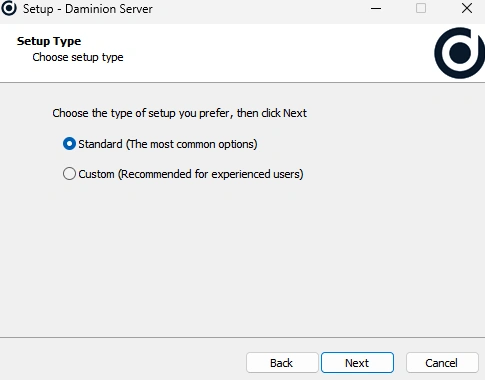
The Standard installation will install DaminionServer and PostgreSQL to the predefinedlocations on your C:\ drive with default settings.
If you want to install the Daminion server or PostgreSQL on a different drive and change settings , please proceed with the Custom installation.
Select a folder path for your uploaded files and press Next.
You can type a folder path of your own or leave the default.
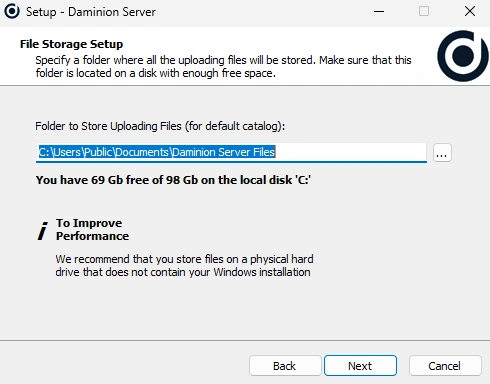
We recommend that you use a different physical hard drive than the one your Windows OS is installed on.Please read the article Selecting the Right Storage Scheme for helpful information on choosing the right storage theme for your personal needs.
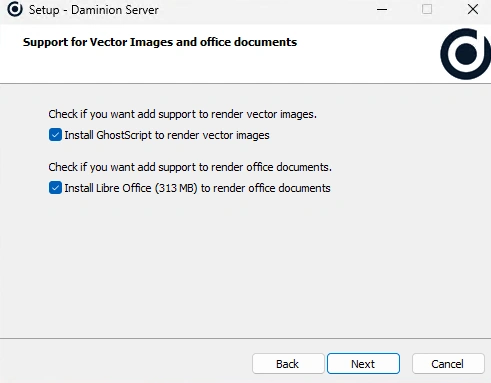
In this step choose that third-party tools need to install:
- GhostScript – generate preview for vector images
- Libre Office – Generate preview for office documents.
All Third-party tools can be installed later from Administration Panel.
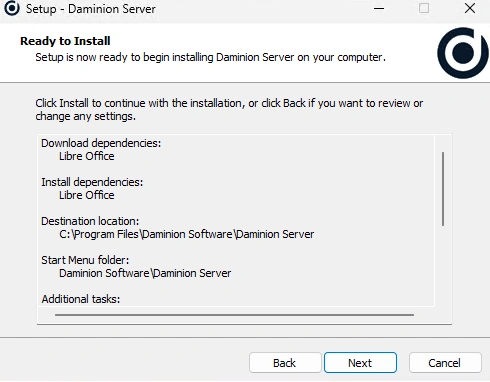
After you have chosen whether or not to add the program to the Start Menu and to create a desktop icon, Daminion is ready to install. Click Next.
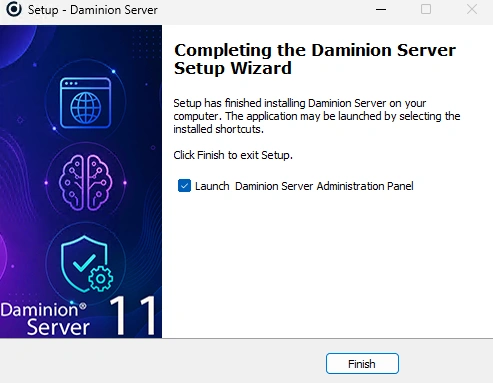
Click Finish to exit setup. Daminion Desktop Client application will be installed automatically on the server machine.
On client workstations, it should be installed manually: Installing Daminion Standalone (Client)