
Thumbnails browser
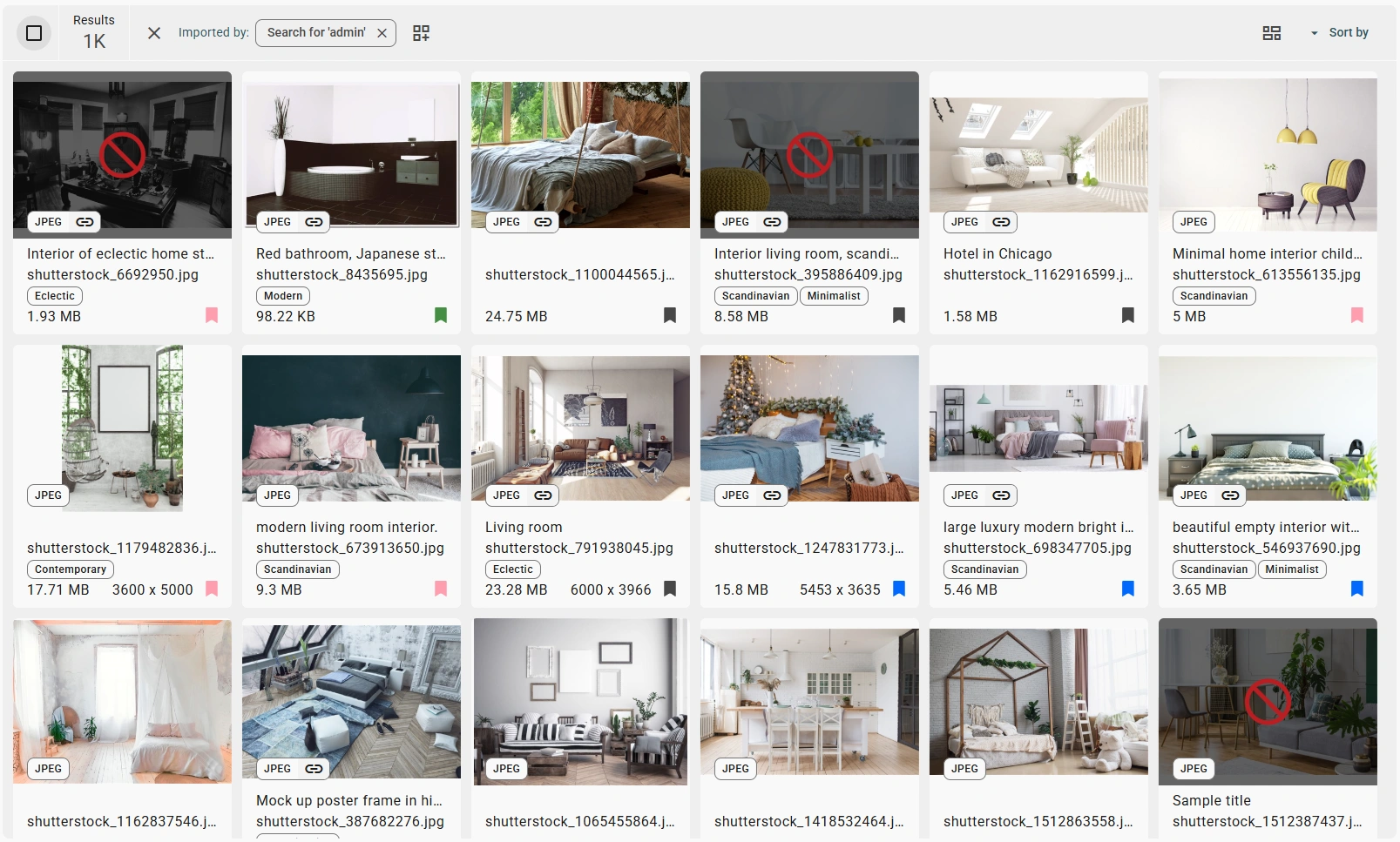
This is the main thumbnail browser view. It is available when you have performed a search or selected a tag.
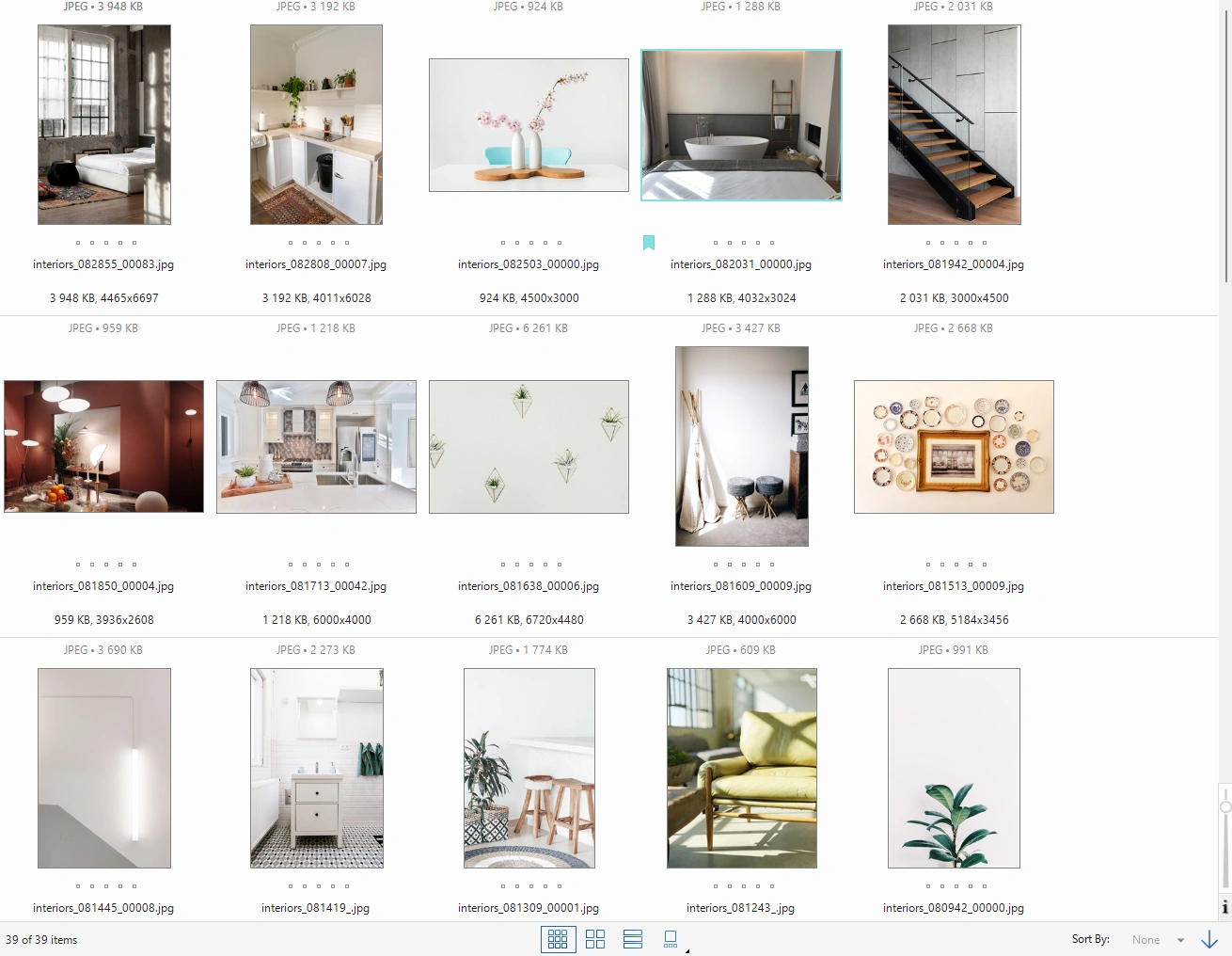
Daminion displays the assets in a grid view with detailed metadata. Each asset shows:
- Thumbnail preview of the file
- Filename and format (e.g., JPEG)
- File size and image dimensions
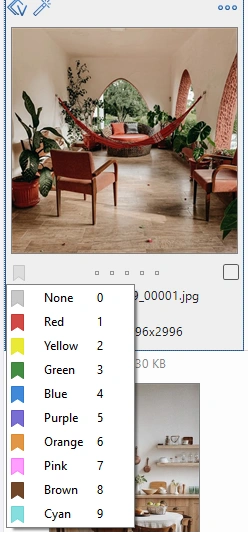
- Color Label — colored flags at the bottom
- Search filters — at the top, showing filters applied (e.g., "Imported by: Search for 'admin'")
- Total results count — displays the number of imported files (1K = 1000 files)
You can sort, filter, and organize the imported files directly from this view using the available options.
For more details on search and navigation, see here.
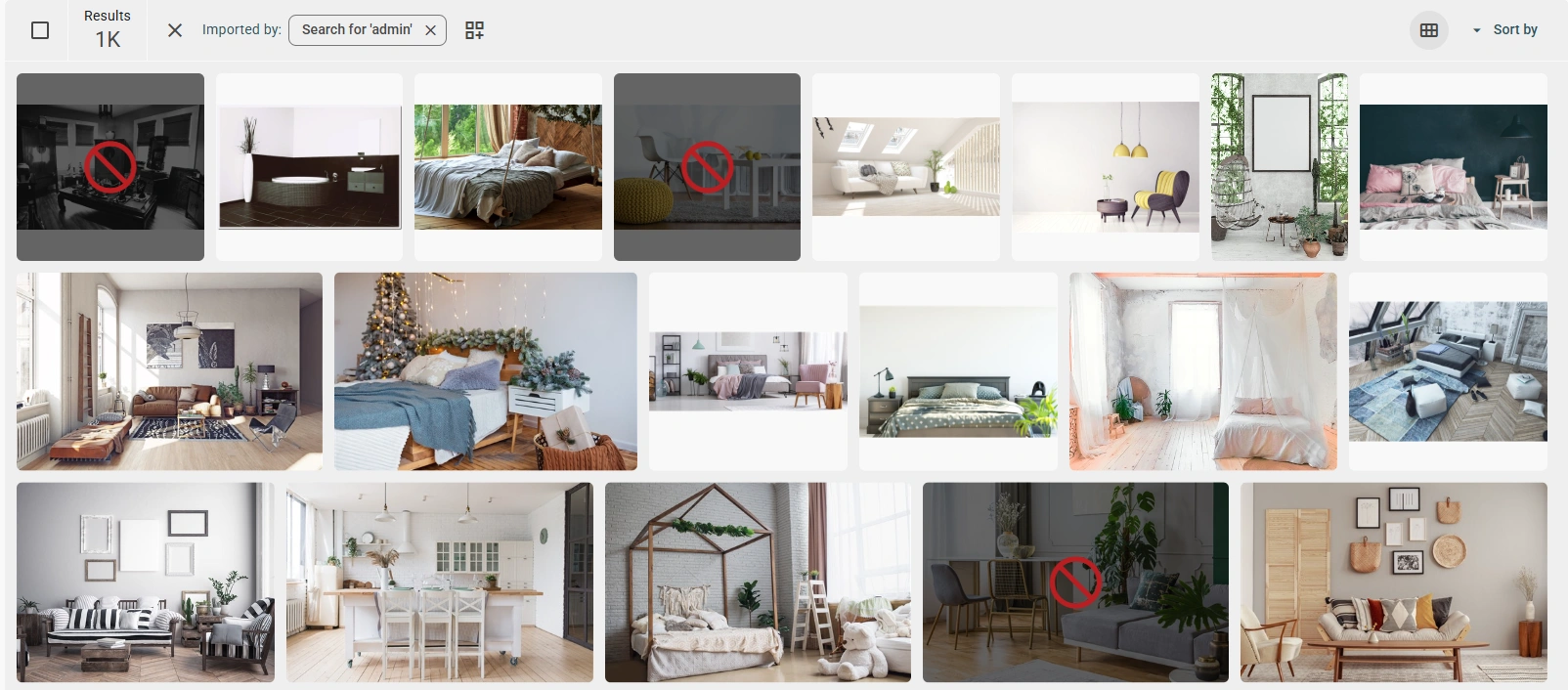
Viewing Options
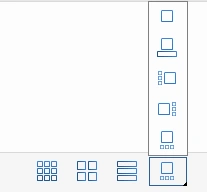
You can change how imported files are displayed using the view mode buttons in the top toolbar:
- Grid view — Shows files as thumbnails in a grid layout (default)
- List view — Displays files in a detailed list format with columns
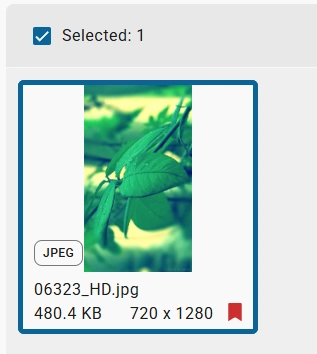
Let's look at the thumbnail functionality.
Clicking the rectangle icon 🀆 allows you to select one or more files and perform various actions on them.
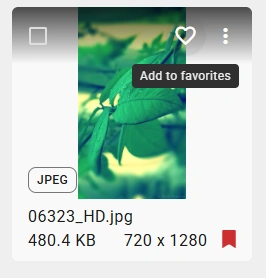
The heart icon ❤︎ lets you add a file to your favorites.
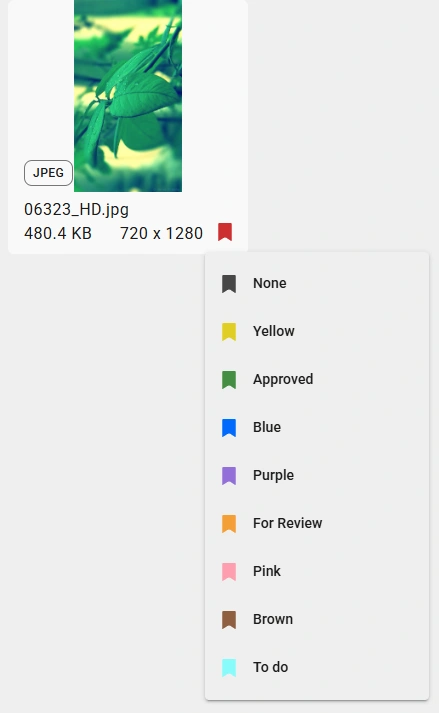
The label icon 🔖 allows you to quickly assign a tag to a file; see here for more details on tags.
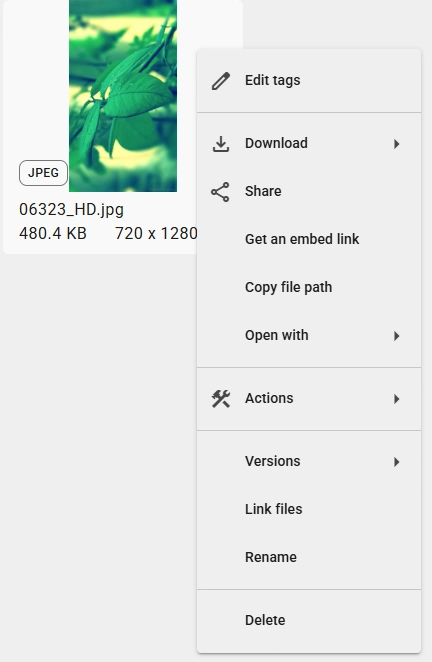
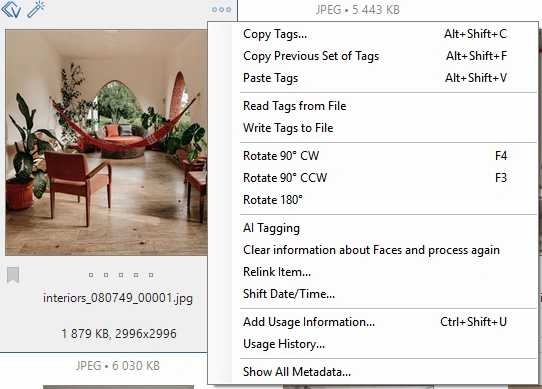
Clicking the menu icon ⋮ opens the file action menu.
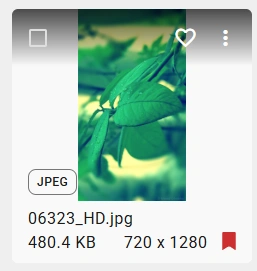
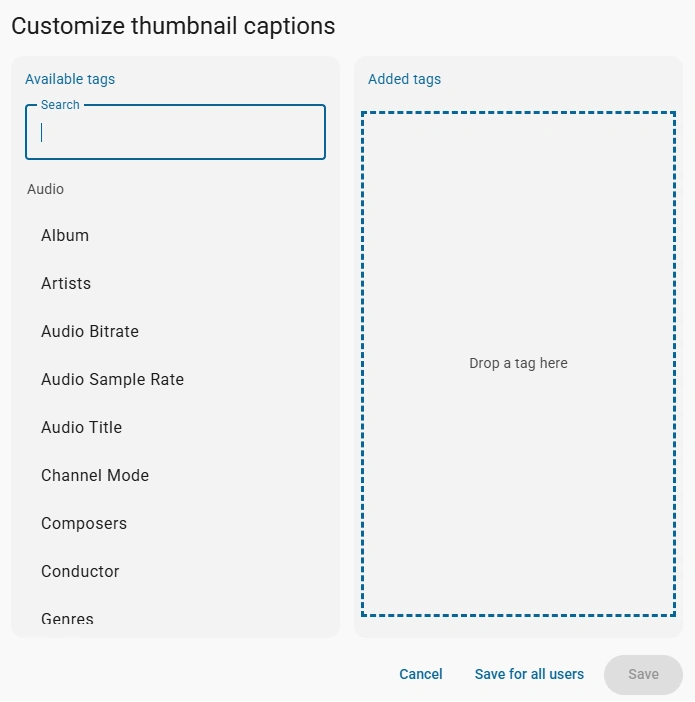
By default, the caption displays the title, description, or filename—whichever is available first; the caption format can be customized in the settings.
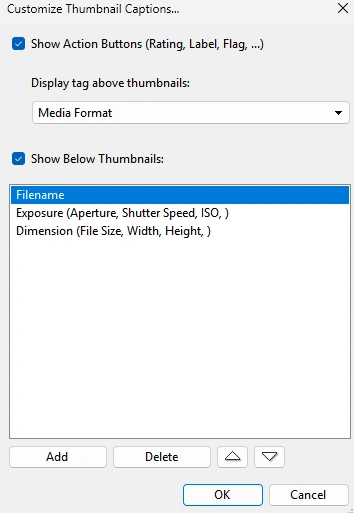
To do this, open Settings > User Interface > Thumbnail Caption and click Customize.
Changing this setting requires the "Edit Default Interface Settings" permission; see here for more details on permissions.
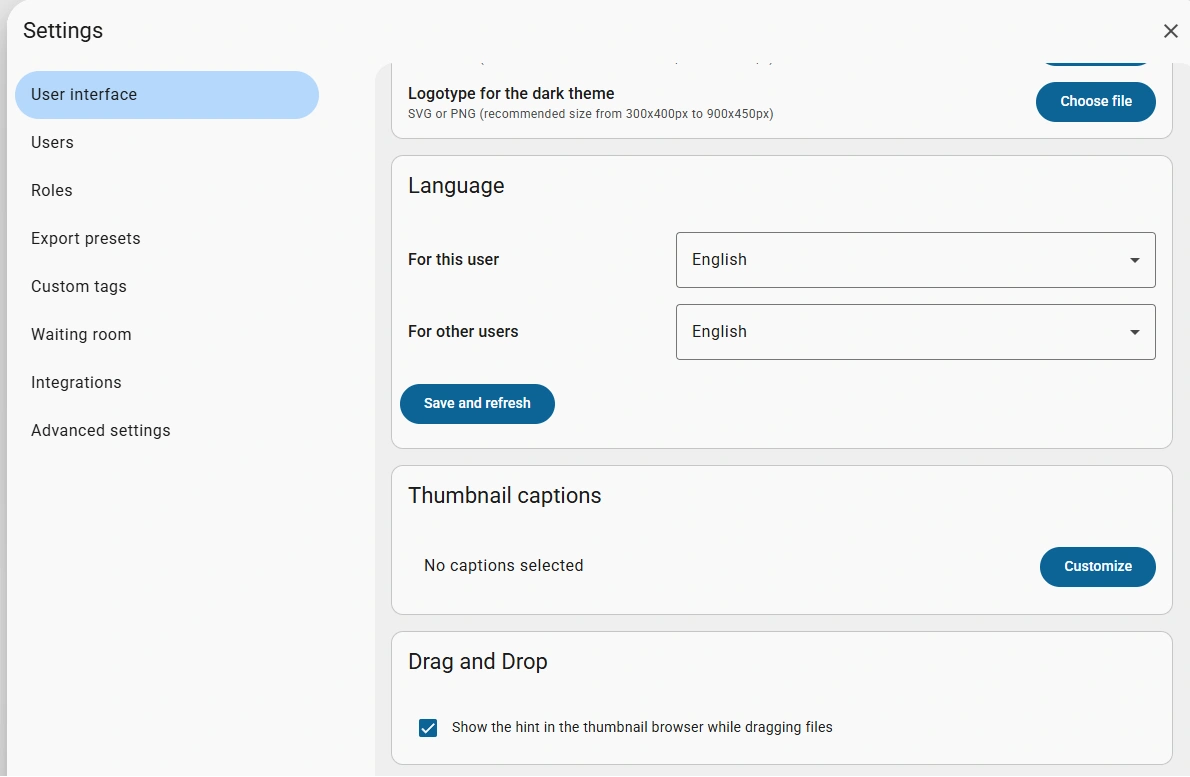
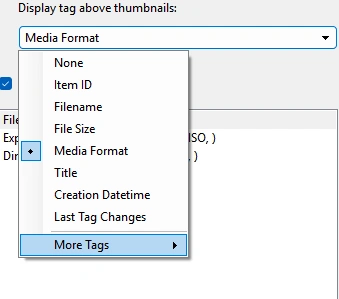
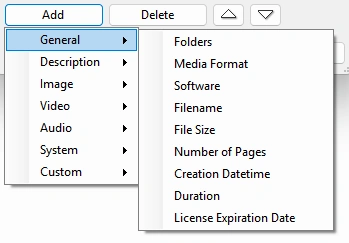
In the window that opens, select which tags you want to display as captions on file thumbnails. You can choose from all available tags in your catalog. The changes can be applied to all users or to the current user only.
Performance Note: Selecting a large number of tags may slow down the interface performance, especially when working with large collections. For optimal performance, select only the tags you need for quick reference.

Note that visibility of some tags can be limited for some user groups by Tag Access Restrictions. Users with no access to tags used in thumbnail captions, will not see them.