
Create and edit tags
Hierarchical tags are managed globally and can be created, edited, and organized in the Filters panel.
Create tag
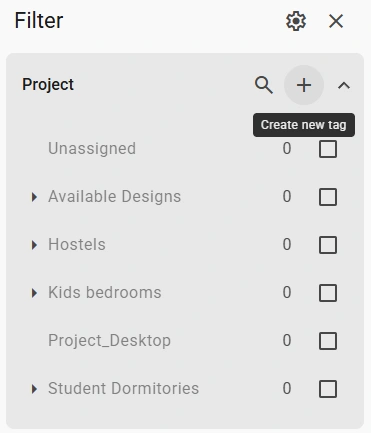
Expand any tag in the Filters panel and click the + icon to create new tag values.
Enter the tag name in the dialog and click Create.
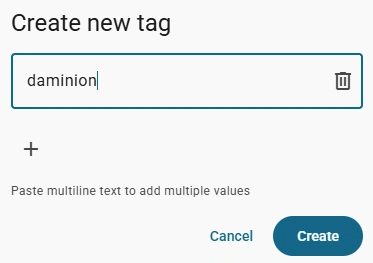
To create multiple tags at once, click the + icon for each additional tag, or use the bin icon to remove entries.
Tips:
- Use a backslash / to create hierarchical tags.
- You can copy newline-separated tags and paste them into this window using the keyboard shortcut Win or ⌘ + V.
Add child tag
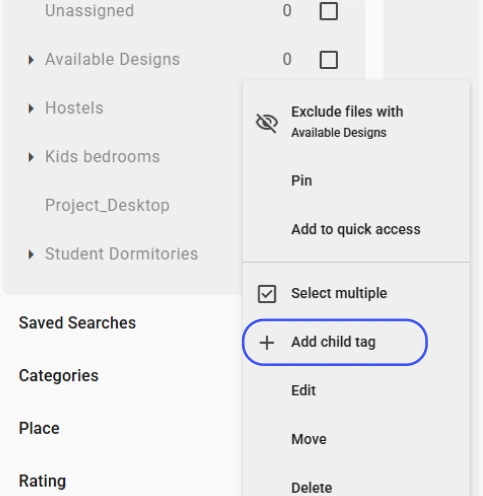
To add sub-tags under an existing tag, hover over the tag to reveal the three dots icon and click it. From this menu, you can:
- Add child tag
- Edit tag names
- Move tags to a different parent
- Delete individual tags
- Delete multiple tags at once
When you create new tags during the assignment process (in the Properties panel or Tag Editor), they are automatically added to the Filters panel and become available for future use.
Edit Tag
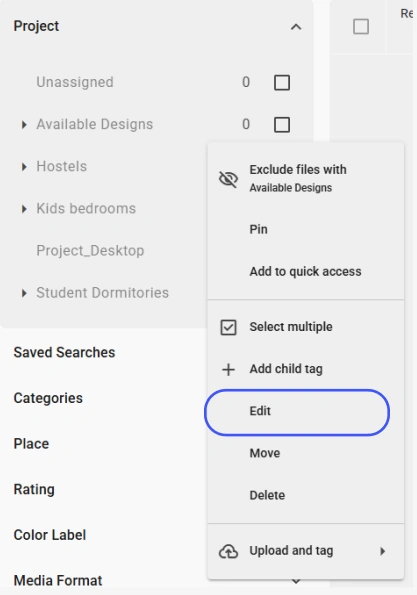
When you select the option to edit the tag name, a modal window displaying the current name will appear; clear it and enter a new name, or edit the existing one.
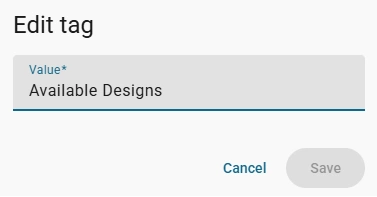
If such a tag already exists, you will be prompted to merge the tags.

Move Tag
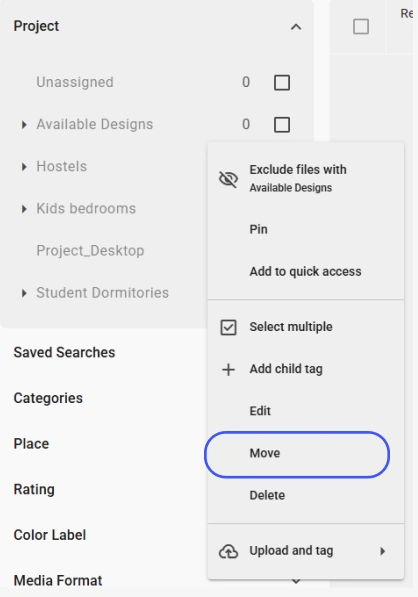
When selecting the "Move tag" option, a window will appear with an input field for searching for the target tag—the one into which you wish to move the current tag.
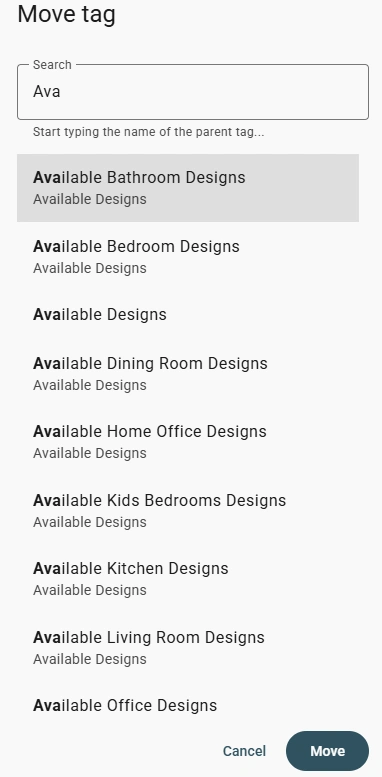
If a tag with the same name already exists within the target tag, you will be prompted to merge them.
Delete Tag
Only the tag value itself will be deleted, not the files to which it was assigned!
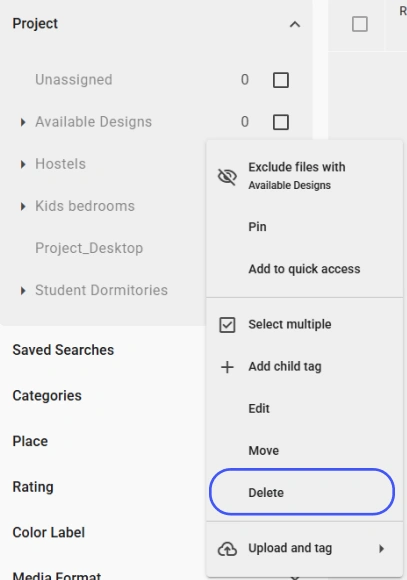
Selecting the delete option will trigger a pop-up window asking you to confirm the tag deletion.

Delete multiple
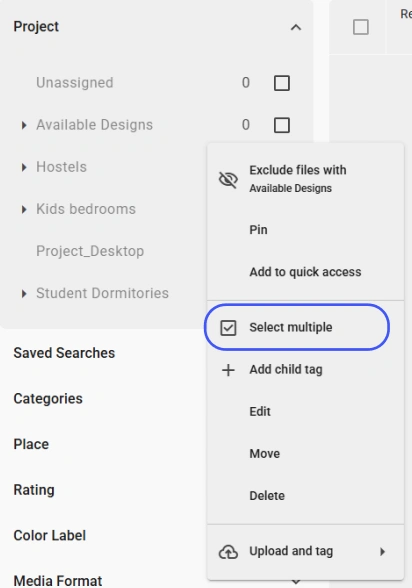
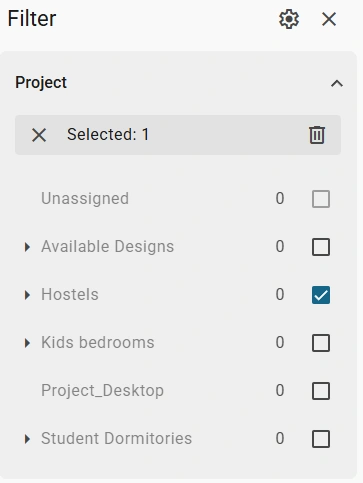
Selecting the Select multiple option switches the interface to bulk tag selection mode; use the checkboxes to select the tags you want to remove, then click the 🗑️ icon.
Create tag
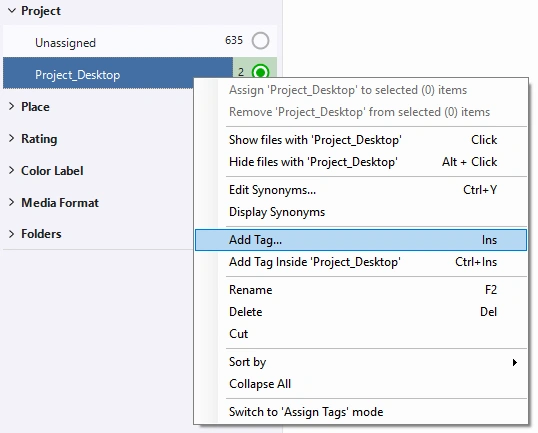
To create a new tag in the Catalog Tags Panel, right-click the corresponding tag-heading and select Add Tag from the submenu or simply press the Ins key.
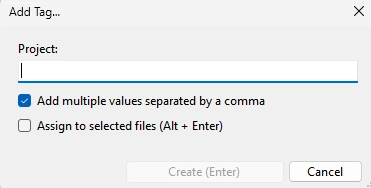
In the dialog box, type the tag name and click Create.
Add multiple values
To create multiple tags at once, separate names with commas.
If you want to create a tag that includes a comma as part of its name, disable the "Add multiple values separated by a comma" option so the comma is treated as punctuation rather than a delimiter.
Assign to Selected Files
If you have already selected one or more items in the browser before opening this dialog box, you can activate the Assign to selected files option.
The new tags will then be assigned immediately after you create the tag name. Otherwise, tag names are created, but they are not assigned to items.
Tips: To create a hierarchical tag, use a \ delimiter
Add child tag
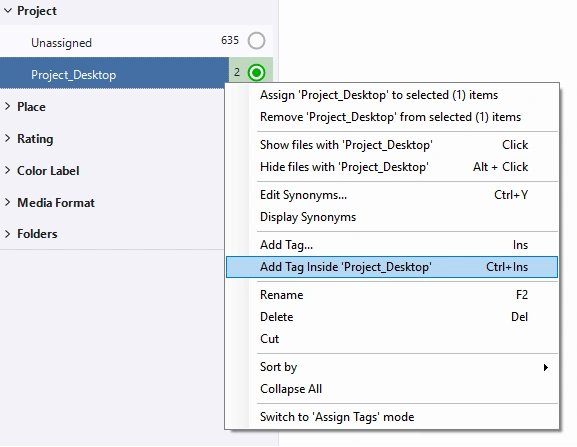
You can also create a tag inside the existing tag. To do this, select a tag and press Ctrl+Ins. Alternatively, right-click a tag and select “Add Tags inside TagName“.
Move Tag
To move a tag within the hierarchy, select the tag you want to move, hold down the left mouse button, and drag it to its new position. Release the mouse button to complete the move.
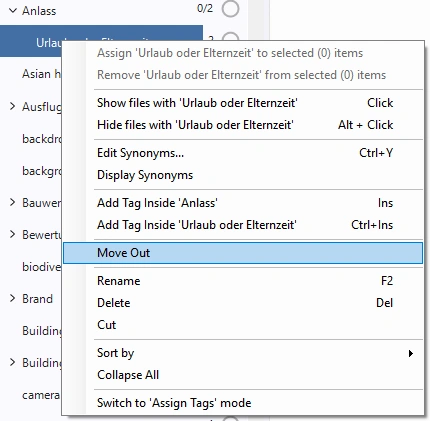
To move a tag up the hierarchy, select the tag, right-click, and choose "Move Out" from the drop-down menu.
Delete Tag
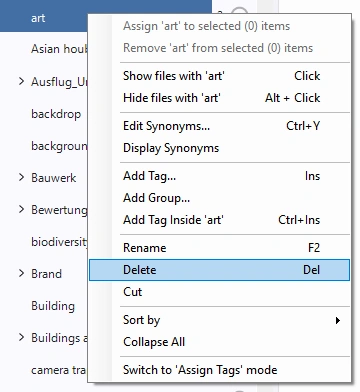
To delete a tag, select the desired value, right-click, and choose "Delete" from the drop-down menu.
Tips: By holding down the Shift key, you can select multiple values and delete them all at once.
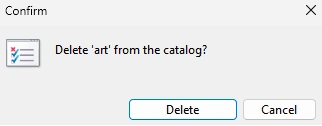
Selecting the delete option will trigger a pop-up window asking you to confirm the tag deletion.