
Custom File Formats
Importing Unsupported File Formats
Daminion supports a wide variety of file formats. However, you may occasionally need to import files in formats that Daminion doesn't recognize by default. You can add these custom formats manually.
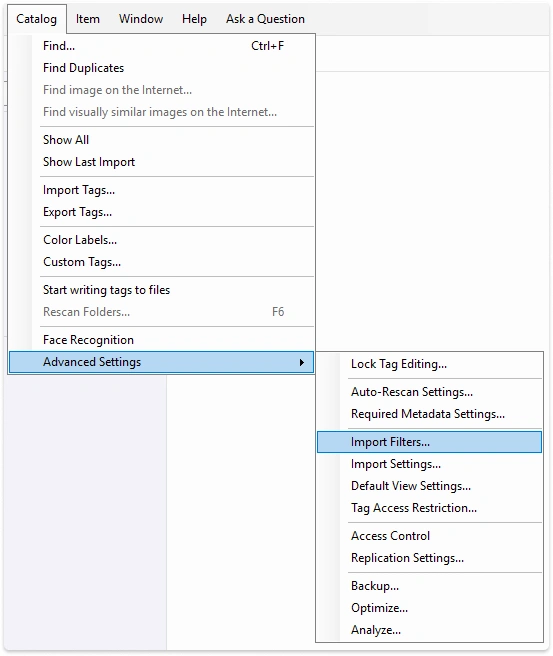
To add an unrecognized file format to Daminion's import filter:
- Open the File Menu
- Go to Catalog → Advanced Settings → Import Filters
In the dialog box that opens, enter the file extension of your unrecognized file in the text box (in our example, we entered the video format, BRAW).
You can enter multiple file types simultaneously and also add file formats and folders to ignore during import.
All entries must be separated by a semicolon.
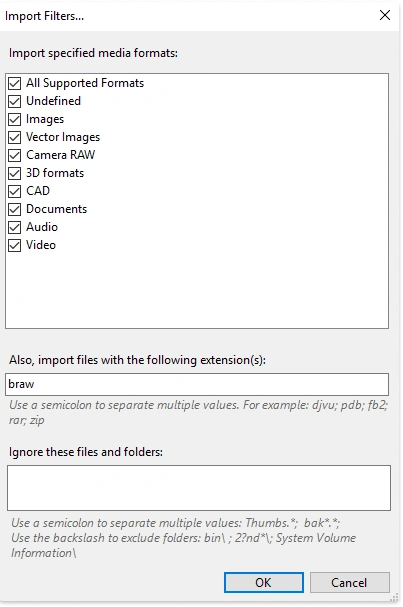
After you have entered the new file extension(s), click OK to confirm your choice and close the dialog box.
The file extensions are now included in Daminion’s list of importable formats.
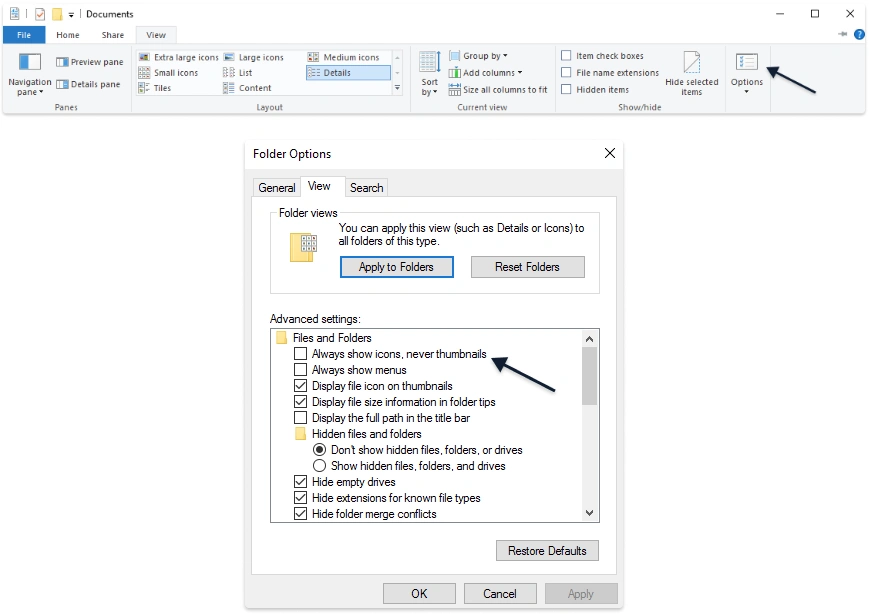
If you have installed an application that generates thumbnails of files in Windows Explorer, we will automatically use these thumbnails in Daminion.
Make sure that file thumbnail support is enabled in Explorer. To do this, in the explorer settings, uncheck the “Always show icons, never thumbnails” box.
In the screenshot below, we can see the thumbnails that were generated for windows explorer using a third-party application, the new file format is displayed in Tags Panel Other>BRAW
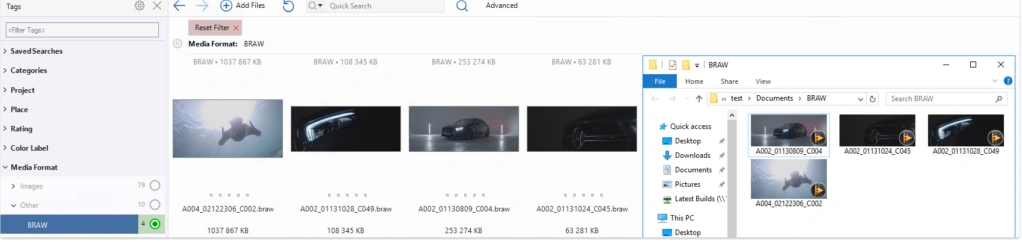
Once imported, Daminion handles custom file formats like any other media file. If the format is associated with an external viewer in Windows, double-clicking the file in Daminion will open it in that viewer.
Thumbnails: If Daminion can't generate a preview thumbnail, it displays a default icon. You can customize this default thumbnail for better visual identification. See Adding Custom Thumbnails to learn how.