
Auto Rescan Settings
Overview of automatic re-scanning settings
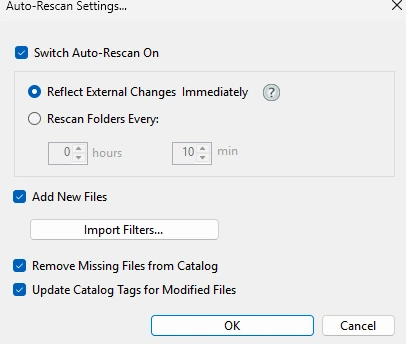
Auto-Rescan Settings Options
Enable Auto-Rescan
Check this box to turn automatic folder monitoring on or off.
Update Method
Choose how frequently Daminion detects external changes:
- File Watcher — Daminion immediately detects external changes and updates your catalog. This method uses fewer resources than scheduled updates. Read more about Automatic Folder Rescan.
- Folder Rescan — Check for changes at specified intervals.
Frequent updates can cause heavy network traffic and performance issues, especially in folders with many files. Use intervals of 10 minutes or longer to avoid problems. Only use shorter intervals in special cases.
Add New Files
Enable this to automatically synchronize newly added files with your catalog. For example, if you import a folder into Daminion and then add more files to the original folder, those new files will appear in your catalog.
Import Filters
Click to configure custom import rules for which file types to include. For details, see Adding an Unknown File Format to Import Filters.
Remove Missing Files from Catalog
Enable this option to automatically delete catalog entries for files that no longer exist.
Links in the catalog that refer to missing original files are then automatically removed from the catalog. Invalid links to original files can occur if, for example, the original files have been deleted or renamed in Windows Explorer outside Daminion.
Update Catalog Tags for Modified Files
When enabled, Daminion updates your catalog metadata to match changes made by external applications. When disabled, Daminion preserves the original catalog metadata and ignores external changes.