Catalog Overview
Daminion Web Access — Home Page
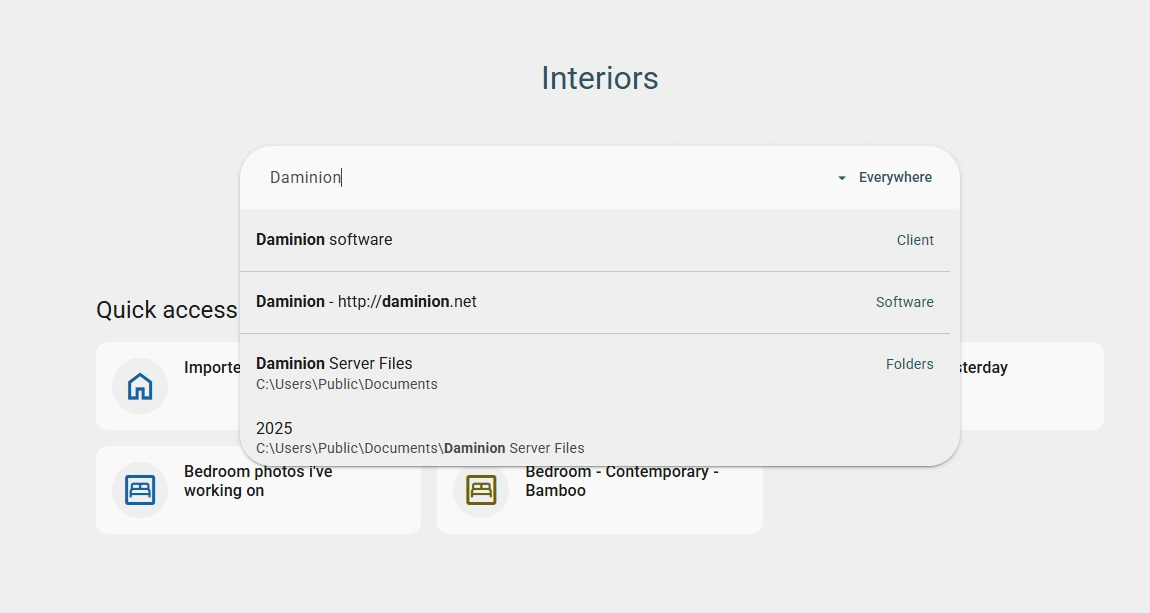
The home page of Daminion Web Access gives you instant access to search, filtering, and file importing.
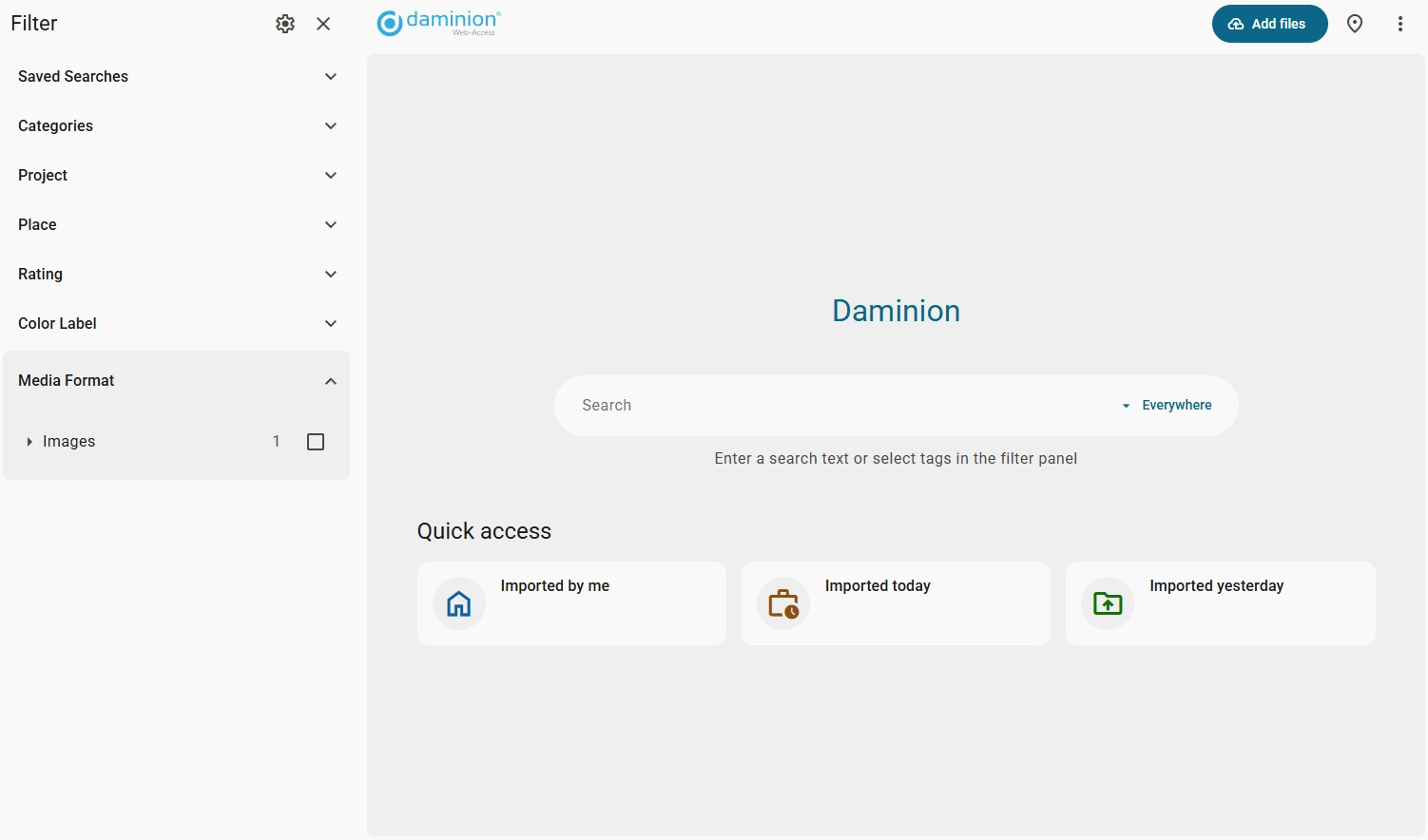
The main area contains a Search bar where you can type keywords to find assets. Use the drop-down next to the search field to limit the search scope (by default, Daminion searches Everywhere — across all tag categories and metadata).
Below the search bar, the Quick access section provides shortcuts to frequently used views: Imported by me shows all files you have uploaded to the catalog, Imported today and Imported yesterday display the most recent imports.
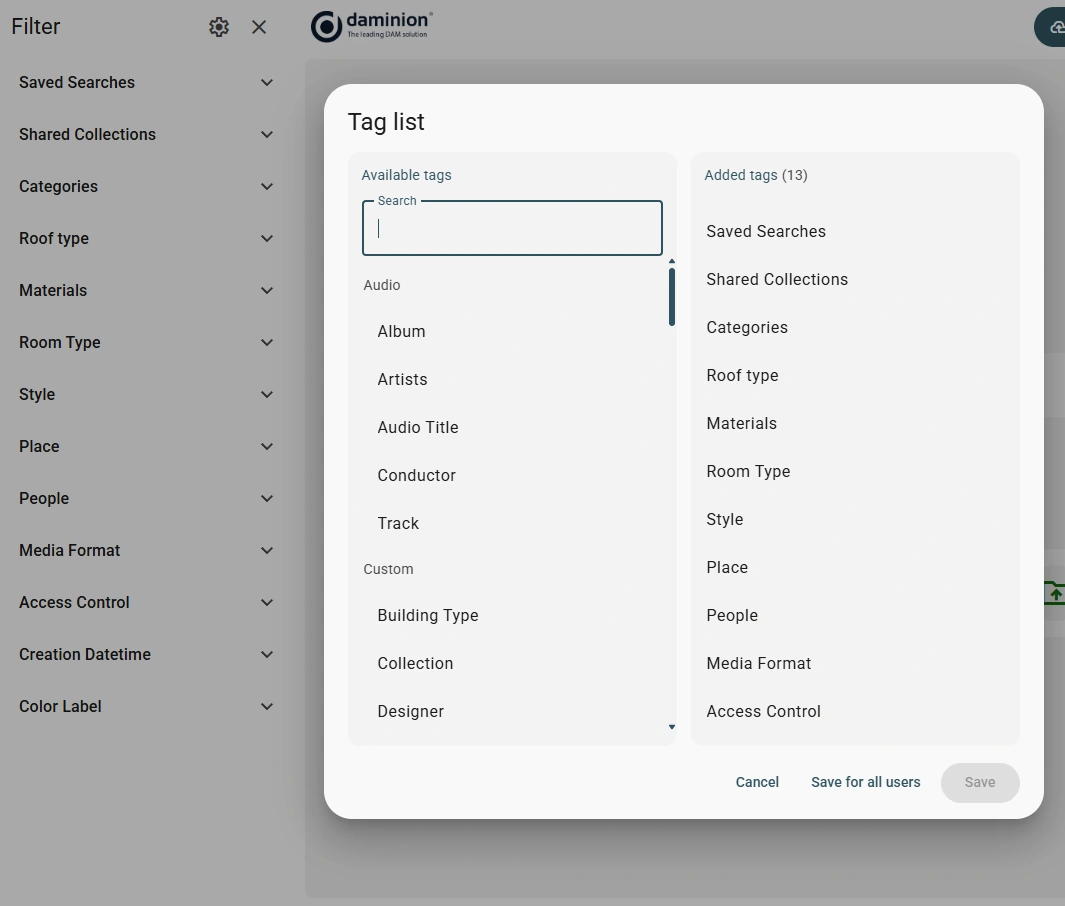
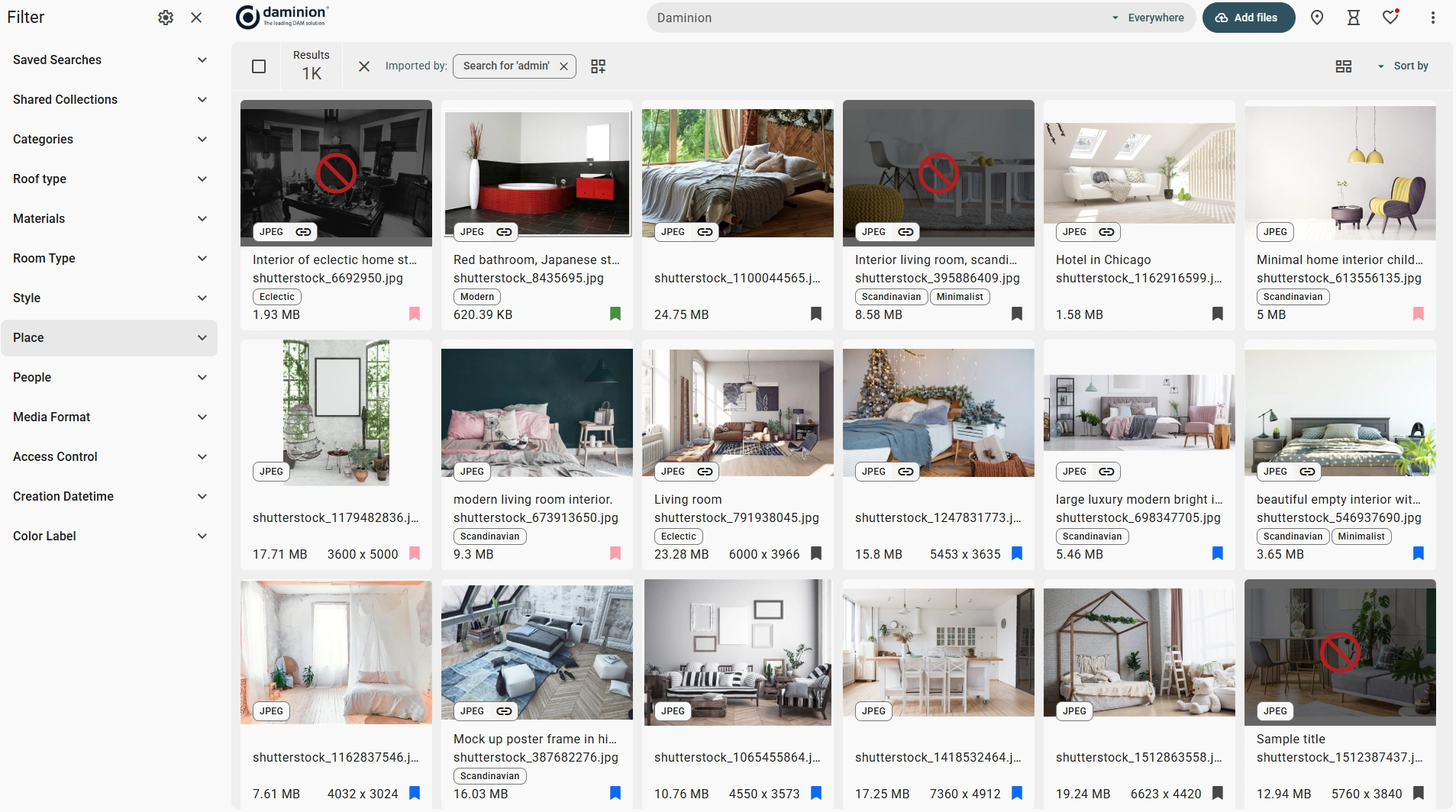
On the left, the Filter panel lets you browse the catalog by tags: Saved Searches, Categories, Project, Place, Rating, Color Label, and Media Format. Expand any section to see the available tag values with item counts, and tick a checkbox to filter the catalog. You can collapse the panel at any time by clicking the X icon, or configure which tags are shown via the gear icon.
In the top-right corner you will find the following controls:
- The Add files button uploads new files to the catalog directly from your browser.
- The map icon switches to the Map view, which displays all geotagged assets as pins on an interactive map, so you can browse your catalog by shooting location. Items without GPS coordinates are not shown in this view.
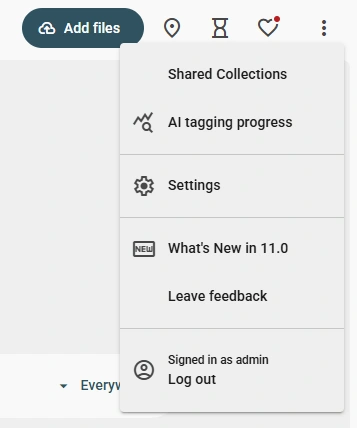
- The kebab menu (⋮) opens a menu with additional options, such as switching the interface language, adjusting view and account settings, and signing out.
Daminion supports integrations with Adobe Creative Cloud apps, Microsoft Office, Active Directory, Entra ID, Dropbox, Google Drive, OneDrive, and metadata standards such as IPTC, XMP, and EXIF.