
Create Catalog
A catalog has already been created by default. If you wish to edit the settings or create additional catalogs, follow these steps.
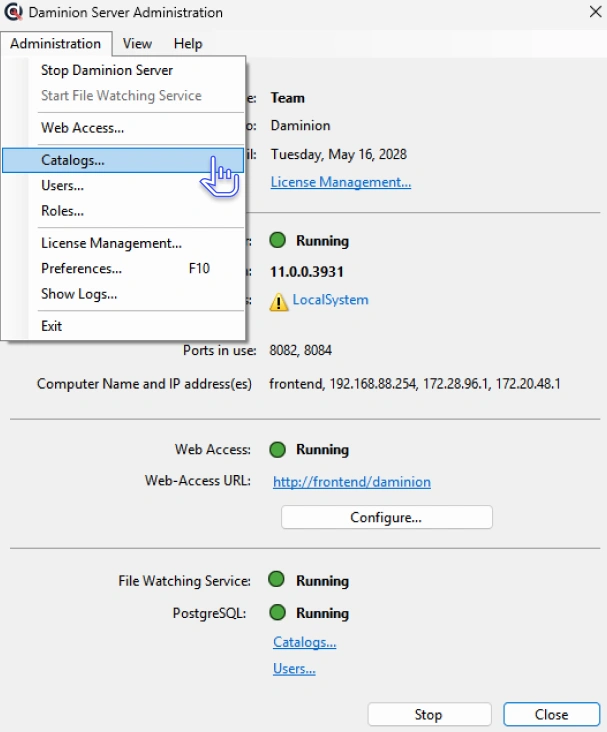
To create a new shared catalog, launch the Daminion Server Administration Panel.
Click the Administration tab and select Catalogs. This launches the Catalogs dialog box as shown in the screenshot below.
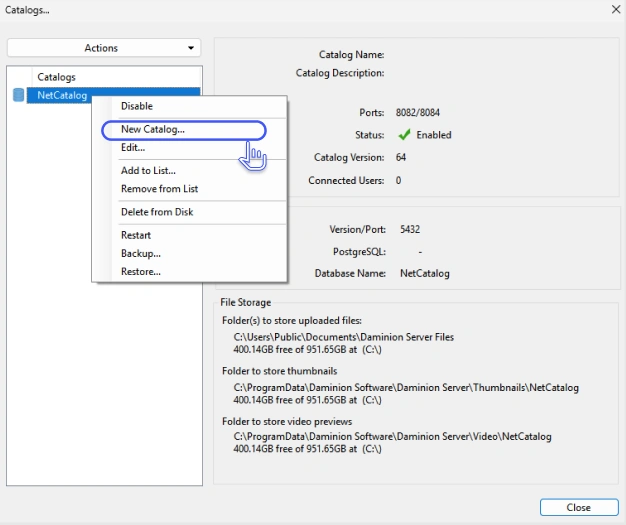
This window displays a list of all catalogs and their settings. To edit the settings, right-click on a catalog and select the desired option (see the next page for details). To create a new catalog, select New Catalog.
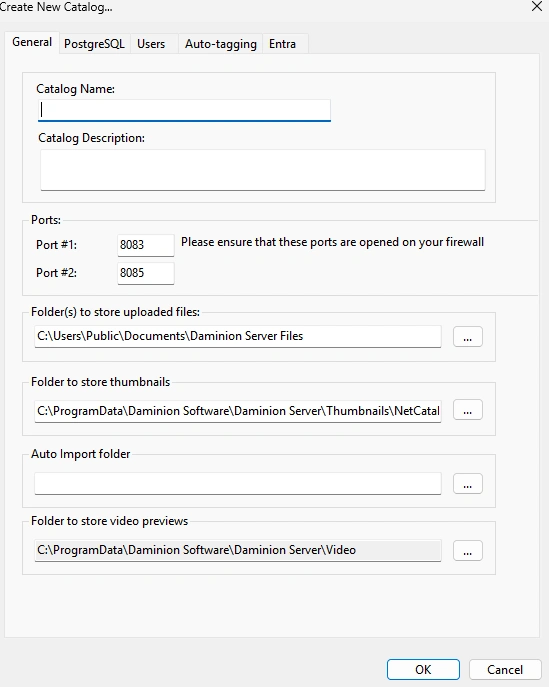
Enter a name for the catalog and a description. You can use the default storage settings or replace them with your own. More detailed catalog setup is described here.
Click OK , and the catalog will be created!
Daminion supports integrations with Adobe Creative Cloud apps, Microsoft Office, Active Directory, Entra ID, Dropbox, Google Drive, OneDrive, and metadata standards such as IPTC, XMP, and EXIF.