
Troubleshooting 3D Preview Creation
The article details potential messages that may appear when encountering issues opening a 3D model.
When opening a 3D file in full-screen mode, instead of the  button, you see the following message:

You can review the following statuses by clicking on the text Check status.
There is no preview agent installed on the server to convert the local file
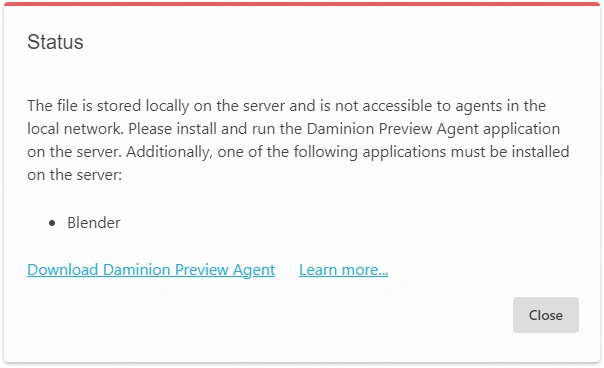
Install Preview Agent Locally
If the files were uploaded to the server locally, you will need to install the Preview Agent on the server to process them.
Ensure that software supporting this file format is installed on the server. (For example, for .blend files, use the Blender program.)
No preview agents for file conversion found
The server is set up to associate files with conversion applications, but currently, there are no agents running on the network.
Install the Preview Agent on the computer where the software can open this format.
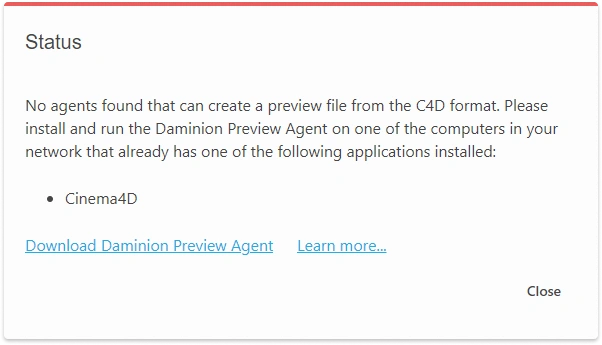
Install Preview Agent on a Computer with C4D Support
The server is set up to associate files with conversion applications, but currently, there are no agents running on the network.
Install the Preview Agent on the computer where the software can open this format.
Preview Agent Cannot Access Files on Network Path
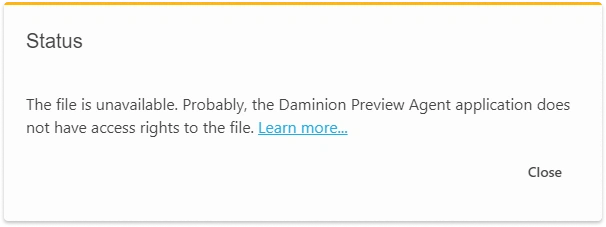
Grant access to files
Make sure that the computer where the Preview Agent is installed has access to the files.
No Configuration for This File Format
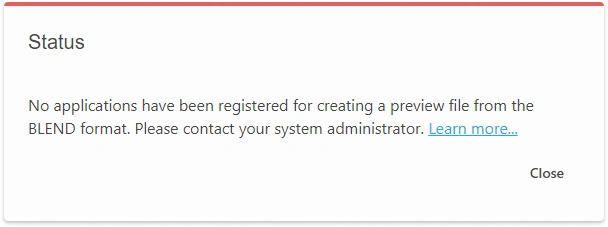
Configure the format mapping
On the server, configure a match between the file format and the conversion application. For more details, refer to this article.
Preview Agents are busy
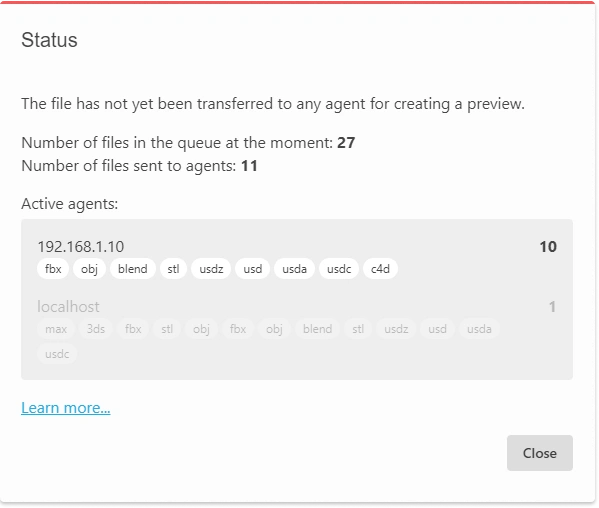
Try again later
The Preview Agents that support format conversion are currently busy processing other files. Please try again later.
File processing has been delayed
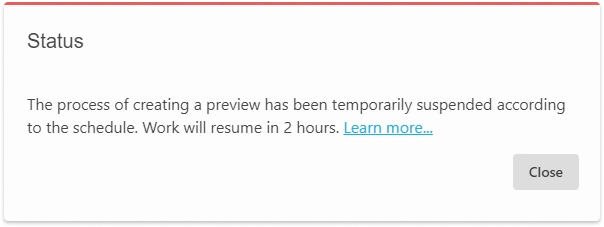
Check the scheduler settings
File processing is delayed according to the schedule set on the server. For more details on setting up the schedule, refer to this article.
Unknown error
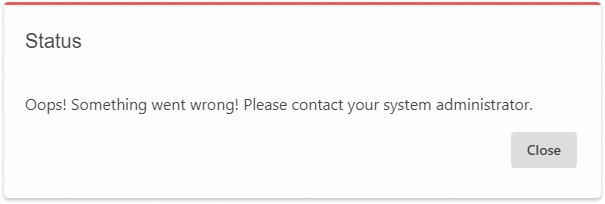
Contact support
Contact your IT team or Daminion Support.