
Fullscreen Mode
Fullscreen Viewing Mode
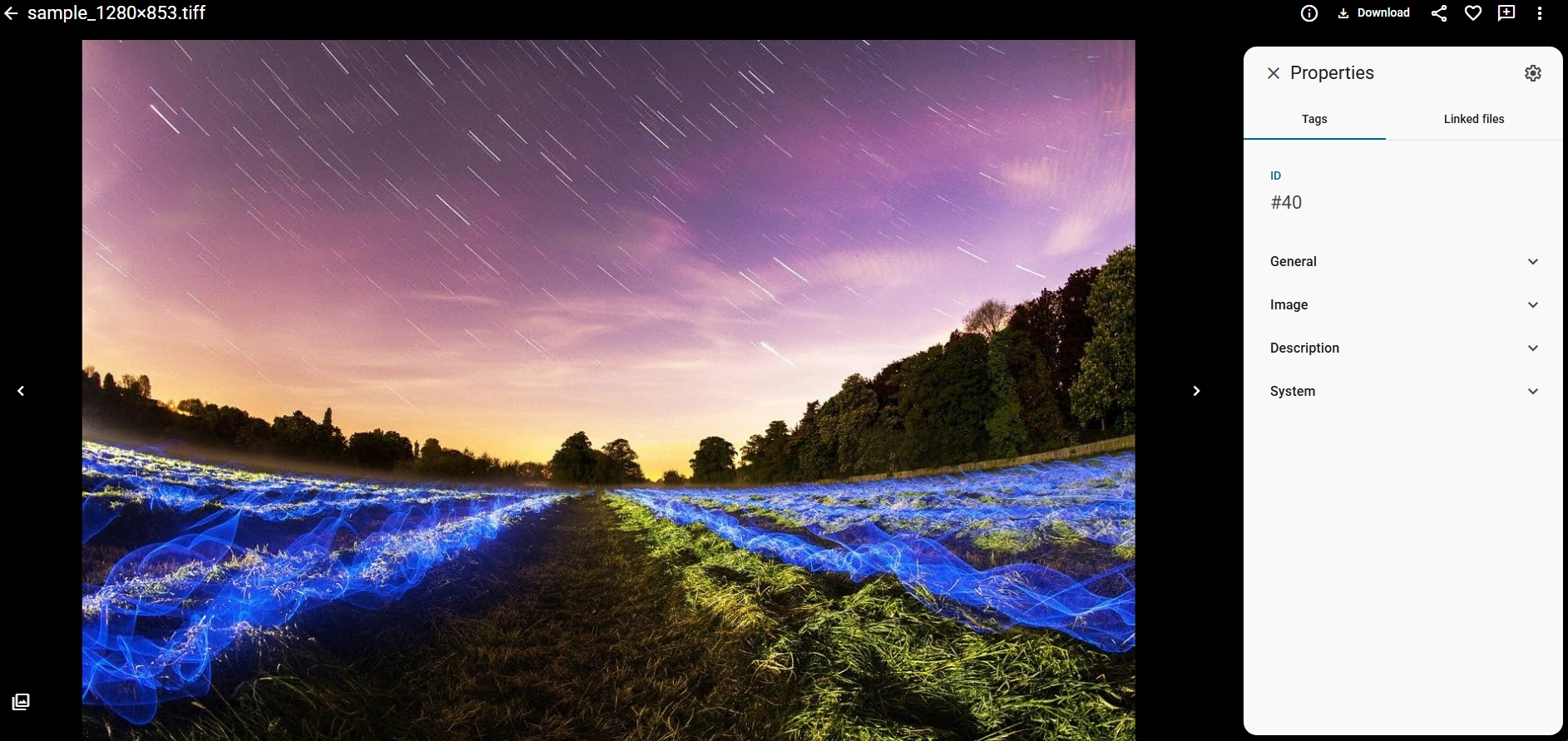
Fullscreen mode provides an immersive viewing experience for your files with a clean, distraction-free interface. This mode is ideal for reviewing images, documents, and other media in detail.
How to Enter Fullscreen Mode
Click on any thumbnail in the Thumbnails Browser to open the file in fullscreen mode.
Exiting Fullscreen Mode
Click the back arrow button or press the Escape key to return to the Thumbnails Browser.
Key Features
The fullscreen view displays your file prominently in the center of the screen. On the right side, a properties panel shows file metadata, tags, linked files, and other detailed information. At the top of the screen, you'll find navigation controls and options to download, share, or mark files as favorites.
Navigation
Use the arrow buttons on either side of the image to navigate between files in your current view or search results.

Fullscreen Toolbar
The top toolbar provides quick access to key file actions:
- Info (i) — View file details and metadata
- Download — Download the file to your computer
- Share — Share the file with others or copy the sharing link
- Favorite (♥) — Mark the file as a favorite for quick access later
- Add (+) — Add the file to a collection or create a new one
- More (⋯) — Access additional options and actions
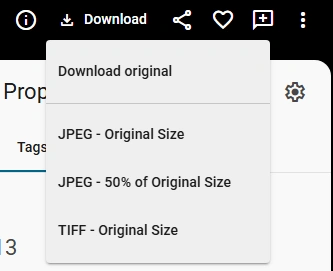
Click the Download button to access multiple download formats and sizes:
- Download original — Download the file in its original format and size
- JPEG - Original Size — Download as JPEG at full resolution
- JPEG - 50% of Original Size — Download as JPEG at reduced size for faster transfer
- TIFF - Original Size — Download in TIFF format at full resolution
Choose the option that best fits your needs based on file format and size requirements. See this article for more details on the export preset.
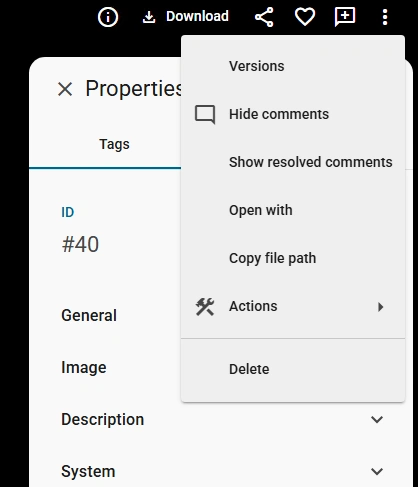
More Options Menu
Click the three-dot menu button to access additional file actions:
- Versions — View and manage different versions of the file
- Hide comments — Toggle visibility of comments on the file
- Show resolved comments — Display comments that have been marked as resolved
- Open with — Open the file with an external application or viewer
- Copy file path — Copy the file's path to your clipboard
- Actions — Access additional file operations and workflows
- Delete — Remove the file from the catalog
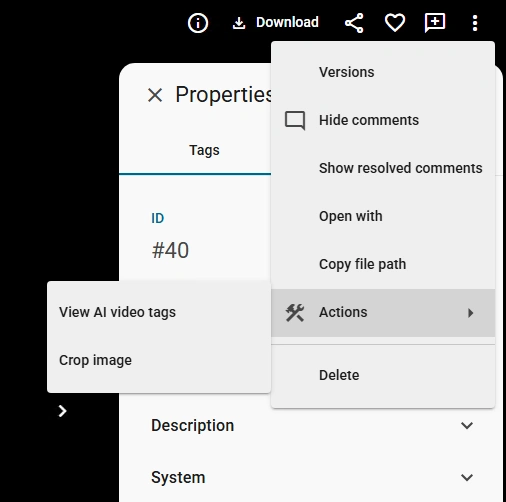
The action menu contains additional applications for working with files, such as:
View AI Video Tags
Daminion automatically analyzes images and videos using AI to detect objects, scenes, and other visual elements. Click this option to view the AI-generated tags that have been automatically assigned to your file based on its visual content.
Crop Image
Use this tool to crop and resize images directly within the fullscreen viewer. Select the area you want to keep, and the cropped version will be saved or downloaded based on your selection.
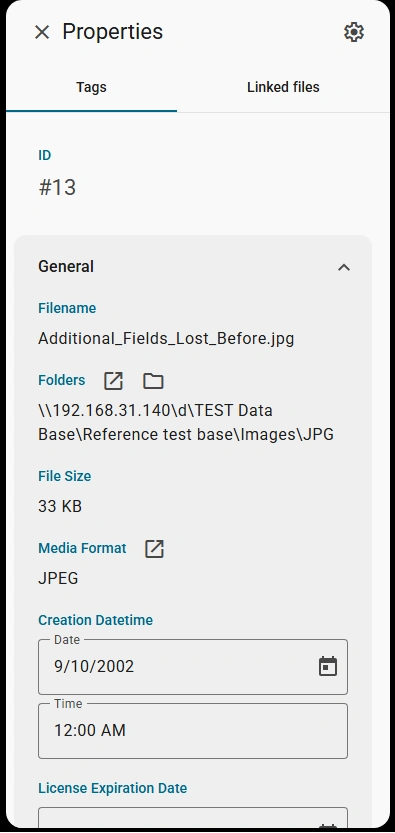
File Properties
The Properties panel displays detailed metadata about your file:
ID — Unique identifier assigned to the file in the catalog
General Information:
Tabs with tag groups. You can expand or collapse a tag group. To configure the groups, click the gear icon ⚙️ and select the desired tags.
Tabs:
- Tags — View and manage tags assigned to the file
- Linked files — See related or dependent files
- Transcription — If this is a video or audio file, the AI-generated transcript is displayed here (only if the file has been processed by AI, learn more about AI tagging).
How to configure the properties panel

Click the gear icon.
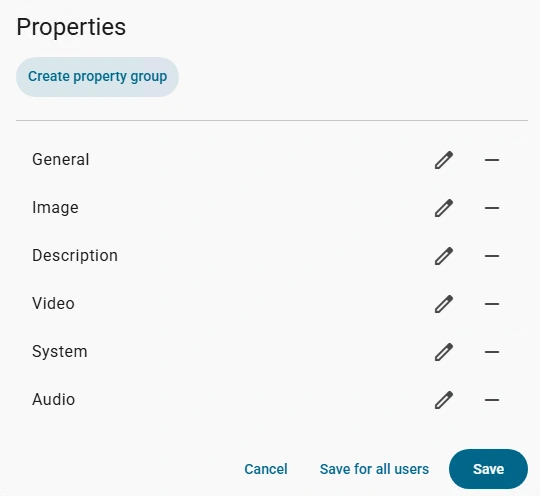
Customize Properties Display
This settings panel allows you to control which metadata property groups are displayed in the Properties panel for files.
Available Property Groups:
- General — Basic file information (filename, size, format, creation date)
- Image — Image-specific metadata (dimensions, resolution, color profile)
- Description — File descriptions and notes
- Video — Video-specific metadata (duration, codec, frame rate)
- System — System-level information (file permissions, ownership)
- Audio — Audio-specific metadata (bitrate, sample rate, channels)
Customization Options:
- Create property group — Add a custom metadata group for your catalog
- Edit (pencil icon ✏️) — Modify the properties within each group
- Remove (minus icon) — Hide a property group from the Properties panel
Save Options:
- Save — Apply changes to your user profile only
- Save for all users — Apply changes globally for all catalog users
- Cancel — Discard changes
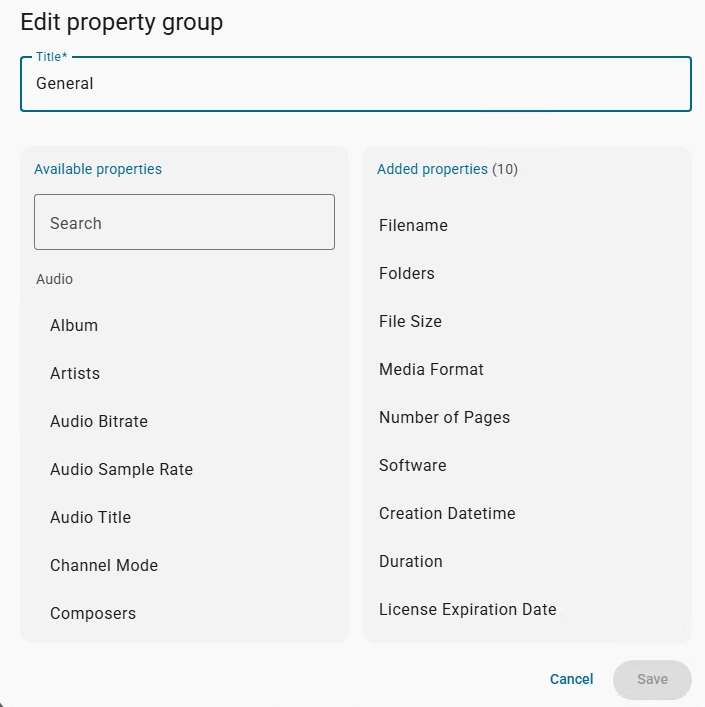
Edit Property Group
Customize which metadata fields are displayed in a property group.
How to Use:
- Title — Name of the property group (e.g., "General", "Image", "Audio")
- Available Properties (left) — Browse all available metadata fields. Use the search box to quickly find specific properties.
- Added Properties (right) — Fields currently included in this group. Drag properties from Available to Added to include them, or remove them by dragging back to Available.
- Save — Apply your changes to the property group
Example:
The "General" group currently includes: Filename, Folders, File Size, Media Format, Number of Pages, Software, Creation Datetime, Duration, and License Expiration Date.
You can add audio properties (Album, Artists, Audio Bitrate, etc.) if needed, or remove properties you don't need.
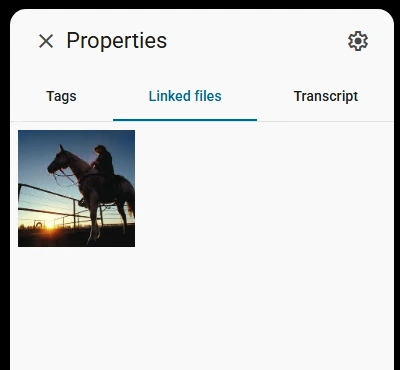
Linked Files — See related files connected to this item. This shows thumbnails and information about files that are linked or associated with the current file. Useful for finding related assets, versions, or dependent files.
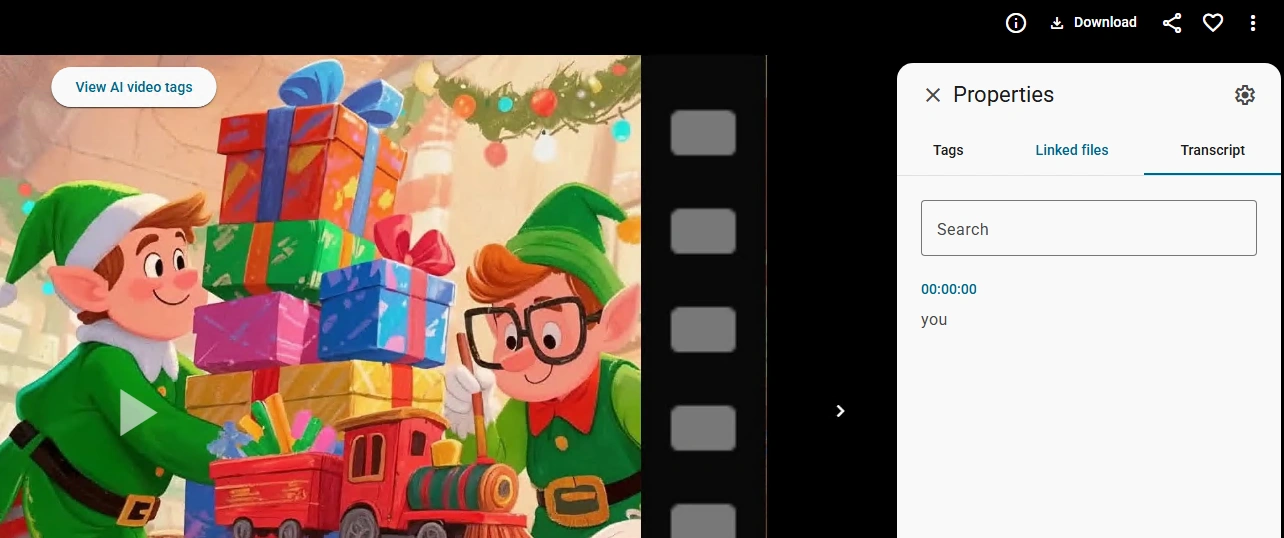
Transcript — View text transcription of the file (available for audio and video files). If your file has been transcribed or contains embedded text, it will appear here for easy searching and reference.

Carousel view – clicking the button enables carousel-style navigation, displaying the files adjacent to the current one.
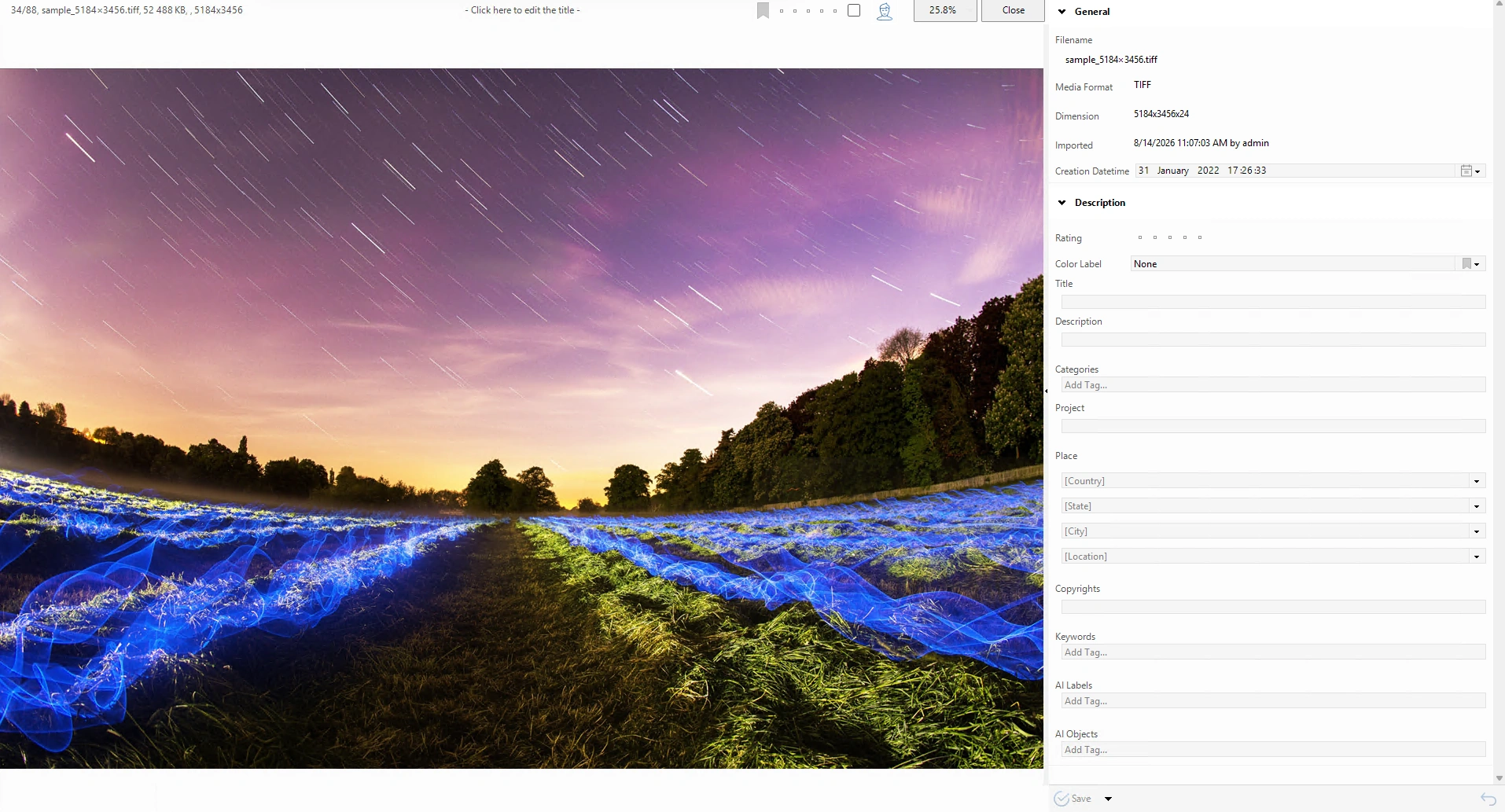
I see the Description section of the Properties panel. Let me provide documentation for these fields:
Description Section
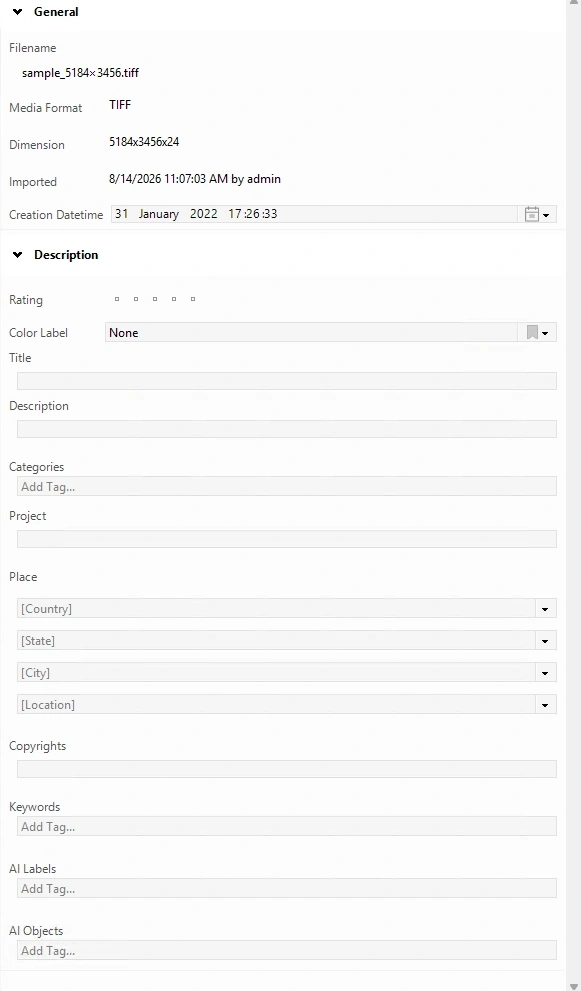
The Description section allows you to add detailed metadata and organizational information to your files.
Rating — Assign a star rating (1-5 stars) to quickly evaluate or prioritize files.
Color Label — Apply a colored label for visual organization and quick identification in the Thumbnails Browser.
Title — Add a custom display title for the file, separate from the filename.
Description — Write detailed notes, captions, or information about the file content.
Categories — Assign one or more categories to organize files by type or purpose. Click "Add Tag..." to add new categories.
Project — Associate the file with a specific project from your project list using the dropdown menu.
Place — Define geographic metadata including Country, State, City, and Location fields. Each has its own dropdown for selection.
Copyrights — Enter copyright information or attribution details for the file.
Keywords — Add searchable keywords to make files easier to find. Click "Add Tag..." to add multiple keywords.
AI Labels — AI-generated category suggestions based on file content analysis. Click "Add Tag..." to accept or add your own labels.
AI Objects — AI-detected objects within the file (for images and videos). Click "Add Tag..." to add detected objects to your metadata.

Rich Text
This is my rich text.
I am a subheading
This is more rich text.
I am a list
Lists are cool

Rich Text
This is my rich text.
I am a subheading
This is more rich text.
I am a list
Lists are cool